Installing prerequisite software
Before installing the actual Exchange Server the prerequisite software needs to be installed as well. Microsoft has a couple of XML files that can be used with the command-line version of Server Manager, ServerManagerCmd.exe
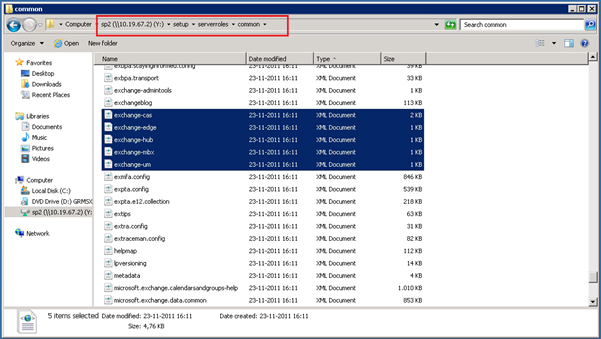
These XML files can be found in the directory D:\Setup\ServerRoles\Common (where “D” is the installation source, i.e. your DVD or network share) and are named Exchange-Serverrole.XML:

You can start installing the prerequisite by opening a command prompt and execute the following command:
ServerManagerCmd.exe –ip Exchange-Cas.XML
This will install the prerequisite software for the Exchange 2010 Client Access Server. Although the server not always requests to I personally always recommend rebooting the server after installing the prerequisite software.
Preparing Active Directory
To prepare Active Directory for Exchange Server 2010:
setup.com /PrepareExchangeLegacyPermissions
(this step only needs to be performed when upgrading from an earlier version of Exchange)
setup.com /PrepareSchema
setup.com /PrepareAD /OrganizationName:<< name>>
(the /OrganizationName switch can be omitted when upgrading from an earlier version of Exchange)
setup.com /PrepareDomain
Install the Exchange Servers:
To install Exchange 2010 servers from the command line using the setup.com application a number of switches are available:
/mode, can be install, uninstall or upgrade
/role, can be (a combination of) CA, HT, MB, UM, MT (MT = Management Tools)
/UpdatesDir – location on disk where the setup can fine update (i.e. Update Rollup fixes) that will be included when installing Exchange Servers. This does not work when upgrading servers (unfortunately)
/LegacyRoutingServer – The Exchange 2003 SMTP server the Hub Transport Server is using to create a Legacy Routing Group Connector (only used for the 1st Hub Transport Server in an existing Exchange 2003 environment)
/LanguagePack – location on disk where the setup application can find the Language Pack files. Of course these need to be downloaded first
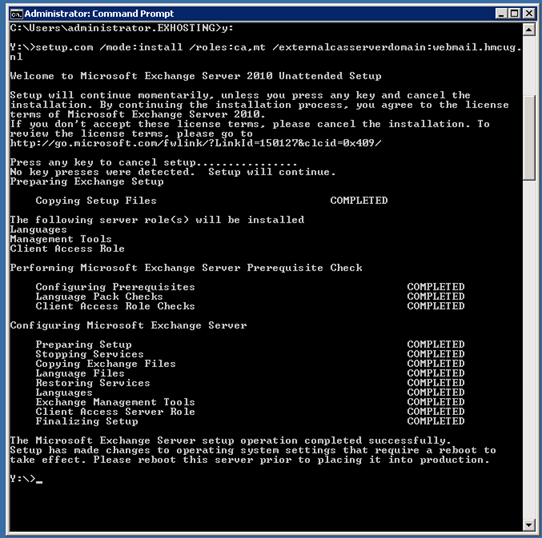
/ExternalCASServerDomain – The external URL the Client Access Server is using for clients accessing the server from the Internet (CAS Server only)
/EnableLecayOutlook – Creates a Public Folder database needed for Outlook 2003 clients (Mailbox Server only)
To install a combined CAS and HUB server:
setup.com /mode:install /role:CA,HT /UpdatesDir:\\InstallShare\ExchangeUpdates /LanguagePack:\\InstallShare\ExchangeLanguagePack\LanguagePackBundle.exe /ExternalCASServerDomain:webmail.contoso.com
To install a Hub Server and connect it to Exchange 2003:
setup.com /mode:install /role:HT /UpdatesDir:\\InstallShare\ExchangeUpdates /LanguagePack:\\InstallShare\ExchangeLanguagePack\LanguagePackBundle.exe /LegacyRoutingServer:2003SMTP.contoso.com
To install a Mailbox Server:
setup.com /mode:install /role:MB /UpdatesDir:\\ InstallShare \ExchangeUpdates /LanguagePack:\\ InstallShare \ExchangeLanguagePack\LanguagePackBundle.exe /EnableLegacyOutlook

Use an answer file
It is also possible to use an answer file for the unattended setup with the /Answerfile:c:\answerfile.txt option. you can use the following options in the answer file:
EnableLegacyOutlook
LegacyRoutingServer
ServerAdmin
ForeignForestFQDN
OrganizationName
DoNotStartTransport
UpdatesDir
EnableErrorReporting
NoSelfSignedCertificates
AdamLdapPort
AdamSslPort.
More information can be found on Microsoft TechNet: http://technet.microsoft.com/en-us/library/aa997281.aspx
 Jaap Wesselius