Exchange 2010 End of Life extended to October 2020

If you are still running Exchange 2010 you are most likely aware that the end-of-life of Exchange 2010 is in January 2020 when extended support will end.

Because of the size of customer still running on Exchange 2010 and the amount of work it takes, especially for large enterprise customers, to move to newer platforms, Microsoft has extended the extended support to October 2010.

After October 2020, Microsoft no longer support Exchange 2010. This means no bugfixes, no security fixes, no hotfixes, nothing. The product won’t stop working of course, but no fixes will be released by Microsoft, and especially no security fixes can be dangerous.

Note. The support for Office 2010 and SharePoint 2010 is also extended to October 2020, so these are aligned now.

If you are still running Exchange 2010, it is recommended to move to Office 365 or to Exchange 2013 or Exchange 2016. Please note that there’s no direct upgrade path to Exchange 2019, so you have to move to Exchange 2013 or Exchange 2016 (preferred) first before moving to Exchange 2019.

A lot of my customers are moving to Office 365, and I have written two blog posts on this. These are based on Exchange 2010 hybrid, without the hassle of installing Exchange 2016 first into the existing Exchange 2010 organization:

https://jaapwesselius.com/2017/05/15/moving-from-exchange-2010-to-office-365/

https://jaapwesselius.com/2017/05/16/moving-from-exchange-2010-to-office-365-part-ii/

I am not sure, but when support for Exchange 2010 stops in October 2020 support for Exchange 2010 hybrid stops as well and I wouldn’t be surprised that Exchange 2010 hybrid will stop working anytime soon after this date.

If you are still running on Exchange 2010, or working on an upgrade to Exchange 2016 or Office 365, you have some more time to finish these projects, but please don’t slow down at the moment and continue your projects.

You can find the official Microsoft announcement here: https://techcommunity.microsoft.com/t5/Exchange-Team-Blog/Microsoft-Extending-End-of-Support-for-Exchange-Server-2010-to/ba-p/753591
 

Office 365 Group Based Licensing

If you have a smaller organization and you want to assign Office 365 licenses that’s no big deal. Open the user properties in the Microsoft Online Portal and assign the proper license. If needed you can assign only specific services without too much hassle. Besides using the Portal it is also possible to use PowerShell to assign licenses as discussed in an old blog: https://jaapwesselius.com/2014/09/04/assign-office-365-license-via-powershell/

For larger organizations this can be cumbersome and prone to error. Also, when using a dedicated provisioning solution it can be tricky. An interesting solution is to use Group based licensing. You can assign Office 365 licenses to a security group and when a user is added to this group, the user automatically gets the assigned licenses.

In this example we’re going to implement Group based licensing. First we are going to create a baseline where only the basic features of Office 365 E3 are implemented. Next we are going to create another option where additional features are added.

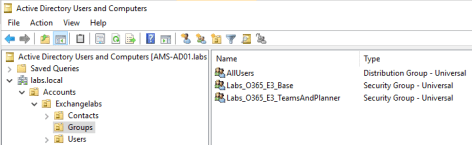
  • Labs_O365_E3_Base
  • Labs_O365_E3_TeamsAndPlanner

License Security Group Active Directory

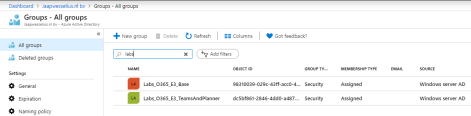
After synchronization these groups will show up in Azure Active Directory:

License Security Group Azure Active Directory

The next step is to assign the licenses to these security groups.

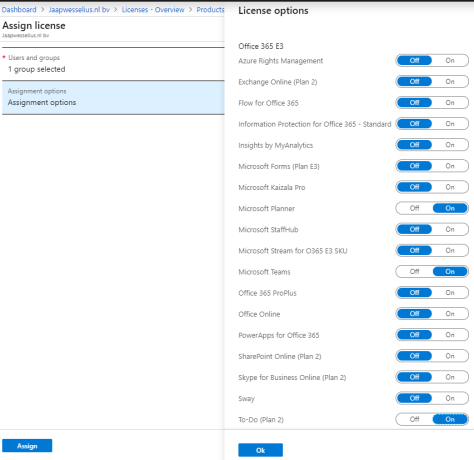
In the Azure Portal, select Azure Active Directory | Licenses | Office 365 E3 and click + Assign. In the Users and Groups box select the first group (Labs_O365_E3_Base in this example) and in the Assignment Options box select the options you want to assign to this group:

License Options

Use the same steps to assign additional options to the second group:

additional license options

When you create a new user in Active Directory and add this user to the base security group, you’ll see that the user will receive only the licenses assigned to the group. If you want to assign more license options, just add the user to the additional group. This way you are very flexible in assigning licenses, and chances on errors are minimized.

Note. You can assign licenses directly on the user object or using security groups, it is not possible to combine both. So, if you use groups to assign licenses it is not possible to add additional licenses directly on the users object in the Office 365 Portal.

More information

Openspf.org disappeared

I used to use the openspf.org website as a valuable resource for every SPF question I had, especially around creating SPF records. For some reason, most like funding related the openspf.org website disappeared early 2019.

Another valuable resource with information regarding SPF records is:

And for checking SPF records you can use the following sites:

If you know any other site with valuable SPF information, please leave them as a comment.