One June 29, 2021 Microsoft has released the June 2021 Cumulative Updates for Exchange server, two weeks later than initially planned.
For Exchange 2016 it is a special Cumulative Update, since CU21 is the latest update that will be released for the product.
Besides a number of fixes, both CU’s contain integration with the Anti-Malware Scan Interface (AMSI). AMSI is available in Windows 2016 and Windows 2019, and Exchange now integrates with AMSI. Prerequisite is of course that Exchange 2016 is running on Windows 2016. When running on Windows 2012 R2, the AMSI integration is not available.
AMSI integration is a result of the HAFNIUM infections earlier this year. When using an anti-malware solution that is AMSI capable, malicious HTTP requests are blocked before they are processed by the Exchange server.
Important notes:
Both CUs contain a Schema Update and an Active Directory update, so you must run Setup.exe /PrepareSchema and Setup.exe /PrepareAD.
When running the Exchange servers in a DAG, don’t forget to put your DAG members in maintenance mode prior to updating.
When running in Hybrid Mode, Microsoft requires you to run the last or second-last Cumulative Update.
As usual, test the CUs thoroughly before bringing them into your production environment.
For a current project I am working with Exchange 2019 and for OWA we want to implement Office Online Server. I did this in the past and blogged about it (Install Office Online Server 2016) so I thought it should not be a big deal.
Installed Windows 2016, installed prerequisite software, configured an SSL certificate, installed Office Online Server and created a new Office Web Apps farm.
When opening an attachment in OWA I do see the OOS environment, it tries to open a document and then generates this error:
“Sorry, there was a problem and we can’t open this document. If this happens again, try opening the document in Microsoft Word.”
When opening an Excel attachment, I get the following error message: “Unable to open the file. We couldn’t find the file you wanted. It’s possible the file was renamed, moved or deleted.”
I know Office Online Server is sensitive for SSL certificates, but this was a regular Digicert certificate. Name resolution was fine as well. But the check https://fqdn/op/generate.aspx failed as well with the following (pretty useless) error:
“Server Error. We’re sorry. An error has occurred. We’ve logged the error for the server administrator.”
Unfortunately, nothing useful in the eventlog, or in the ULS logging on the Office Web Apps server. Asked colleagues, but they had only experience with Exchange 2016 and OOS.
After two days of searching, fiddling with the server, checking .NET versions (Windows 2016 comes with a newer version of .NET then required by Office Online Server), rebuilding the Office Online Server several times I realized it might be a TLS 1.2 issue. Exchange 2019 is using TLS 1.2 only by default, whereas Exchange 2016 can use multiple versions of TLS.
So, on the Windows 2016 server with OOS, I enabled strong cryptography in .NET and disabled older versions of TLS on Windows to fix the issue.
To enable strong cryptography in the .NET Framework, add the following registry key:
Patching an Exchange server, whether it be Windows Update, a Cumulative Update or a Security Update always takes a long time. When looking at the task manager, it is always the Antimalware Service Executable (Windows Defender Antivirus Service) that is responsible for this. It just consumes a lot of processor cycles:
To overcome this and speed up the overall performance of patching the Exchange server you can temporarily disable Windows Defender.
For Exchange 2016 running on Windows 2016 follow these steps:
Start | Settings | Update and Security | Windows Defender
For Exchange 2019 running on Windows 2019 follow these steps:
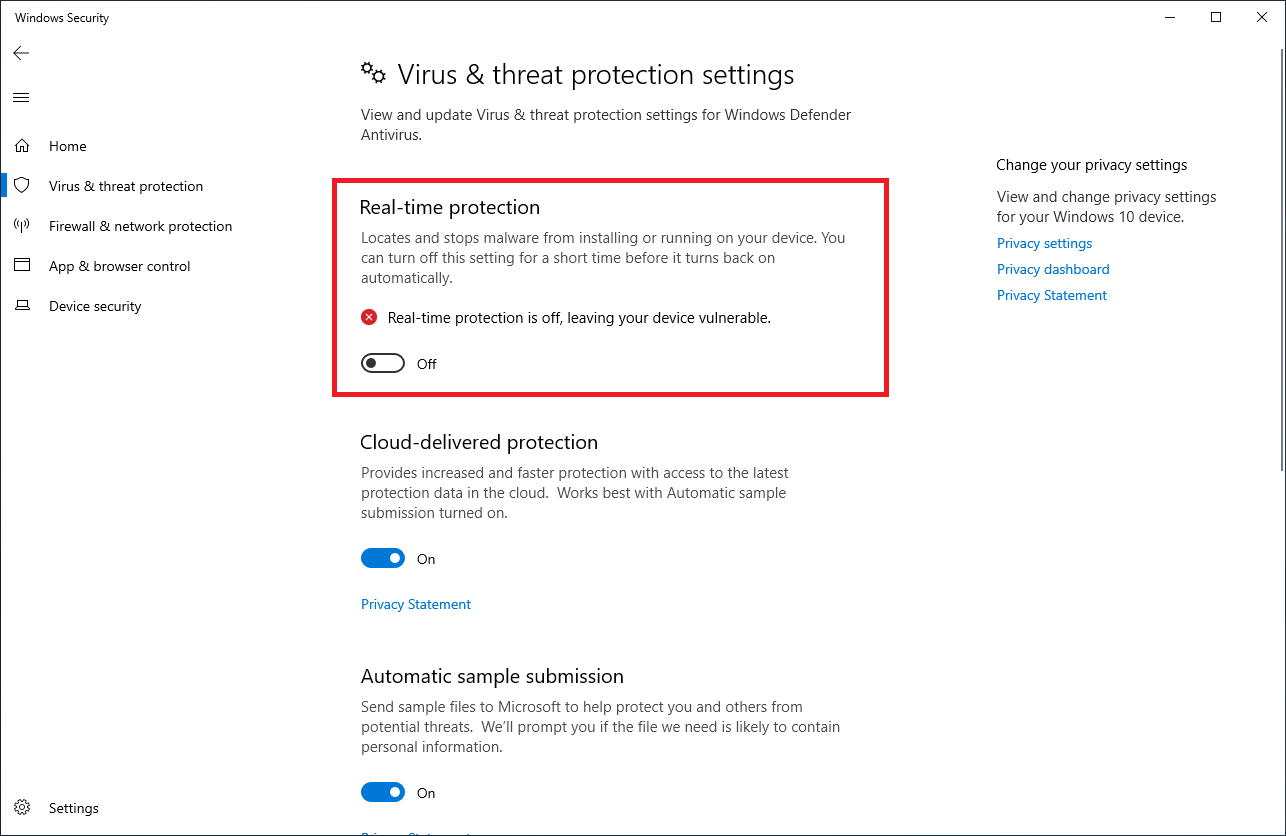
Start | Settings | Update and Security | Windows Security | Open Windows Security I Virus & Threat protection I Manage Settings
And switch Real-time protection to off as shown in the following screenshot:
Much easier is using PowerShell, just execute this command:
Set-MpPreference -DisableRealtimeMonitoring $True
When patching the Exchange server you will notice how much faster it will be. When patched and rebooted, enable Windows Defender by executing the following PowerShell command:
Check the output for RealTimeProtectionEnabled, this should be set to True. As a sidenote, there is a lot of other interesting information when executing Get-MpComputerStatus for anti-malware.
Personally, I am happy to see no critical and zero-day issues have been found, no immediate action on Tuesday night this time 😊. However, these are still important security updates so you must install them as soon as possible.
These Security Updates are only available for the Exchange versions mentioned above. If you are on an older version of Exchange, you must first upgrade your Exchange servers to the latest CU and then deploy these Security Updates. Security Updates are cumulative, to a Security Update contains all previous fixes for this specific Cumulative Update.
A couple of remarks:
If you are running Exchange Hybrid, even if you have all your mailboxes in Exchange Online and use the on-premises Exchange server only for management purposes, you still must deploy these Security Updates on the Hybrid Server. If you have an Exchange management server (with only the management tools installed) you do not need to install the Security Updates.
Start the Security Update from a command prompt with elevated privileges. If you do not use elevated privileges, setup will fail and leave your Exchange server in an unknown state. Known problems here are with OWA and EAC. This does not apply when installing the Security Update using Windows Update or WSUS.
When the installation of the Security Update has finished it does not ask for a reboot although this is needed, so reboot the server when finished.
There we go again…. Last week there has been some rumor going on about pwn2own 2021, some kind of security contest to find any security issues in software products and according to this statement taken from the pwn2own site, vulnerabilities were found in Exchange:
“SUCCESS – The DEVCORE team combined an authentication bypass and a local privilege escalation to complete take over the Exchange server. They earn $200,000 and 20 Master of Pwn points.”
Today Microsoft released security updates for Exchange 2013, Exchange 2016 and Exchange 2019 that addresses security vulnerability found recently. The following Remote Code Execution vulnerabilities are fixed with these updates:
At this moment no active exploits using these vulnerabilities are reported.
These vulnerabilities only concern Exchange 2013/2016/2019 on-premises. Exchange Online is not vulnerable because of its different architecture. Please remember that Exchange Online uses a different codebase.
Updates are specific for Cumulative Updates, an update for CU9 cannot be installed on CU8. The CU version is in the name of the update.
Updates are cumulative, so these updates also contain all previous updates for this CU versions.
If you are running Exchange hybrid you need to update the hybrid servers as well, even when all mailboxes are in Exchange Online.
Previous mitigation scripts like EOMT will not mitigate the April 2021 vulnerabilities.
Start the updates from a command prompt with elevated privileges. If you do not, the update can finish successfully (or report no errors) but under the hood stuff will break. When updating from Windows Update there’s no need to use elevated privileges.
Use the Exchange Server Health Checker script (available from Microsoft Github) for an inventory of your Exchange environment. The script will return if any servers are behind with Cumulative Updates and Security Updates.


 Jaap Wesselius
You must be logged in to post a comment.