All posts by jaapwesselius

MapiExceptionUnexpectedMailboxState: Unable to delete mailbox

When moving mailboxes from Exchange 2003 or Exchange 2007 to Exchange 2010 the move request finishes, but with a status of CompletedWithWarning:

image

The mailbox is moved to Exchange 2010, but the time to finish the actual migration takes a long time. The first reports of this issue I’ve seen came with Exchange 2010 SP2 RU3.

Continue reading MapiExceptionUnexpectedMailboxState: Unable to delete mailbox

Kemp Edge Security Pack for Exchange 2013

Now that Microsoft TMG2010 no longer is available it’s time to look for other alternatives. Reverse proxy solutions is not a problem, there are various solutions for this. Microsoft itself has the ARR (Application Request Routing) on top of IIS available. This can perform reverse proxy, but for load balancing you still have to rely on NLB. Another drawback is that ARR does not do pre-authentication.

With the new software version for the Kemp LoadMaster series (V7) it is now possible to do reverse proxy and pre-authentication out of the box. The new module is called ESP or Edge Security Pack. The idea is the same as before, clients hit the Kemp LoadMasters and the requests are distributed across multiple Exchange Client Access Servers. But before the requests are sent to the Client Access Servers they are authenticated. Kemp uses an authentication provider for this, in a normal scenario this would an Active Directory Domain Controller.

image

The advantage of pre-authentication is evident. In case of a (brute force) attack the CAS servers are only bothered with normal authentication traffic, the attacks are handled by the Kemp and these never reach the CAS servers. ESP is specifically designed to handle this kind of traffic. With ESP the CAS servers only handle normal user authentication.

Continue reading Kemp Edge Security Pack for Exchange 2013

Lync Hosting Pack v2 Summit

This week I’m attending the Lync Hosting Pack (LHP) V2 summit in Washington DC. The Lync Hosting Pack is Microsoft’s solution for hosters to offer a fully multi-tenant Lync solution. The summit is a joint development between Microsoft and implement.com.

The solution is based on one Active Directory, but every customer has its own Organizational Unit, fully separated from other OU’s, thus preventing information leakage. LHPv2 itself is based on Lync Server 2013. Continue reading Lync Hosting Pack v2 Summit

Exchange 2013 coexistence, EAC and ECP

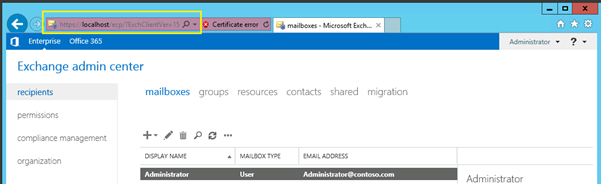
When you introduce Exchange 2013 into an existing Exchange 2010 environment and you want to open the Exchange Admin Center (using https://localhost/ecp or using https://webmail.contoso.com/ecp) it ‘fails’ and it opens the Exchange 2010 ECP instead.

image

This is caused by the fact that the administrator mailbox is still on Exchange 2010 and the ECP is tied to the administrator mailbox. You can move the mailbox to Exchange 2013 but instead you can also add the suffix /?ExchClientVer=15, like this https://localhost/ecp/?ExchClientVer=15

This will open the Exchange Admin Center in Exchange 2013 while the administrator mailbox is still on Exchange 2010:

image

Enable POP3 and IMAP4 Logging

For testing purposes it can be useful to enable protocol logging on the POP3 and/or IMAP4 service. In Exchange 2010 this cannot be done using the Exchange Management Console or the Exchange Management Shell like you would do to enable protocol logging on the Send or Receive Connector but needs to be done using a config file.

There’s a Microsoft.Exchange.Pop3.exe.config or similarly a Microsoft.Exchange.Imap4.exe.config file located in the directory C:\Program Files\Microsoft\Exchange Server\ClientAccess\PopImap on the Exchange 2007/2010 Client Access Server.

When you open the file scroll down and locate the “ProtocolLog” key and set its value to “true”, like this:

<add key="ProtocolLog" value="true" />

When changed restart the POP3 or IMAP4 service in the Exchange Management Shell using the following command:

Restart-service MSExchangePop3
Restart-Service MSExchangeImap4

The log files can be found in the directory C:\Program Files\Microsoft\Exchange Server\Logging\Pop3

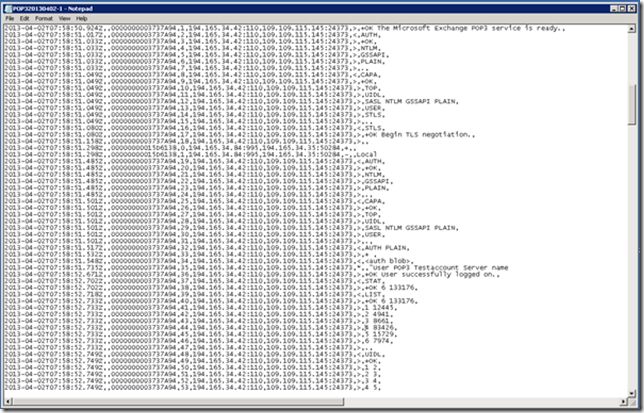
When you’re finished with troubleshooting don’t forget to disable protocol logging since it will consume a tremendous amount of disk space. Just to give you an idea, this is in the POP3 log file for only one session:
image

In Exchange 2013 it’s a bit different, you can use the Set-PopSettings cmdlet (and Set-ImapSettings cmdlet) to enable logging and set the directory where the log files are stored, for example:

Set-PopSettings -ProtocolLogEnabled $true -LogFileLocation "C:\Pop3Logging"