All posts by jaapwesselius

DNSSEC and DANE support in Exchange server and Exchange Online

In the past I have written about SPF, DKIM and DMARC for email authentication in Exchange server to improve e-mail security. Additional topics to improve security are secure DNS (DNSSEC) and DNS-based Authentication of Named Entities (DANE). Where SPF, DKIM and DMARC are focusing more on the email messages and the sending hosts they are coming from, is DANE more focusing on setting up the TLS connection between mail servers. DANE has a dependency on DNSSEC but since my focus is on Exchange and Exchange Online, I don’t discuss DNSSEC and leave that to my provider (DANE only works when DNSSEC is enabled).

When two mailservers setup a connection, they negotiate a common TLS protocol and this handshake as it is called is unencrypted. As such, this handshake is vulnerable for man-in-the-middle or downgrade attacks.

DANE is using a special DNS record (a TLSA record, Transport Layer Security Authentication) where an organization can publish information regarding the certificate on the mail server and thus the TLS options available.

The TLSA record for my own domain is shown in the following example:

_25._tcp.smtphost.exchangelabs.nl IN TLSA 3 1 1 50167c478a2f536a88ee9ec232b14b0d223c2d5bdc837451eee104c153376cbe

When a mailserver wants to send email to my Exchange environment it retrieves the MX record first which is smtphost.exchangelabs.nl (this is an Exchange 2019 Edge transport server, with a Digicert certificate that matches the servername). When DNSSEC is not used at the recipient domain, opportunistic TLS is used. When DNSSEC is used at the recipient domain, a DANE capable mail server will check for a TLSA record.

When a TLSA record is found and retrieved, the sending server sets up a TLS connection with the receiving server, which in turn returns the fingerprint of the certificate. The sending server compares the fingerprint with the information found in DNS and when it matches, the connection is established and communication between the two servers continue, and the email is sent.

So, how do you create the TLSA record? There are publicly available webservers that can create TLSA records. Shumon Huque is a software engineer and technologist based in Washington DC who has a site that can generate TLSA records. As a bonus his site can also check TLSA records.

To generate a new TLSA record, navigate to his website on https://www.huque.com/bin/gen_tlsa and fill out the necessary information as shown in the following screenshot:

The easiest way to create a PEM format X.509 certificate is using the MMC certificate snap-in. Select your certificate and export it. Select the ‘No, do not export the private key’ option, select the ‘Base-64 encoded X.509 (CER)’ option and export the certificate. You can use Notepad to open the certificate export, and copy-and-past this into the PEM format X.509 textbox.

Select the port number (25), the protocol (TCP, not SMTP) and enter the domain name. This is the FQDN of the receiving server, so in my example it is smtphost.exchangelabs.nl and click Generate.

It will show the generated TLSA record, including the certificate information as shown in the following screenshot:

For my domain the following TLSA record is generated:

_25._tcp.smtphost.exchangelabs.nl. IN TLSA 3 1 1 a63d74fc7ec1acad702017d13479a1b60b36f234ccb96b90f97c9619ba2c91ab

How is this TLSA record structured?

TCP port 25 and the FQDN of the server make up the first part of this TLSA record.

The first number after the TLSA text is the certificate verification or the certificate usage on the server and this number can have 4 values:

  • 0 – CA Constraint. The certificate provided when establishing the TLS connection must be issued by the listed root-CA or one of its intermediate Certificate Authorities.
  • 1 – Service Certificate constraint. – The certificate used must match the TLSA record, and it must also pass the certification path validation to a trusted root-CA.
  • 2 – Trust Anchor Assertion. The TLSA record must match the certificate of the root CA, or one of the intermediate CAs of the certificate in use by the mailserver.
  • 3 – Domain Issued Certificate. The TLSA record matches the used certificate itself. The certificate does not need to be signed by other parties and as such a self-signed certificate can be used (this is interesting on an Exchange server).

In my TLSA record a value of 3 is used for the certificate usage, so the TLSA record must match the certificate on the Exchange 2019 server.

The second number that is used is the selector. The selector can have two values:

  • 0 – The entire certificate is used for matching.
  • 1 – Only the public key of the certificate is used for matching.

In my TLSA record the value is 1 for the selector, so only the public key is used.

The third number that is used is the matching type. The matching type can have three values:

  • 0 – the entire information select is present in the certificate associated data (the last text string in the TLSA record)
  • 1 – The SHA-256 hash of the public key of the certificate must match the certificate associated data.
  • 2 – The SHA-512 hash of the public key of the certificate must match the certificate associated data.

In my TLSA record a value of 1 is used for matching, to a SHA-256 has of the public key of the Exchange server certificate must match the data in the TLSA record.

The next step is to add the generated TLSA record in DNS and check the TLSA record once added.

You can use the same site (https://www.huque.com/bin/danecheck-smtp) to check the TLSA record. The site queries the MX record for your domain and checks the accompanying TLSA record. The result is shown in the following screenshot:

But there are more sites that can check your TLSA records. Mailhardener (https://www.mailhardener.com/tools/dane-validator) for example can do the same as shown in the following screenshot:

In this blog I am discussing DANE for mail server, but it can also be used for other services. For a website a TLSA record can be:

_443._tcp.www.exchangelabs.nl. IN TLSA 3 1 1 a63d74fc7ec1acad702017d13479a1b60b36f234ccb96b90f97c9619ba2c91ab

Or for IMAP it can be:

_995._tcp.mail.exchangelabs.nl. IN TLSA 3 1 1 a63d74fc7ec1acad702017d13479a1b60b36f234ccb96b90f97c9619ba2c91ab

The ugly part is that Exchange 2019 does not support DANE out of the box. For incoming mail, you can configure the TLSA record based on the certificate that is installed on the Exchange (Edge Transport) server. A DANE capable mail server automatically checks for a TLSA record and when available, use this to setup the TLS connection.

Exchange Online on the other hand only supports DANE for outbound connections at the time of writing. As an Exchange Online customer, there’s nothing you must configure, it’s available for everyone. DANE for inbound mail will become available in the future, but when is unclear. According to Microsoft it is ‘near future’ but unfortunately this is already the case for quite some time.

One final (and very important) closing note: When you have configured a TLSA record for your (inbound) Exchange server you MUST update your TLSA record when renewing the Exchange certificate. You must also do this when the Exchange server is used in a hybrid configuration, since Exchange Online will check for a TLSA record. Mail flow from Exchange Online to Exchange 2019 will halt and the following error message is shown in Exchange Online message trace:

Reason: [{LED=450 4.7.323 tlsa-invalid: The domain failed DANE validation [Message=450 4.7.323 tlsa-invalid: The domain failed DANE validation] [LastAttemptedServerName=smtphost.exchangelabs.nl] [LastAttemptedIP=185.116.41.45:25] [SmtpSecurity=11;-1] [HE1EUR01FT069.eop-EUR01.prod.protection.outlook.com 2023-06-06T10:23:06.0. OutboundProxyTargetIP: 185.116.41.45. OutboundProxyTargetHostName: smtphost.exchangelabs.nl

This is solved when a new TLSA record is generated and published in DNS.

Exchange Security Updates June 2023

On June 13, 2023 Microsoft has released Security Updates for:

  • Exchange 2019 CU13
  • Exchange 2019 CU12
  • Exchange 2016 CU23

There are no Security Updates released for older versions of Exchange 2016 and Exchange 2019, these are the only supported versions. There are also no Security Updates for Exchange 2013 since this is completely out-of-support. If you are still running on Exchange 2013 you must seriously consider upgrading to Exchange 2019 or Exchange Online.

The following vulnerabilities are addressed with these Security Updates:

VulnerabilityImpactSeverity
CVE-2023-28310Remote Code ExecutionImportant
CVE-2023-32031Remote Code ExecutionImportant

More information regarding CVE’s can be found in the Security Update Guide.

The Security Update downloads en knowledgebase articles can be found here:

Exchange versionDownloadKB article
Exchange 2019 CU13https://www.microsoft.com/en-us/download/details.aspx?id=105280KB5026261
Exchange 2019 CU12https://www.microsoft.com/en-us/download/details.aspx?id=105281KB5026261
Exchange 2016 CU23https://www.microsoft.com/en-us/download/details.aspx?id=105282KB5025903

Some remarks about these Security Updates:

  • When possible, try to run the latest Cumulative Update for Exchange 2016 or Exchange 2019.
  • Exchange Security Updates are cumulative, so a Security Update contains all fixes that were released in earlier Security Updates (for a specific Exchange Cumulative Update).
  • Exchange Security Updates are specific for an Exchange Cumulative Update, so you cannot install an Exchange Security Update for Exchange 2019 CU13 on an Exchange 2019 CU12 server.
  • Security Updates must be installed on hybrid servers as well, even if there are no mailboxes anymore on these hybrid servers.
  • If you have a management server with only the Exchange server management tools installed, you must install Security Updates as well.
  • Of course, test Security Updates in a test environment first.
  • Use the Microsoft Exchange Healthchecker script (https://microsoft.github.io/CSS-Exchange/Diagnostics/HealthChecker/) to check the status of your Exchange server and if additional actions are needed.

Exchange 2019 CU13 (2023 H1 Cumulative Update for Exchange server)

Just a quick blogpost about the latest Exchange 2019 release. Yesterday, May 3, 2023 Microsoft has released Exchange 2019 Cumulative Update 13, or 2023 H1 Cumulative Update for Exchange server as it is officially named.

There are two interesting new features in Exchange 2019 CU13:

  • Exchange 2019 CU13 now supports Modern Authentication. Please note that previously Exchange 2019 supported Hybrid Modern Authentication (HMA). Modern Authentication is targeted specifically to customers that do not have any hybrid or any cloud integration as it works with your on-premises ADFS implementatation. At this moment only Outlook clients are supported to work with Modern Authentication, support for other clients is expected later this year.
  • Configuration preservation. When this CU is installed and you have any customized config files, they are now preserved and not overwritten as was the case in earlier Cumulative Updates. When updating to CU13, it reports that config files are preserved:
PS Z:\> .\Setup.EXE /Mode:Upgrade /IAcceptExchangeServerLicenseTerms_DiagnosticDataOn

Microsoft Exchange Server 2019 Cumulative Update 13 Unattended Setup

Copying Files...
File copy complete. Setup will now collect additional information needed for installation.

Languages
Management tools
Mailbox role: Transport service
Mailbox role: Client Access service
Mailbox role: Mailbox service
Mailbox role: Front End Transport service
Mailbox role: Client Access Front End service

Performing Microsoft Exchange Server Prerequisite Check

    Configuring Prerequisites                      COMPLETED
    Prerequisite Analysis                          COMPLETED

Configuring Microsoft Exchange Server

    Language Files                                 COMPLETED
    Restoring Services                             COMPLETED
    Language Configuration                         COMPLETED
    Exchange Management Tools                      COMPLETED
    Mailbox role: Transport service                COMPLETED
    Mailbox role: Client Access service            COMPLETED
    Mailbox role: Mailbox service                  COMPLETED
    Mailbox role: Front End Transport service      COMPLETED
    Mailbox role: Client Access Front End service  COMPLETED
    Finalizing Setup                                       COMPLETED

The Exchange Server setup operation completed successfully.

Exchange Setup preserved the required configurations during upgrade. More details can be found in Exchangesetup.log located in <SystemDrive>:\ExchangeSetupLogs folder. For more information, visit:
https://aka.ms/PreserveExchangeConfig2019.

Unfortunately, support for TLS 1.3 (which is in Windows Server 2022) is not in this Cumulative Update, hopefully support for TLS 1.3 later this year.

More information, tips and downloads:

  • This Cumulative Update contains all binaries from previous Cumulative Updates, including all previously released Security Updates.
  • Download at https://www.microsoft.com/en-us/download/details.aspx?id=105180
  • Knowledgebase article KB5020999 contains more information, including known issues with this release.
  • Before bringing in production, please test thoroughly in your testenvironment.
  • The onlly supported versions of Exchange 2019 are Exchange 2019 Cumulative Update 13 and Cumulative Update 12. Earlier versions are no longer supported.
  • Exchange 2013 is old, and out of extended support. No more Security Updates will be released for Exchange 2013. If you are still running Exchange 2013, make sure you migrate to Exchange 2019 or Exchange Online anytime soon!

Exchange uninstall fails with BuildToBuildUpgrade error

Uninstalling is typically not an issue. One of my Exchange 2019 servers (running on Windows 2022 Server Core) have been running for quite some time, but I had to uninstall it.

Running the setup application failed with a BuildToBuildUpgrade error, almost immediately after starting the setup:

PS C:\> setup.exe /mode:uninstall /IAcceptExchangeServerLIcenseTerms_DiagnosticDataOn

Microsoft Exchange Server 2019 Cumulative Update 12 Unattended Setup

Mailbox role: Mailbox service
Mailbox role: Client Access service
Mailbox role: Transport service
Mailbox role: Front End Transport service
Mailbox role: Client Access Front End service
Management tools
Languages
Setup previously failed while performing the action "BuildToBuildUpgrade". You can't resume setup by performing the action "Uninstall".

The Exchange Server setup operation didn't complete. More details can be found in ExchangeSetup.log located in the <SystemDrive>:\ExchangeSetupLogs folder.

If have seen setups failing before, but normally during an upgrade to a newer setup, but never during an uninstall.
Just like other setup failures, check the registry for Action and Watermark entries in the HKLM\SOFTWARE\Microsoft\ExchangeServer\v15. Only the MailboxRole had these entries, the ClientAccess and HubTransport did not have these entries.

Delete the Action and Watermark keys and resume setup.
Unfortunately, I don’t know why this happened in the first place since my Exchange server has been running without issues for a longer time.

Disk Defragmentation on an Exchange 2019 server

When moving mailboxes from Exchange 2016 to Exchange 2019 (on Windows 2022) I ran into a couple of StalledDueToTarget_Processor issues. These occur regularly and typically nothing to worry about, the move request will automatically continue in minutes.

Next I checked the task manager to see how performance of the Exchange servers were doing, and I noticed that the Disk Defragmenter was running. Processor utilization averaged around 20%, but it consumed also approx. 17GB of memory.

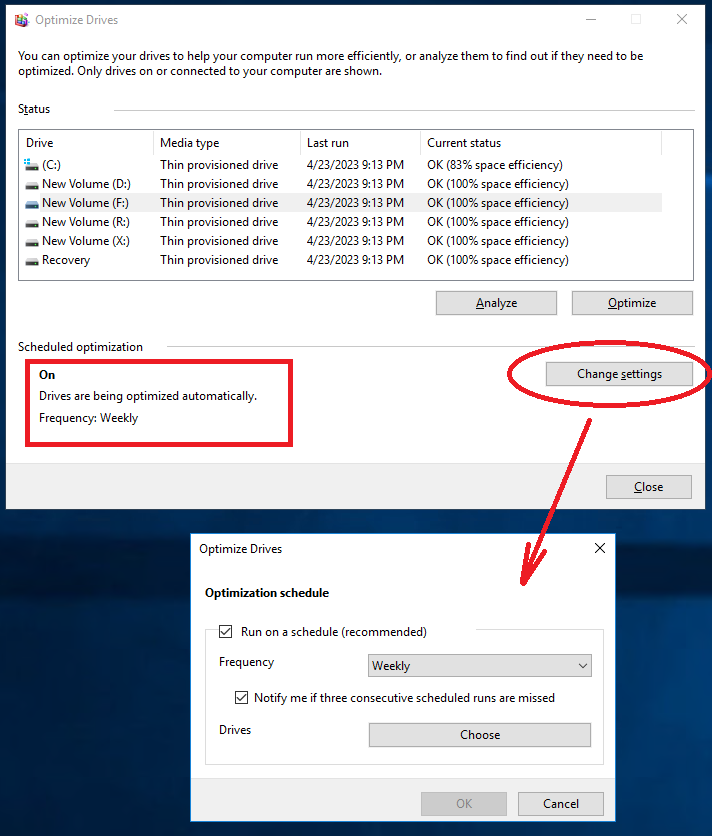
It turns out that the disk optimization is turned on by default on all disk in your server. When you select the properties of a disk, select the Tools tab and click Optimize you can see all disks, the scheduled optimization and the option to turn it off:

Disk optimization makes sense when you have a lot of sequential data or have an application that works with large chunks of data. Exchange server works with relatively small blocks of data and in a complete random order. So, disk optimization does not make sense on an Exchange server, and it is absolutely safe to turn it off on your Exchange server. This is alse mentioned in the Exchange Server storage configuration options article as a best practice. You don’t want to lose any valuable processor, disk and memory resources on a disk optimization process.

Thanks to reader Feras to supplying me the link to the configuration options.