Category Archives: Exchange

Enable POP3 and IMAP4 Logging

For testing purposes it can be useful to enable protocol logging on the POP3 and/or IMAP4 service. In Exchange 2010 this cannot be done using the Exchange Management Console or the Exchange Management Shell like you would do to enable protocol logging on the Send or Receive Connector but needs to be done using a config file.

There’s a Microsoft.Exchange.Pop3.exe.config or similarly a Microsoft.Exchange.Imap4.exe.config file located in the directory C:\Program Files\Microsoft\Exchange Server\ClientAccess\PopImap on the Exchange 2007/2010 Client Access Server.

When you open the file scroll down and locate the “ProtocolLog” key and set its value to “true”, like this:

<add key="ProtocolLog" value="true" />

When changed restart the POP3 or IMAP4 service in the Exchange Management Shell using the following command:

Restart-service MSExchangePop3
Restart-Service MSExchangeImap4

The log files can be found in the directory C:\Program Files\Microsoft\Exchange Server\Logging\Pop3

When you’re finished with troubleshooting don’t forget to disable protocol logging since it will consume a tremendous amount of disk space. Just to give you an idea, this is in the POP3 log file for only one session:

image

In Exchange 2013 it’s a bit different, you can use the Set-PopSettings cmdlet (and Set-ImapSettings cmdlet) to enable logging and set the directory where the log files are stored, for example:

Set-PopSettings -ProtocolLogEnabled $true -LogFileLocation "C:\Pop3Logging"

Released: Exchange 2013 RTM CU1

Today, April 2nd 2013 Microsoft released Cumulative Update 1 (CU1) for Exchange Server 2013 RTM. CU1 is an important release since it offers the possibility to integrate with an existing Exchange Server 2007 or Exchange Server 2010 environment (this was not possible using the original Exchange Server 2013 RTM release). The official version of CU1 is build 620-29.

Furthermore there are many, many bugfixes in CU1 (several thousands, but these also include typo’s and language issues) but also some new additional features:

  • Address Book Policy Routing Agent – especially important for hosting environments. For more information regarding this check out Address Book Policies, Jamba Jokes and Secret Agents;
  • Group membership management by groups – a long awaited feature that was also available in Exchange Server 2007 and earlier;
  • Access to Public Folders via favorites;
  • Exchange Admin Center (EAC) enhancements;
  • Improved probes, monitors and responders (part of managed availability);
  • Optimized Get-HealthReport;
  • Exchange 2013 Management Pack for SCOM;
  • Auto-reseed supports bitlocker encrypted disks;

CU1 is the first update as part of Microsoft’s new servicing model. This means that CU1 is approx. 1.3 GB in size, it is not an update on top of Exchange Server 2013 RTM but it’s a full version. When deploying there’s no need to install Exchange Server 2013 RTM first, you can start directly with deploying CU1.

For more information check out the Release Notes on http://blogs.technet.com/b/exchange/archive/2013/04/02/released-exchange-server-2013-rtm-cumulative-update-1.aspx or download CU1 directly from the Microsoft download site: http://www.microsoft.com/en-us/download/details.aspx?id=38176

Please note that a Cumulative Update is not the same as a Service Pack. Microsoft will release a CU on a regular basis, most likely four times a year (once every quarter). For Exchange Server 2013 Microsoft is planning to release Service Pack 1 (SP1), but no information is available at the time of writing.

Upgrade to Exchange 2010 SP3 fails with CSCRIPT error

Recently I was upgrading my Exchange 2010 SP2 combined CASHUB servers (four servers in a load balanced array) to SP3. Two servers went fine, but two servers failed with a CSCRIPT error:

Setup cannot continue with the upgrade because the ‘cscript’ () process (ID: 5652) has open files. Close the process and restart Setup.

image

When looking with task manager several script processes were indeed running. It turned out to be the System Center Management client that was performing all kinds of activities.

Stop the System Center Management agent (via the Services MMC Snap-in) and the upgrade runs fine.

Lync 2010 and Exchange 2010 Unified Messaging

As promised in my previous blog post about Lync 2013 and Exchange 2013 I’ve also been testing this same scenario with Lync 2010 and Exchange 2010. The basics are the same, it’s more or less the GUI that’s different…. Here you go!

UM Language Pack

Download and install the appropriate Exchange 2010 SP2 Language Packs from Exchange Server 2010 SP2 UM Language Packshttp://www.microsoft.com/en-us/download/details.aspx?id=28191 Continue reading Lync 2010 and Exchange 2010 Unified Messaging

Exchange 2010 UM – A TLS API failure occurred

Recently I was implementing an Exchange 2010 UM server that was not willing to deliver any voicemail messages to the user’s inbox. On the UM server I was several EventID 1423 UMCore error messages in the application eventlog:

Log Name: Application
Source: MSExchange Unified Messaging
Date: 4-2-2013 14:53:25
Event ID: 1423
Task Category: UMCore
Level: Error
Keywords: Classic
User: N/A
Computer: EXUM02.contoso.com
Description:
The Unified Messaging server encountered an error while trying to process the message with header file "C:\Program Files\Microsoft\Exchange Server\V14\UnifiedMessaging\voicemail\2d831f7a-2a85-40f2-864c-70b4680a118f.txt". Error details: "Microsoft.Exchange.Net.ExSmtpClient.TlsApiFailureException: A TLS API failure occurred. Error = 0x80090301

At the same time I saw lots of EventID 36885 Schannel error messages in the system eventlog of the Hub Transport Server:

Log Name: System
Source: Schannel
Date: 4-2-2013 12:32:56
Event ID: 36885
Task Category: None
Level: Warning
Keywords:
User: SYSTEM
Computer: exhub01.contoso.local
Description:
When asking for client authentication, this server sends a list of trusted certificate authorities to the client. The client uses this list to choose a client certificate that is trusted by the server. Currently, this server trusts so many certificate authorities that the list has grown too long. This list has thus been truncated. The administrator of this machine should review the certificate authorities trusted for client authentication and remove those that do not really need to be trusted.

Note. As you may know the UM server records the voicemail message and the voicemail message is sent to the user’s mailbox using the Transport Server.

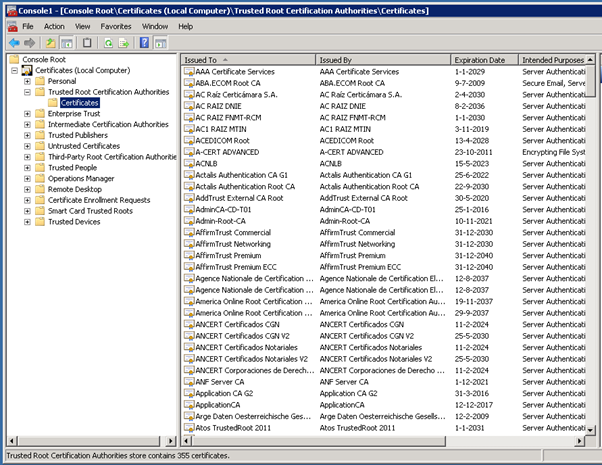
When looking at the Trusted Root Certification Authorities on the Hub Transport Server it turned out that there were 355 certificates stored here.

image

This is where things are breaking. The UM server is using TLS to communicate with the Hub Transport Server and during the handshake between the servers the list of root certs is sent. The maximum size of the package being sent by Schannel is only 16KB and the 355 root certificates never fit in these 16KB. Schannel fails, the list of certificates is truncated, resulting in EventID 36885 and the UM server only sees an invalid handshake with a truncated list of certificates and does not want to communicate.

So, the initial entry in the eventlog on the UM server is a result of a TLS issue and important to note, this is not an Exchange problem!

The way to solve this is delete a large number of root certificates from the Trusted Root Certification Authorities on all Hub Transport server. In my environment I reduced the number of root certs to about 85 which is sufficient. When the certificates are deleted the TLS handshake succeeds and the UM server starts sending the voicemails.

The question is how these 355 root certificates ended up in the trusted root store, a newly installed Windows 2008 R2 server in my test environment only reveals 11 certificates in the trusted root store.

image

Most likely the rootsupd.exe tool has been run sometime ago which updates the list of root certificates on the computer to the list that is accepted by Microsoft as part of the Microsoft Root Certificate Program. Now this is fine on a laptop or workstation, but you don’t want this to happen on your server because it can lead to unpredictable results.

This package however was released to Windows Update and WSUS on December 11, 2012 and was intended for client OS’es only. It also affected servers however and after customer reports the package was set to expired in Windows Update and WSUS.

For more information please check the following knowledge base articles.