Tag Archives: Cloud

Exchange Hybrid strange calendar behavior and mail flow

In a hybrid Exchange environment, mail flow is erratic, meetings are not always visible, and the Teams calendar does not match the calendar in Outlook. The user sends an email, and all recipients receive it. However, the sender does not always receive replies, sometimes resulting in a Non-Delivery Report (NDR). Another issue is that external users send emails to a user, but the user does not always receive the messages. Also, the calendar in Teams does not match the information shown in the Outlook calendar.

This issue occurs in a hybrid Exchange environment when this user accidentally has two mailboxes: one in the Exchange server and one in Exchange Online.

One account with two mailboxes? Yes, this is usually a result of a glitch in the provisioning. Let me explain what happens:

  • A user account is created in Active Directory and most of the time, the user is added to a security group used to assign licenses in Office 365.
  • When Entra Connect runs, the user account is synchronized with Entra ID, and a license is automatically assigned to the new account. As a result, a mailbox in Exchange Online is automatically and immediately created.
  • The last step is creating a mailbox on the Exchange server. The Exchange Server will gladly accept this since it does not know the mailbox in Exchange Online.

Outlook will then connect to the mailbox in Exchange on-premises. Depending on how the mail flow is configured, mail is sometimes delivered to the Exchange Online mailbox and sometimes to the Exchange server mailbox. Since the user’s Outlook is connected to the mailbox in the Exchange server, the user will never see items delivered to the Exchange Online mailbox.

In this situation, the Teams client shows the calendar information found in Exchange Online, while the user’s Outlook looks at the calendar information in Exchange on-premises. You can guess the results.

To fix this, the mailbox in Exchange Online must be removed and to do this, you can follow these instructions:

  • Remove the M365 license from the user, typically by removing the user account from the Security Group that’s used for licensing and wait for Entra Connect Sync to kick in and synchronize with Entra ID.
  • Open Exchange Online PowerShell and execute the following command:
    Get-User | Select name,Recipient
  • The property PreviousRecipientTypeDetails must have the value ‘MailUser’. If it contains the value ‘UserMailbox’ it means that the user has a mailbox in Exchange Online (which is not what we want in this situation)
  • Execute the following command:
    Set-User -PermanentlyClearPreviousMailboxInfo
  • This will permanently remove the mailbox in Exchange Online from the user (keep in mind that it also cannot be restored anymore!)
  • Wait for Entra Connect Sync to synchronize the latest attributes so that the account now becomes a mail-enabled account.
  • Assign the license again to the server, typically by adding the user again to the Security Group used for licensing.

The user now has a mailbox in Exchange on-premises, and this mailbox is represented as a mail-enabled user in Exchange Online.

As a side note: I’ve seen this happen also in a situation where Exchange is running on-premises and Entra Connect Sync is configured without the ‘Exchange Hybrid Deployment’ option as shown in the following screenshot:

If this is the case you can use the same procedure as outlined above.

Exchange 2019 CU14 on Windows 2025

Last Friday, Microsoft released a blog post announcing a delay in the upcoming Exchange 2019 CU15, also known as Exchange 2019 H1 2025 CU.

This blog post also mentions support for Exchange 2019 CU14 running on Windows 2025, including Windows 2025 Domain Controllers. This can be very interesting if you are planning to move to Exchange 2019 CU15 and later this year to Exchange Server SE.

Installing CU14 on Windows 2025 works fine. The only difference is the prerequisite roles and features. Since Windows 2025 no longer supports the native SMTP stack and the legacy MMC snap-in, these need to be removed from the installation commands.

Use the following command to install the prerequisite roles and features:

Install-WindowsFeature Server-Media-Foundation, NET-Framework-45-Core, NET-Framework-45-ASPNET, NET-WCF-HTTP-Activation45, NET-WCF-Pipe-Activation45, NET-WCF-TCP-Activation45, NET-WCF-TCP-PortSharing45, RPC-over-HTTP-proxy, RSAT-Clustering, RSAT-Clustering-CmdInterface, RSAT-Clustering-Mgmt, RSAT-Clustering-PowerShell, WAS-Process-Model, Web-Asp-Net45, Web-Basic-Auth, Web-Client-Auth, Web-Digest-Auth, Web-Dir-Browsing, Web-Dyn-Compression, Web-Http-Errors, Web-Http-Logging, Web-Http-Redirect, Web-Http-Tracing, Web-ISAPI-Ext, Web-ISAPI-Filter, Web-Metabase, Web-Mgmt-Console, Web-Mgmt-Service, Web-Net-Ext45, Web-Request-Monitor, Web-Server, Web-Stat-Compression, Web-Static-Content, Web-Windows-Auth, Web-WMI, Windows-Identity-Foundation, RSAT-ADDS, Telnet-Client

The Telnet client is optional but can be very useful for troubleshooting purposes.

All other prerequisite software needed for CU14 is identical to Windows 2019 or Windows 2022 and so is installing the Exchange 2019 CU14 software itself.

Important note. Yesterday I had some issues installing the Security Update For Exchange Server 2019 CU14 SU3 V2 (KB5049233) and reported this to Microsoft. This morning I installed a new Windows 2025 server, installed all the prerequisites and Exchange 2019 CU14, and this time the SU installation succeeded without issues.

But as with every software update, test in your own lab before rolling out into production!

No MFA in Microsoft 365 due to lost phone (locked out)

I have lost my phone and thus lost my Microsoft Authenticator app. Too bad, two admin accounts in two different tenants only have the Authenticator app configured. So, when logging on to a tenant, the password is accepted, and the second factor is requested. It’s too bad this won’t work since the new phone is not configured for this tenant. I didn’t notice this earlier because in older tenants, you have the SMS option as a backup by default, and for newer tenants, this is no longer the case. My bad I’m afraid.

If the option “I can’t use my Microsoft Authenticator app right now” is selected, only a verification code is possible, which is only available in the Authenticator app. No phone number, no phone call-back, and no SMS are possible, so it’s an endless loop.

The only option right now is to log a call with Microsoft Support from a different tenant. To my surprise, the initial support agent called me within 15 minutes. After verifying that it was me, he added some notes and escalated to the compliance team.

Within two days, an engineer from the compliance team contacted me. After checking again, he found that it was me. He created a new incident in the original (not accessible) tenant and closed the current incident. He then reset the MFA configuration, and within a couple of hours, I was able to log on again with my existing password and configure MFA on my new authenticator app.

Valuable lesson learned: make sure that you have a backup MFA solution, otherwise there’s the risk of locking yourself out.

ExoPrise Cloud Monitoring solution

When you are running an on-premises IT environment you most likely have some kind of monitoring solution. If something goes wrong in the infrastructure you are notified almost immediately, and you can take appropriate action.

Things are different when using cloud services. Your services are running in a datacenter somewhere else, controlled by another organization and with an internet connection (that sometimes can be unreliable).

For a customer I checked out ExoPrise, a SaaS (Software as a Service) based cloud monitoring solution. With surprising results.

ExoPrise private site

Exoprise is a cloud monitoring solution which is offered as a SaaS solution. This means Exoprise is running in a datacenter somewhere, and you have a subscription for using the services. Because it is a SaaS solution, installing and configuring the monitoring solution is just a matter of minutes.

Exoprise is running in a datacenter somewhere, but when using Exoprise you configure your own private site. A private site is a WIN32 service running on a Windows server in your own environment. From this private site, cloud services are monitored. From an end-user perspective, the private site has the same user experience as your local users have.

You can install and configure multiple sensors in your private site. Each service has its own sensor, there are sensors for Exchange Online, Microsoft Teams (Messages and A/V), Skype for Business, Free/Busy, ADFS, OneDrive, SSLCheck, Amazon, Google, Salesforce …. Tons of sensors are available.

When configured, a sensor performs synthetic transactions against the cloud service. For example, the Exchange Online sensor looks at the average logon time, message transfer speed and network latency. The results are shown graphically for your own sensor, but because it is a SaaS solution Exoprise can compare your results against the results of the rest of the world which they call ‘crowd’. This is shown in the following screenshot, the lower line is my own sensor, the upper (thinner) line is the crowd average.

With all this working from home due to the Covid-19 crisis a lot of organization have been implementing Microsoft Teams rapidly. As an admin you want to know you Teams is performing from your local environment. When configuring a Teams AV sensor it performs all kinds or synthetic transactions, very similar to the transactions a regular user is performing. The sensor is using a test identity in your Teams environment and it uses a bot in Exoprise to communicate with. This way it can measure the call quality of Teams and it measure logon time, A/V streams (audio jitter, packet loss, bitrate), frames per second etc.

When configuring a sensor, an alarm is automatically created. This alarm can be configured during creation:

When the sensor is triggered because of a transaction, an alarm is sent to the email address that is configured and this gives you an immediate overview that something is wrong with the service. And to be honest, I was a bit surprised how often alarms are generated and thus how often you will receive an email. The email will show which sensor is generating the alarm, some analysis information and alarm details as shown in the following screenshot.

Besides the alarm message you’ll also get a weekly overview with real user performance data that is gathered from ‘the crowd’ so it averages over all Exoprise sensors that are deployed. This will show overall trends for all cloud services, for example:

Summary

There are multiple cloud monitoring solutions available and I had the opportunity to have a look at the ExoPrise solution. I was surprised by the ease of configuration and ease of use. It is a cloud based service, pull your credit card and you’ll be working within 20 minutes. It is a great tool for monitoring your environment, but at the same time it is a great tool for troubleshooting purposes (when you are a consultant).

I was also surprised by the data that was gathered by the ExoPrise sensors. It shows immediately when something is wrong, and you are notified before your users start calling the servicedesk that something is not working. And that happened more often than I thought before.


Ignite 2018 – The conference starts

I’ve been at the Microsoft Ignite conference in Orlando from Sunday September 23 until Friday September 28. It’s been some time since I’ve visited a Microsoft conference, I think the Microsoft Exchange Conference in Austin, TX in early 2013. Also I did some TechEd events, both as speaker as well as attendee but that’s also a long time ago. And what’s the best way to get up-to-speed with Microsoft vision, strategy and new products? Yes, Ignite…. So off to Orlando 😊

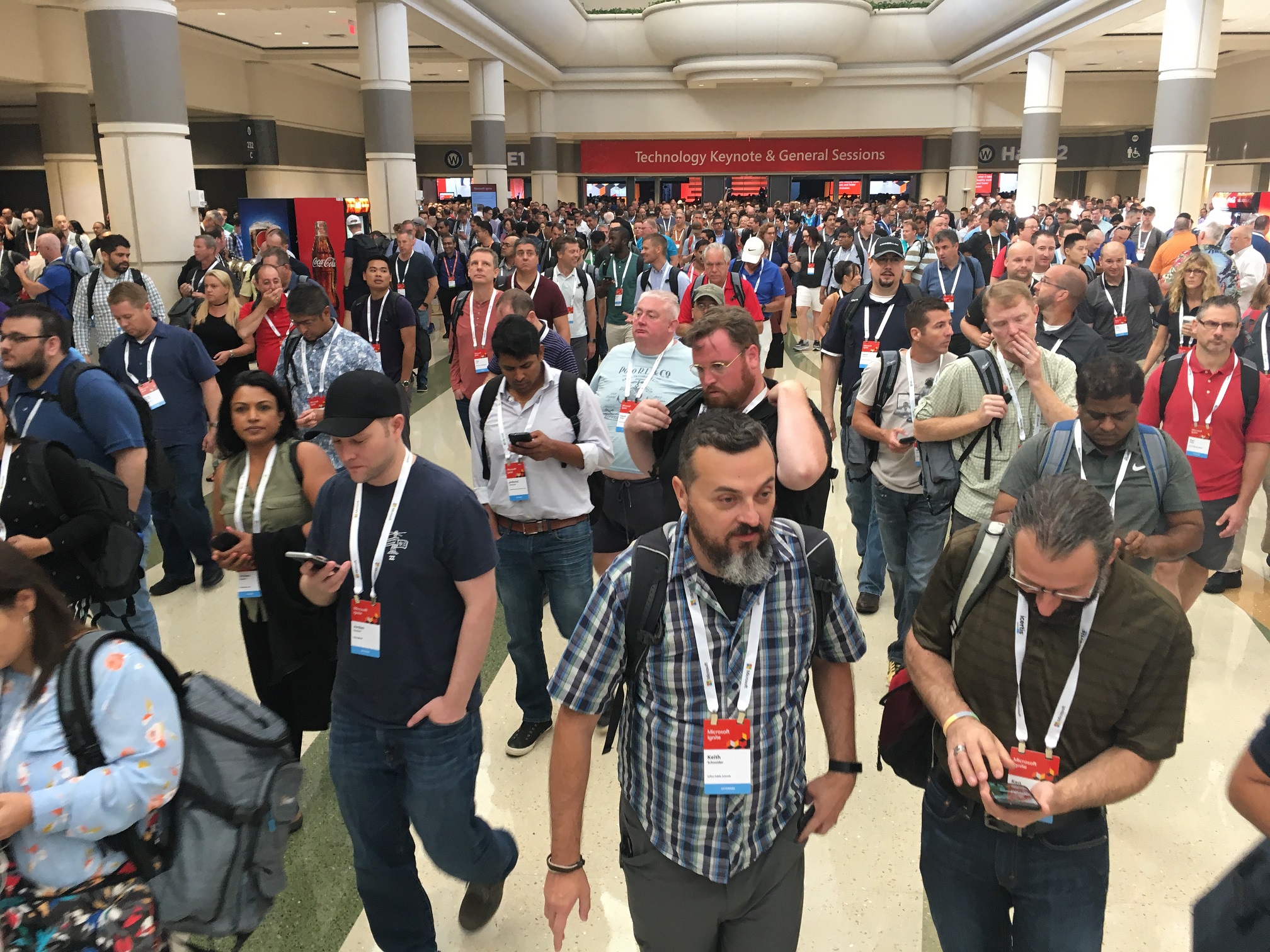
Ignite is an annual event held in the US, and it’s big. This year approx. 30,000 attendees from 5,000 organizations worldwide. That’s a reasonable sized city walking around in a conference center, and it’s pretty impressive to see all this.

Ignite2018-1

Ignite starts with keynote sessions. The opening keynote is also a vision keynote, delivered by Satya Nadella, CEO of Microsoft. It should not be a surprise, but it’s all about the cloud at such a keynote, “intelligent cloud”  and “intelligent edge”, how the various applications and services can use this, for the benefit of the user. Data in the cloud, software in the cloud, Artificial Intelligence (AI), Machine Learning (ML), all services, organization and users benefit from this.

AI and ML sound scary, especially if you are a fan of science fiction movies where computers take over, but there are better solution. For example, in Exchange Online Protection Microsoft is receiving billion and billion of messages. Al these servers send out all kinds of monitoring information, and this is analyzed using AI and ML. Based on this, it is possible to predict certain actions, and take pro-active measures. The same happens in Azure Active Directory. It is now possible to check where logins are coming from, what kind of attacks are happening or if an attack is going to happen. You can use this yourself, and by doing so create a safer environment for you Azure and Office usage.

That’s what you see in a lot of sessions here at Ignite, security, security and security. Oh, did I already mention security? And be honest, Microsoft has to, don’t they? If Office 365 or Azure is massively compromised, it will take out customers’ trust and potentially lose business….

Another area where you can see the influence of the cloud is in desktop application. Microsoft Search is completely rewritten, and will now deliver a consistent search and search result throughout all application, where you are working in Outlook on the Web, PowerPoint, Windows 10 or Outlook, it will all give consistent results. Related to this in Microsoft Office is ‘ideas’. When working in PowerPoint on a presentation, you can use ‘ideas’ to enhance your presentation. A demo was given in PowerPoint with a list of bullets with several countries. Using ‘ideas’ it is possible to add information regarding these countries, and this information is retrieved from Microsoft Search. Also information regarding people in Outlook, where additional information can be retrieved from LinkedIn. Very useful usage of cloud technology in day to day applications.

Technical keynotes are more like what the various applications and services are doing and how these can take advantage of the cloud. I’m more in the Workplace and Microsoft 365 arena, so two keynotes about transforming your workplace to Microsoft 365 and transforming collaboration and communications with Microsoft 365. Amazing to see how Microsoft Teams is taking a big role these days. In the Microsoft cloud, Microsoft Teams will take over from Skype for Business Online. Starting October 1st, new smaller tenants will not get Skype for Business Online, but only Microsoft Teams. Skype for Business Online will continue to be available for existing tenants, but customers are encouraged to move from Skype for Business Online to Microsoft Teams.

You might have seen the following PowerPoint slide before, it’s about the Microsoft teamwork vision, the Inner Loop with people you work with often and the Outer Look with people you with cross organizations.

teamwork

For the Outlook Loop Yammer is still being used, and I’m a bit surprised with that. Personally I expected Yammer to go away now that Microsoft Teams is around. And there’s still development going on, there’s a Yammer tab in Teams, and also integration of various Office 365 services like Planner or Streams or getting into Yammer.

Also the new Virtual Desktop was showed, where a Windows 10 desktop is hosted in Microsoft Azure, available anytime and for any device, and deployed in a couple of minutes. Oh, and autopilot, where a desktop is automatically installed with Windows 10 from Microsoft 365, Office Click-2-Run and your (personal) data in OneDrive for Business. Very impressive and you’ll see more of this popping up in (larger) organizations the upcoming years.

More information regarding the technical sessions are to follow soon. After all, I’m a technical consultant and hope to get a lot of technical information here at Ignite. Stay tuned….