Uninstalling is typically not an issue. One of my Exchange 2019 servers (running on Windows 2022 Server Core) have been running for quite some time, but I had to uninstall it.
Running the setup application failed with a BuildToBuildUpgrade error, almost immediately after starting the setup:
PS C:\> setup.exe /mode:uninstall /IAcceptExchangeServerLIcenseTerms_DiagnosticDataOn

Microsoft Exchange Server 2019 Cumulative Update 12 Unattended Setup

Mailbox role: Mailbox service
Mailbox role: Client Access service
Mailbox role: Transport service
Mailbox role: Front End Transport service
Mailbox role: Client Access Front End service
Management tools
Languages
Setup previously failed while performing the action "BuildToBuildUpgrade". You can't resume setup by performing the action "Uninstall".

The Exchange Server setup operation didn't complete. More details can be found in ExchangeSetup.log located in the <SystemDrive>:\ExchangeSetupLogs folder.
If have seen setups failing before, but normally during an upgrade to a newer setup, but never during an uninstall. Just like other setup failures, check the registry for Action and Watermark entries in the HKLM\SOFTWARE\Microsoft\ExchangeServer\v15. Only the MailboxRole had these entries, the ClientAccess and HubTransport did not have these entries.
Delete the Action and Watermark keys and resume setup. Unfortunately, I don’t know why this happened in the first place since my Exchange server has been running without issues for a longer time.
When moving mailboxes from Exchange 2016 to Exchange 2019 (on Windows 2022) I ran into a couple of StalledDueToTarget_Processor issues. These occur regularly and typically nothing to worry about, the move request will automatically continue in minutes.
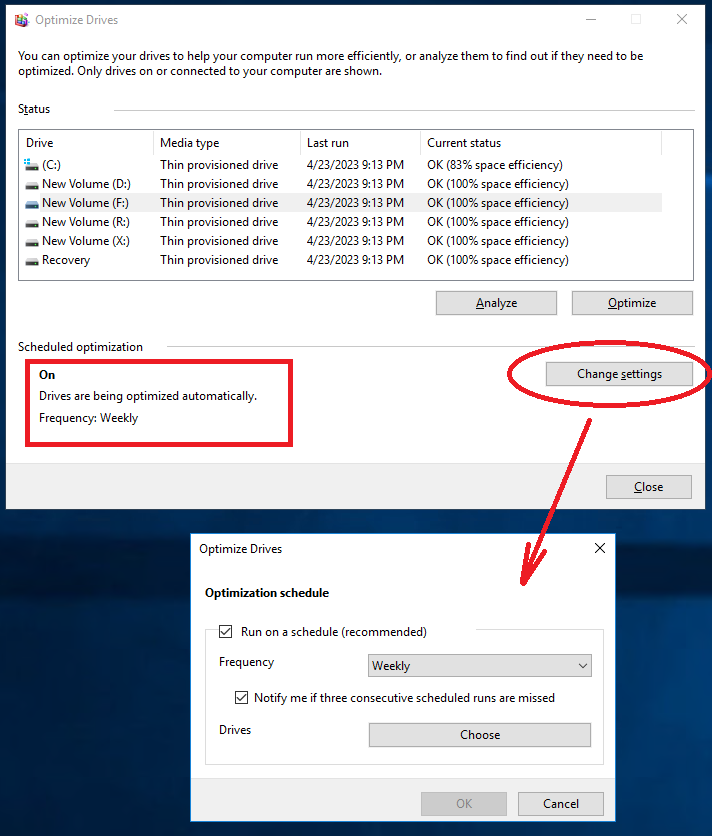
Next I checked the task manager to see how performance of the Exchange servers were doing, and I noticed that the Disk Defragmenter was running. Processor utilization averaged around 20%, but it consumed also approx. 17GB of memory.
It turns out that the disk optimization is turned on by default on all disk in your server. When you select the properties of a disk, select the Tools tab and click Optimize you can see all disks, the scheduled optimization and the option to turn it off:
Disk optimization makes sense when you have a lot of sequential data or have an application that works with large chunks of data. Exchange server works with relatively small blocks of data and in a complete random order. So, disk optimization does not make sense on an Exchange server, and it is absolutely safe to turn it off on your Exchange server. This is alse mentioned in the Exchange Server storage configuration options article as a best practice. You don’t want to lose any valuable processor, disk and memory resources on a disk optimization process.
Thanks to reader Feras to supplying me the link to the configuration options.
On August 9, 2022 Microsoft has released important Security Updates for Exchange 2013, Exchange 2016 and Exchange 2019 that are rated ‘critical’ (Elevation of Privileges) and ‘important’ (Information Disclosure).
This security update rollup resolves vulnerabilities found in Microsoft Exchange Server. To learn more about these vulnerabilities, see the following Common Vulnerabilities and Exposures (CVE):
CVE-2022-21979 – Microsoft Exchange Information Disclosure Vulnerability
CVE-2022-21980 – Microsoft Exchange Server Elevation of Privilege Vulnerability
CVE-2022-24477 – Microsoft Exchange Server Elevation of Privilege Vulnerability
CVE-2022-24516 – Microsoft Exchange Server Elevation of Privilege Vulnerability
CVE-2022-30134 – Microsoft Exchange Server Elevation of Privilege Vulnerability
This Security Update introduces support for Extended Protection. Extended protection enhances authentication to mitigate ‘man in the middle’ attacks. Extended protection is supported on the latest version of Exchange 2016 and Exchange 2019 (2022H1) and the August 2022 Security Update (this one) so it is vital to bring your Exchange servers up-to-date.
Be aware of the following limitations:
Extended protection is only supported on the current and previous versions of Exchange (i.e. Exchange 2016 CU21/CU21 and Exchange 2019 CU12/CU11) and Exchange 2013 CU23 with the August 2022 SU installed
Extended protection is not supported on hybrid servers with the hybrid agent.
Extended protection is not supported with SSL Offloading. SSL Re-encrypt (also knows as SSL Bridging) is supported, as long as the SSL certificate on the load balancer is identical to the SSL certificate on the Exchange servers.
If you still have Exchange 2013 in your environment and you are using Public Folders, make sure your Public Folders are hosted on Exchange 2016 or Exchange 2019.
Note. Make sure you have your Exchange server properly configured with all related security settings. Use the latest HealthChecker.ps1 script to find any anomalies in your Exchange configuration. If you fail to do so, the script to enable Extended Protection will fail with numerous error messages.
Enable Extended Protection
First off, make sure you have the latest Cumulative Update installed on all your Exchange servers and install the August 2022 Security Updates on all your servers, including the Exchange 2013 servers.
Another important thing is that you must make sure that TLS settings across all Exchange servers are identical. You can use the healthchecker.ps1 script to figure out if this is the case. Personally, it took me quite some time to get this right.
The easiest way to configure Extended Protection is by using the ExchangeExtendedProtectionManagement.ps1 script (which can be found on github). This script can enable Extended Protection on all Exchange servers in your organization, but by using the -SkipExchangeServerNames option you can exclude certain Exchange servers (for example, Exchange 2013 servers or servers running the hybrid agent). There’s also the -ExchangeServerNames option which lets you specify which servers to enable the Extended Protection on.
Installing and configuring MCDB in Exchange 2019 has been on my bucket list for a long time, but like most organizations my Exchange servers have been running on either Hyper-V or VMware. I have seen posts on the forums where people were able to publish SSD disks on VMware to VMs, but MCDB has been targeted towards bare metal deployments. But the good news is that I managed to get two big HP boxes to play around with 🙂
MCDB was introduced in Exchange 2019 to speed up access to information in mailboxes that is used frequently. According to the Exchange Preferred Architecture, Mailbox database are stored on (relatively) slow SATA disks. When using MCDB, frequently accessed mailbox information is also stored on SSD disks instead of spinning disks and as such it is much faster to access this information. It is a cache mechanism, so the information on SSD is a copy of information on the spinning disks. If the SSD disk is lost, performance will drop but no information will be lost.
MCDB is useful when running Outlook clients in online mode, for example in a Citrix environment. OWA can also benefit from the improved performance.
MCDB is built on top of Database Availability Groups, so it is not available on single servers (I assume you don’t have a DAG with only one server). It also depends on the AutoReseed feature, so you must deploy this first before configuring MCDB.
My Servers have eight disks installed:
2 SSD disks for boot and system.
4 SAS disks (10 krpm) for Mailbox databases (I preferred SATA disks, but the servers came with these disks).
1 SSD disk for MCDB.
1 (large) SATA disk for storing other information (IIS logs, Queue database, ISO image etc.).
Three of the SAS disks contain two Mailbox databases each, the remaining SAS disk is used as a hot spare for AutoReseed.
In short, AutoReseed is using the ‘multiple mount points per volume’ option in Windows. For example, the first disk is mounted in C:\ExchVols\Vol1, but this disk is also mounted in C:\ExchDbs\MDB11 as shown in the following image (where only 2 disks are shown):
To achieve this, add additional mount points using the disk management MMC snap-in. In the screenshot below, Disk1 is mounted in C:\ExchVols\Vol1, and C:\ExchDbs\MDB11 and C:\ExchDbs\MDB12 are additional mount points on this disk:
Mailbox database locations are strict when using AutoReseed. For example, MDB11 mailbox database and logfiles must be created in the following directories:
C:\ExchDbs\MDB11\MDB11.db
C:\ExchDbs\MDB11\MDB11.log
The locations of the mount points are properties of the Database Availability Group:
AutoDagDatabaseRootFolderPath
AutoDagVolumesRootFolderPath
AutoDagDatabaseCopiesPerVolume
You can check the correct values using the Get-DatabaseAvailabilityGroup command in Exchange PowerShell:
Create all Mailbox databases, mount them and create Mailbox database copies in the correct locations with the correct names. That’s all it takes to configure AutoReseed. When one of the disks containing Mailbox databases fail, the repair workflow will kick in and in about an hour the spare disk is configured, and a reseed will start. All steps of the repair workflow will be logged in the event log. The last entry with a successful reseed is shown in the following screenshot:
Now that we have AutoReseed up-and-running, we can continue with configuring the MetaCache Database.
Configuring MetaCache Database
One of the prerequisites of the MetaCache Database is a fully functional AutoReseed configuration as outlined in the previous steps. Of course, you also need one or more SSD disks, depending on your disk layout.
The official recommendation for the SSD disks is one SSD disk on three spinning disks. Also, the SSD disk should be a raw disk (not formatted) and it must be exposed as MediaType SSD in Windows. To check this, use the Get-PhysicalDisk | sort DeviceID command in PowerShell as shown in the following screenshot:
As for sizing, 5% or 6% SSD capacity of the total HDD capacity is sufficient. So, if you have 8TB of storage for databases, your SSD capacity can be approx. 400 GB.
Important to note is that the disks must be symmetrical amongst all Exchange 2019 servers in the DAGs.
The first step is to configure the DAG for use with MCDB. MCDB uses the following properties of the DAG for its configuration:
AutoDagTotalNumberOfDatabases. The number of Mailbox databases in the DAG.
AutoDagDatabaseCopiesPerDatabase. The total number of copies (active and passive) of each individual Mailbox database.
AutoDagTotalNumberOfServers. The number of Exchange 2019 Mailbox servers in your DAG.
In my lab, there are two Exchange 2019 Servers in a DAG, 3 spinning disks (plus 1 hot spare), 6 Mailbox databases and 2 copies (one active, one passive) per Mailbox database.
Use the following command to set these properties:
The second step is to configure the MCDB prerequisites using the Manage-MCDB command. This command takes the DagName, SSDSizeInBytes and SSDCountPerServer options.
Notes:
The Manage-MDCB command is default not available in PowerShell. You must import the Manage-MetaCacheDatabase.ps1 script (found in $Exscripts) first using the following command:
CD $ExScripts
Import-Module .\Manage-MetaCacheDatabase.ps1
This step is not in the Microsoft documentation, it took me quite some time to figure it out 😦
The SSDSizeInBytes can be found using the following command:
Get-PhysicalDisk -DeviceNumber x | Select Size
The command for the MCDB prerequisites will be something like this:
The third step is to allow (or disallow) an Exchange 2019 server to use MCDB using the ServerAllowMCDB parameter of the Manage-MCDB command. To do this, execute the following Exchange PowerShell command on each DAG member:
The fourth step is to actually configure MCDB on each Exchange 2019 server. In this step, the raw (unformatted) SSD disk is formatted and the mount points for the MCDB instances are created. To do this, execute the following Exchange PowerShell command, again on each DAG member:
This is all it takes to configure MCDB on a DAG and it is now ready to create the MCDB instances and populate it with cached data. The creation and population (en thus enable acceleration) is initiated by a fail-over. You can use the following MCDB command to initiate this fail-over:
When it comes to monitoring there’s not much to see. You can use the Get-MailboxDatabase command to retrieve configuration properties of MCDB, and you can use the Get-MailboxDatabaseCopyStatus command to see ‘some’ health information regarding MCDB as shown in the following two screenshots:
Unfortunately, Unfortunately that’s it, no more options for monitoring, not even counters in performance monitoring.
So how do you know it works?
Besides the Get-MailboxDatabaseCopyStatus command, you can check the SSD disk which is visible in the Explorer. When configured, the SSD disk is mounted in C:\ExchangeMetaCacheDbs and C:\ExchangeMCDBVolumes. You will find a special (small) MCDB version of the Mailbox database as shown in the following screenshot:
Since this is a regular physical disk you can find it in perfmon, but there are no MCDB specific counters here.
The most interesting thing to test is just login to a Mailbox in one of these Mailbox databases. The look and feel is seriously better than without MCDB. When opening a mailbox in Outlook online mode, or in OWA is just much faster. I have also tried opening a Mailbox remotely via a 20 Mbit line (fiber, so low latency) and it also works better than Exchange without MCDB.
Summary
Exchange 2019 came with this new feature called MetaCache Database, where mailbox data is stored on SSD disks. In the Preferred Architecture, mailbox databases are stored on large SATA disks, but to improve performance frequently accessed data is stored on SSD disk.
The tricky part in configuring MCDB is the configuration of AutoReseed which I find more complex. The lack of proper monitoring is disappointing, but when configured it works very well and you will experience an improved performance. Like most of us, I have worked a lot with properly designed virtualized Exchange environments, but never seen an Exchange environment working as fast as a bare metal Exchange environment with Exchange 2019 and MCDB.
I have been away for a couple of days, but you already might have seen that Microsoft released a number of Security Updates for Exchange 2019, Exchange 2016 and Exchange 2013, but only for the last two Cumulative Updates (as always).
Security Updates are available for the following products:
Security Updates are CU specific and can only be applied to the specific Cumulative Update. When trying to install a Security Update for another CU, an error message will be returned.
Security Updates are also cumulative, so this Security Update contains all previous security updates for this specific CU. There’s no need to install previous Security Updates before this Security Update.
As always, after downloading a Security Update, start the Security Update from a command prompt with elevated privileges (‘Run as Administrator’) to prevent an erratic installation. This does not apply when installing a Security Update via Windows Update or WSUS.




 Jaap Wesselius
You must be logged in to post a comment.