Exchange 2013 Service Pack 1

On February 25, 2014 Microsoft released Exchange 2013 SP1, an interesting upgrade in the Exchange 2013 program. Besides SP1 new UM Language Packs have been released as well. For more detailed information please check the SP1 release notes. At the same time Microsoft has released Update Rollup 5 for Exchange 2010 SP3 and Update Rollup 13 for Exchange 2007 SP3.

Looking at the Cumulative Updates with Exchange 2013, SP1 is identical to CU4. One reason for releasing a Service Packs is the support lifecycle. Major releases and Service Packs of a Microsoft product are included in the support lifecycle, Cumulative Updates are not.

Continue reading Exchange 2013 Service Pack 1

Load Balancing Office Web Apps 2013

In an earlier blog post I explained how to install and configure Office Web Apps 2013 in combination with Exchange Server 2013. This blog post only explained how to create an Office Web Apps farm on a single server. This blog post will explain how to create additional servers and use a load balancer in front of multiple Office Web Apps 2013 servers using SSL Offloading

SSL Offloading

Microsoft recommends using SSL Offloading when configuring a load balancer in front of an Office Web Apps farm so we need to configure this first.

My original blogpost was about a WebApps server that had a dedicated Internet connection. This is now changed to a WebApps server that is only connected to the internal network. The Internet connections will enter the load balancer and the WebApps server is configured as a real server in the load balancer’s VIP.

Continue reading Load Balancing Office Web Apps 2013

Lync 2013 client logging

When testing your Lync 2013 environment it sometimes happens that you cannot logon to your Lync server. If this happens it can be useful to enable logging in your Lync 2013 client.

In your Lync 2013 client, go to Tools en then to Options. In the General section set Logging in Lync to Full.

image

The log files will be stored in C:\Users\Jaap\AppData\Local\Microsoft\Office\15.0\Lync\Tracing. In there you’ll find a file called Lync-UccApi-0.UccApilog which contains a wealth of troubleshooting information.

Automated Deployments

For my lab environment I have to reinstall environment on a regular basis, which of course is quite a lot of work. Of course I know the unattended setup options in Exchange, but you also have to setup your VM’s, DCPromo the VM’s and install all kinds of prerequisite software.

Installing Lync is even worse with the Topology Builder, creating the XML and then install the various server roles.

I found these links on the internet which can certainly help you speed up your lab deployment:

I haven’t tried the unattended Lync setup, but the other two are awesome!

Strange directories in Exchange 2013 on D-drive

I’ve been installing Exchange 2013 in my lab environment recently. For Exchange I use a System- and Bootdisk and a Mailbox database disk in my lab. Sometimes I add a small disk to the server where the SMTP transport files are located, but this is always added after Exchange is installed.

Recentely I created a template where the C:\ (System- and Boot), D:\ (SMTP files) and F:\ (mailbox database) are already present BEFORE Exchange 2013 is installed.

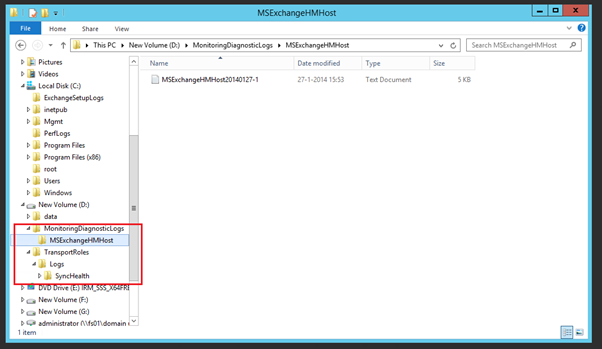
Now what happens is that two additional directories are created on this D:\ drive during installation of Exchange 2013:

  • D:\MonitoringDiagnosticLogs\MSExchangeHMHost
  • D:\TransportRoles\Logs\SyncHealth. A small file is located in here called MSExchangeHMHost20140127-1 (that last part is the data the file is created)

image

It turns out that this is hardcoded in the setup application of Exchange 2013. I’ve received one email from somebody who saw this in Exchange 2010 CU3 as well, so most likely it happened earlier as well.

Since it is hardcoded, it happens only on drive D:\. If drive D:\ is your DVD player and the additional disk is E:\ the directories are not created.

This bug is filed at the Exchange team, now we have to wait what happens.