Tag Archives: Exchange 2010

msExchQueryBaseDN and Exchange 2010

In the old days when using Exchange 2007 for hosting scenarios you would use the Configuring virtual organizations and address list segregation in Exchange 2007 whitepaper. In Exchange 2007 the msExchQueryBaseDN property on a mailbox was used to limit the search scope of users in OWA. The typical setting of this property is the OU where the users would reside in Active Directory.

The msExchUseOAB property on a mailbox is used to select an Offline Address Book in a hosting environment (where multiple OAB exist of course). This way the user would receive the OAB of his particular organization.

Continue reading msExchQueryBaseDN and Exchange 2010

Change OWA Logon Page in TMG

Normally when you use OWA you see the initial logon page where the credentials are asked like Domain\User name:

image

When you want to use the UPN (in most cases identical to the e-mail address) you can set this on the OWA Virtual Directory in the Exchange Management Console:

image

When you select “Use forms-based authentication” and select “User principal name (UPN)” the initial login page changes accordingly:

image

When using TMG2010 in front of Exchange 2010 things are different. The logon form is now generated by TMG, and the Exchange server itself is set to basic authentication. By default the TMG logon page for Exchange is set to show the Domain\Username format and unfortunately there’s no easy way to change the logon page to show something different.

Please note that although the default page shows Domain\Username you still can use the UPN to logon!

To change the logon page to show a different text (or change the layout completely) you have to change the HTML pages. These pages can be found on the TMG server in directory C:\Program Files\Microsoft Forefront Threat Management Gateway\Templates\CookieAuthTemplates\Exchange\HTML. The various languages files can be found in subdirectories here, for example the Dutch language component can be found in subdirectory nls\nl. Open the strings.txt file, search for the L_UserName_Text string and change its value.

image

Restart the TMG Firewall service and open Outlook Web App. You’ll see that the logon page has now changed:

image

SSL offloading with Powershell

When you’re using a (hardware) load balancer in combination with Exchange Server 2010 you might want to offload SSL from the Exchange servers to the load balancers. This way you get more options available for persistence in the load balancer.

Enabling SSL offloading in Exchange 2010 is not that difficult but it consists of several steps which can be prone to error if you have to configure this on multiple servers (which is most likely the case of course with a load balancer).

Continue reading SSL offloading with Powershell

SMTP Relay in Exchange 2010

When an Exchange 2010 Hub Transport Server is installed two Receive Connectors are automatically created:

  • Client Receive Connector – used by end users with an SMTP client that want to send out messages. This is authenticated SMTP and the connector is using port 587 for this;
  • Default Receive Connector – used to receive SMTP messages on port 25 from other Exchange Hub Transport Servers or the Edge Transport Server.

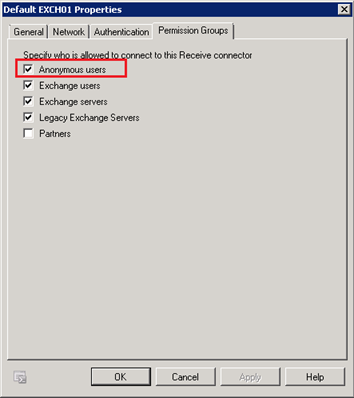
I always recommend not to change the default receive connectors with the exception of setting Anonymous Users on the Permission Groups to allow other SMTP hosts to submit messages as well.

image

Relaying SMTP messaging

For relaying SMTP messaging I normally recommend to use an additional Receive Connector with an additional IP address on the server. This IP address can have an easy to remember FQDN like relay.contoso.com

To create the new Receive Connector use the following command in the Exchange Management Shell:

New-ReceiveConnector –Name “Relay Connector (EXCH01)” –usage Custom –Bindings 10.19.67.33:25 –FQDN relay.contoso.com –RemoteIPRanges 10.19.67.201 –Server ServerName –PermissionGroups AnonymousUsers

This command will create a new Receive Connector, bind it to the IP address 10.19.67.33 (this should be on the network card of the server of course) and allow the IP address 10.19.67.201 to submit SMTP messages anonymously. However, only messages for recipients whose SMTP domain is an an Accepted Domain in the Exchange organization are accepted at this point. This is a default setting so the permissions on the Receive Connector have to be changed.

The ms-Ech-SMTP-Accept-Any-Recipient permission is to make sure that all submitted recipients are accepted by the Hub Transport Server. This permissions can be added with the Add-ADPermission cmdlet:

Get-ReceiveConnector –Identity “Relay Connector (EXCH01)” | Add-ADPermission -User “NT AUTHORITY\ANONYMOUS LOGON” -ExtendedRights “ms-Exch-SMTP-Accept-Any-Recipient”

If you have multiple Receive Connectors and want to check whether or not anonymous relay is enabled on any connector you can use the following command:

Get-ReceiveConnector | Get-ADPermission | where {$_.extendedrights –like “*Any-Recipient”}

Unattended Setup Exchange 2010

Installing prerequisite software

Before installing the actual Exchange Server the prerequisite software needs to be installed as well. Microsoft has a couple of XML files that can be used with the command-line version of Server Manager, ServerManagerCmd.exe

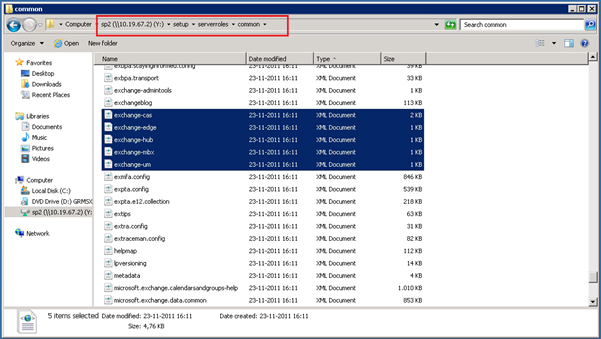
These XML files can be found in the directory D:\Setup\ServerRoles\Common (where “D” is the installation source, i.e. your DVD or network share) and are named Exchange-Serverrole.XML:

image

You can start installing the prerequisite by opening a command prompt and execute the following command:

ServerManagerCmd.exe –ip Exchange-Cas.XML

This will install the prerequisite software for the Exchange 2010 Client Access Server. Although the server not always requests to I personally always recommend rebooting the server after installing the prerequisite software.

Preparing Active Directory

To prepare Active Directory for Exchange Server 2010:

setup.com /PrepareExchangeLegacyPermissions

(this step only needs to be performed when upgrading from an earlier version of Exchange)

setup.com /PrepareSchema
setup.com /PrepareAD /OrganizationName:<< name>>

(the /OrganizationName switch can be omitted when upgrading from an earlier version of Exchange)

setup.com /PrepareDomain

Install the Exchange Servers:

To install Exchange 2010 servers from the command line using the setup.com application a number of switches are available:

/mode, can be install, uninstall or upgrade

/role, can be (a combination of) CA, HT, MB, UM, MT (MT = Management Tools)

/UpdatesDir – location on disk where the setup can fine update (i.e. Update Rollup fixes) that will be included when installing Exchange Servers. This does not work when upgrading servers (unfortunately)

/LegacyRoutingServer – The Exchange 2003 SMTP server the Hub Transport Server is using to create a Legacy Routing Group Connector (only used for the 1st Hub Transport Server in an existing Exchange 2003 environment)

/LanguagePack – location on disk where the setup application can find the Language Pack files. Of course these need to be downloaded first

/ExternalCASServerDomain – The external URL the Client Access Server is using for clients accessing the server from the Internet (CAS Server only)

/EnableLecayOutlook – Creates a Public Folder database needed for Outlook 2003 clients (Mailbox Server only)

To install a combined CAS and HUB server:

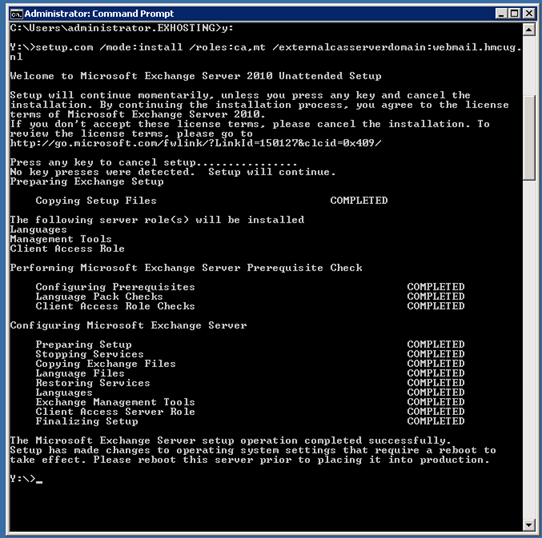
setup.com /mode:install /role:CA,HT /UpdatesDir:\\InstallShare\ExchangeUpdates /LanguagePack:\\InstallShare\ExchangeLanguagePack\LanguagePackBundle.exe /ExternalCASServerDomain:webmail.contoso.com

To install a Hub Server and connect it to Exchange 2003:

setup.com /mode:install /role:HT /UpdatesDir:\\InstallShare\ExchangeUpdates /LanguagePack:\\InstallShare\ExchangeLanguagePack\LanguagePackBundle.exe /LegacyRoutingServer:2003SMTP.contoso.com

To install a Mailbox Server:

setup.com /mode:install /role:MB /UpdatesDir:\\ InstallShare \ExchangeUpdates /LanguagePack:\\ InstallShare \ExchangeLanguagePack\LanguagePackBundle.exe /EnableLegacyOutlook

image

Use an answer file

It is also possible to use an answer file for the unattended setup with the /Answerfile:c:\answerfile.txt option. you can use the following options in the answer file:

EnableLegacyOutlook

LegacyRoutingServer

ServerAdmin

ForeignForestFQDN

OrganizationName

DoNotStartTransport

UpdatesDir

EnableErrorReporting

NoSelfSignedCertificates

AdamLdapPort

AdamSslPort.

More information can be found on Microsoft TechNet: http://technet.microsoft.com/en-us/library/aa997281.aspx