Tag Archives: Office 365

Exchange 2013, Shared Mailbox and Sent Items

When users are using shared mailboxes and send email messages out of this Mailbox, you want these messages to be stored in the shared Mailbox. This was already possible in Exchange 2010, but only starting in CU9 this is possible in Exchange 2013 as well.

It is a setting on the shared Mailbox and has to be set using the Exchange Management Shell and works for shared Mailboxes where both the Sent As permissions and Sent on Behalf of permissions are granted.

For shared Mailboxes with the Sent As permissions use the following command:

Set-Mailbox <mailbox> -MessageCopyForSentAsEnabled $True

For shared Mailboxes with the Sent On Behalf of permissions use the following command:

Set-Mailbox <mailbox> -MessageCopyForSendOnBehalfEnabled $True
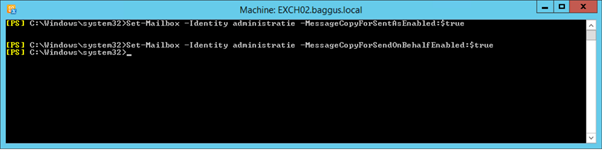
image

When testing with Outlook (2013 in this case) and a shared Mailbox where Full Access and Sent As permissions are granted the email message that was sent is stored in the shared Mailbox.

image

A couple of remarks:

  • The email message is stored in the shared Mailbox, but a copy is stored in the user’s Mailbox as well.
  • This feature was already available in Office 365 (and can be set using Remote PowerShell).
  • If the –MessageCopyForSentAsEnabled and the –MessageCopyForSendOnBehalfEnabled are not available you should run the Setup.exe /PrepareAD /IAcceptExchangeServerLicenseTerms in your environment to make the appropriate changes in the AD’s Configuration partition.

The operation on mailbox failed because it’s out of the current user’s write scope

When you want to change an email address on a Mailbox in Office 365 you get the following error message:

The operation on mailbox “<mailbox>” failed because it’s out of the current user’s write scope. The action ‘Set-Mailbox’, ‘EmailAddresses’, can’t be performed on the object ‘Stacey Brown’ because the object is being synchronized from your on-premises organization. This action should be performed on the object in your on-premises organization.

image

This issue is caused by the fact you’re synchronizing user objects from a local Active Directory using DirSync or WAADSync, and you want to change properties in Office 365. This is not possible since the Source of Authority is your local Active Directory, and not Windows Azure Active Directory. This means you have to change all the user’s properties in Active Directory, including his email address.

Continue reading The operation on mailbox failed because it’s out of the current user’s write scope

Manage Azure Active Directory in the Azure Portal

Office 365 is just one part of the Microsoft Online Services and you can use the Microsoft Online Portal to manage your Office 365 environment as you’ve seen in my previous blog posts.

Microsoft Azure is another part of the Microsoft Online Services. In Microsoft Azure you can use all kinds of services, servers, virtual machines and… Azure Active Directory.

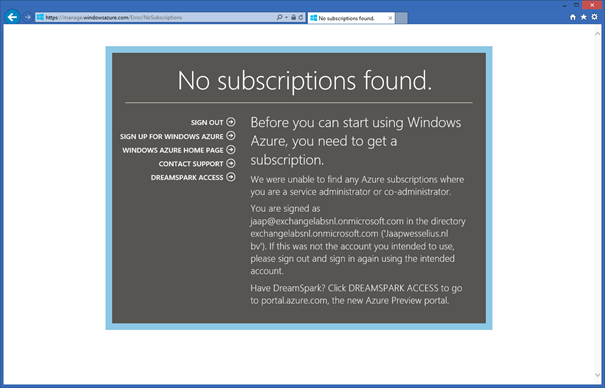
The portal for Windows Azure can be found on http://manage.windowsazure.com, but when you try to logon using your tenant admin account (the one you’re using for Office 365 as well) you’ll get a warning that no subscriptions are found. This makes sense because there’s only an Office 365 subscription to this account.

image

Continue reading Manage Azure Active Directory in the Azure Portal

Manage Domains in Office 365 using PowerShell

In a previous blogpost I showed you how to create new domains in Office 365 using the Microsoft Online Portal. You can do the same using PowerShell which can be much more interesting, especially for partner reselling Office 365 through the Cloud Solution Provider (CSP) program. If you want to know more about PowerShell, check my previous blog post Manage Office 365 with PowerShell.

Add a new domain

Adding a new domain in Windows Azure Active Directory can be broken down into three steps as we’ve seen in adding a domain using the Microsoft Online Portal:

  • Add and validate the actual domain;
  • Configure and validate DNS records (domain purpose);
  • Configure or add users;

These steps will be described in the following sections

Add and validate the actual domain

To add a new domain you can use the New-MsolDomain command. The –Name option is used to pass the domain name and the –Authentication option is used to pass the type of domain, which is either Managed or Federated. The latter is used in a federated environment with Directory Synchronization and ADFS, so in this example we use ‘Managed’:

New-MsolDomain –Authentication Managed –Name office365labs.nl

image Continue reading Manage Domains in Office 365 using PowerShell

Manage Office 365 with PowerShell

The core components of Office 365 are Exchange Online, Lync Online and SharePoint Online, all are running on top of Windows Azure Active Directory as shown in the following figure:

image

All services can be managed from the Microsoft Online Portal. When logged on to the portal you can select the various services under Admin in the navigation pane. It is also possible to manage Office 365 using PowerShell, but all services require a different approach or module.

Managing Windows Azure Active Directory using PowerShell

To manage Windows Azure Active Directory with PowerShell you have to install the Azure Active Directory Module for Windows PowerShell (64-bit version) but before you can use this you also have to install the Microsoft Online Services Sign-In Assistant. Continue reading Manage Office 365 with PowerShell