Sometimes it can be useful to manually force a Directory Synchronization between your on-premises Active Directory and Windows Azure Active Directory. Over the last couple of years Microsoft has released a couple of Directory Synchronization tools, and each version had its own way of manually forcing a Directory Synchronization.
These versions are:
- DirSync (the original first version of Directory Synchronization).
- Azure AD Sync or AADSync.
- Azure AD Connect or AADConnect (the current version)
I’ll explain all three in the following sections below, starting with Azure AD Connect.
Azure AD Connect
The latest (current) version of the directory synchronization tool is Microsoft Azure AD Connect. Please note that this is the only officially supported version by Microsoft!
One remark in comparison with previous version of DirSync tools, the Azure AD Connect now synchronizes once every thirty minutes. If you enabled password synchronization, the official SLA mentions a 2 minute timeframe before the password is synchronized, but in a typical environment it is more like 30 seconds or so.
To force an incremental synchronization, open PowerShell on the Directory Synchronization server (or any other server where you installed Azure AD Sync) and execute the following command:
Start-ADSyncSyncCycle -PolicyType Delta
There’s not much to show here though 

Azure AD Sync
If you’re running Windows Azure Active Directory Sync Services you have to run a Command Line utility called the DirectorySyncClientCmd tool. You can find this tool in the C:\Program Files\Microsoft Azure AD Sync\Bin directory on the Directory Synchronization server. Run this command from a Command Prompt with elevated privileges and your local Active Directory is synchronized with Office 365 immediately:

This tool is configured as a Scheduled Task to run every three hours. You can also open the Scheduled Tasks in Administrative Tools and manually start the task (instead of starting the tool manually).
DirSync
If you want to do a full synchronization between Active Directory and Office 365 (which is basically Azure Active Directory) you can logon to the DirSync Server, open a PowerShell windows (with elevated privileges), navigate to the C:\Program Files\Windows Azure Active Directory Sync\ directory and type the .\DirSyncConfShell.psc1 command. When done you can start the Start-OnlineCoexistenceSync cmdlet which will force replication.
When you have installed Windows Server 2012 R2 with the latest version of DirSync (I was running 1.0.6862.0 but I’ve seen this with 1.0.7020.0 as well) the DirSyncConfShell.psc1 file is missing.
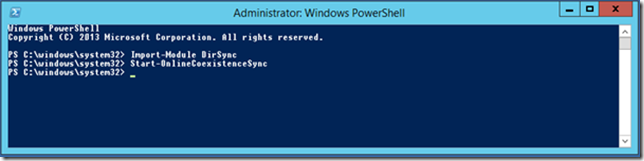
In Windows 2012 R2 you can import the DirSync module directly in PowerShell using the Import-Module DirSync command. When imported you can run the Start-OnlineCoexistenceSync cmdlet to synchronize your Active Directory with Office 365.
Updated on January 19, 2017.


 Jaap Wesselius
You must be logged in to post a comment.