Tag Archives: Security

Self Service Password Reset in Office 365

One option, not only for security, but also for user convenience is Self Service Password Reset (SSPR). This feature enables cloud users to reset their own passwords in Azure Active Directory, and this way they don’t have to contact the local IT staff with reset password questions.

Note. For Self Service Password Reset you need an additional Azure AD Basic license.

To enable Self Service Password Reset, logon to the Azure Portal (https://portal.azure.com) as a Global Administrator. Select Azure Active Directory, select Password Reset and in the actions pane, select Selected or All. Using the Selected option, you can enable SSPR only to member of the security group SSPRSecurityGroupUsers for a more targeted approach. Of course, if you want to enable SSPR for all your users you should select the All option.

Password-Reset-Selected

Click Save to store your selection. Click the second option Authentication Methods to select the number of methods available to your users. In my example, I’m going to select just one, and options I select are Email and Mobile Phone.

Methods_Available

Click Save to continue. The last step is to configure the registration. This is to require users to register when signing in, and the number of days the users are asked to re-confirm their authentication information, as shown in the following screenshot:
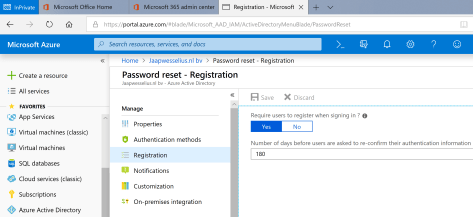
password-reset-registration

You’re all set now.

When a (new) user logs on now, he is presented with a pop-up, asking for verification methods. As configured earlier the authentication phone and authentication email is used. The mobile phone number that’s presented here was configured earlier in Azure Active Directory when provisioning the user. Click Verify and you’ll receive a text message with a verification code.

You can chose an email address for authentication purposes, as long as it’s not an email address in your own tenant. Follow the wizard when you click Set it up now as shown in the following screenshot.

dont-lose-access

To test the SSPR, use the browser van navigate to https://passwordreset.microsoftonline.com/, enter your userID (UPN) and enter the CAPTCHA code.

You can choose to send an email to your verification account, send a text message to your mobile phone (see screenshot below) or have Microsoft call you.

Get-Back-Into-Your-Account

Enter your phone number (the phone number that’s also registered in Azure AD) and within seconds you’ll receive a verification text message. After entering this code you can enter a new password, and with this new password you can login again.

As a bonus you’ll receive an email that you password has been changed.

Summary

In this blogpost I’ve shown you how to implement the Self Service Password Reset (SSRP), a feature that’s available in the default Office 365 Enterprise licenses, so no additional Azure AD licenses are needed. You can choose to implement text messages or email messages (as shown in this blogpost) but you can also implement additional security questions.

Now this is a nice solution for cloud identities, but it does not work for synced identities or federated identities. For this to work you need to implement password write-back, a nice topic for the next blog 😊

Microsoft Secure Score – Improve security of your tenant

During Ignite 2018 in Orlando there was a lot of focus on security in Office 365 and Azure Active Directory. That makes sense, a cloud solution is accessible for everyone. Not only your own internal users, but also the bad guys that are out for your data, accounts or money. And not only your user accounts are at risk, your admin accounts even more, and when losing your admin accounts, you are pretty much out of business.

It was shocking to hear that there are 6,000 compromised admin accounts each month, and only 4% of all admin accounts have MFA enabled. And the number of compromised admin accounts decreases with 99,9% with MFA enabled. Go figure!

Other issues that impact security negatively is weak passwords. Everybody knows about brute force attacks, but ever heard of password spray attacks? Based on user lists and (default) weak passwords all combinations of usernames and passwords are tried, without you as an admin even knowing what’s going on.

The list with security issues is impressive…. Weak (legacy) authentication, no password changes, phishing attacks, spoofing, auto-forwarding, too many global admins, permissions and roles, unmanaged devices, etc. etc.

Continue reading Microsoft Secure Score – Improve security of your tenant

Ignite 2018 – Azure AD and security sessions

A little later than originally planned because of an unexpected visit of the Massachusetts General Hospital in Boston on my way…. In my previous postings I blogged about the start of the conference and some of the Exchange sessions I attended in the first two days. Now how much I do love Exchange, most of my clients are moving towards Office 365 and Exchange Online, so what else is important here?

Yes, authentication! Azure Active Directory, Identity and Access Management and security around these solutions. And this happens to be important for Exchange and Exchange Online as well, so….

Secure access to Office 365/Azure Active Directory with new features in AD FS in Windows Server 2019 and Azure AD Password Protection

Sessions “BRK3226 – Secure access to Office 365/Azure Active Directory with new features in AD FS in Windows Server 2019 and Azure AD Password Protection” is all about authentication in Azure AD. It explains the traditional password hash sync as well as the ADFS options (more that 71 million users are actively using ADFS). But there are also 1.29 billion authentications blocked in August 2018 and 81% of all security breaches are because of weak, default or stolen passwords.

securing-resources

Common passwords used in (Azure) AD are Password, Spring, Summer, Autumn, Winter, 2018, 1234, your favorite football team etc. And these in turn are used in password spray attacks! Also vulnerable are passwords where number and letters are changed, for example “I” becomes “!”, “O” becomes “0” etc. And now you wonder, how many of my users are doing this? Password protection in Azure AD also includes normalization of the password, so these changes are automatically blocked. The good thing is, Azure AD password protection is coming to on-premises AD as well!

You can find the presentation on Youtube https://youtu.be/DC4cyF_JEgw and the presentation can be found here https://mediusprodstatic.studios.ms/presentations/Ignite2018/BRK3226.pptx

Azure Active Directory best practices from around the world

The title of the session was renamed to “Azure AD: Do’s and Don’ts”, but this is a more ‘notes from the field’ session with a lot of practical information around Azure AD, legacy authentication, modern authentication, Hybrid Azure AD Joine (HAADJ, I hate 3 letter acronyms, let alone 5 letter versions 😊) and what to do to get a better and more safe authentication experience.

legacy-authentication

Interesting in this presentation is that is also discusses what step you need to take to move from legacy authentication to modern authentication, and also the pitfalls you might encounter, including links to more information (found in the presentation).

associating-devices

You can see the presentation on Youtube https://youtu.be/wGk0J4z90GI and you can find the presentation here https://mediusprodstatic.studios.ms/presentations/Ignite2018/BRK3408.pptx

Scott Schnoll’s Exchange and Office 365 tips and tricks

I don’t know how many times Scott Schnoll has delivered this session, but it still is an awesome session and contains so much practical information around Exchange and nowadays Exchange Online.

scott-schnoll

I tried to make some pictures with Office Lens, but I think the color of the slides and text are not identified correctly so they are horrible. The slides aren’t available (yet), so you have to check the presentation on Youtube: https://youtu.be/0WNMX8EKYZk

Topics include anti-virus exclusions, DMARC enhancements, decommission on-premises Exchange in (or after) hybrid, changes to EOP IP ranges, migrating DL’s to Office 365 (including a script to do so), a license administrator in Office 365 (preview), DLP and credit card numbers and Mail Flow Insights, a new tool/dashboard that is currently being developed. Scott is doing a demo on this at the end of his presentation. Very cool, very promising, very useful!

Summary

So, after 5 days (well, four and a half days) we can say it was a very successful event. It is so huge, approx. 30,000 attendees from 5,000 organizations. So many sessions, break-out, theatre, workshop, hands-on, almost too much. And the sheer size of the location, I guess one can walk between 6 and 7 miles every day between the various locations. Would I go again? Sure, next year, again in Orlando, November 4-8. Hope to see you there!

More information/sessions

And some more interesting sessions to view online….

BRK2407 – Windows 10 and Office 365 ProPlus lifecycle and servicing update (CONDENSED)

https://mediusprodstatic.studios.ms/presentations/Ignite2018/BRK2407.pptx  https://youtu.be/t9Bs55czc1E

BRK3234 – An IT pros guide to Open ID Connect, OAuth 2.0 with the V1 and V2 Azure Active Directory endpoints (very informative, but not available online yet I’m afraid)

BRK3397 – Protect and control your sensitive emails with Office 365 Message Encryption

https://mediusprodstatic.studios.ms/presentations/Ignite2018/BRK3397.pptx

https://youtu.be/Ld4b4pFua0g

BRK3408 – Azure Active Directory best practices from around the world

https://mediusprodstatic.studios.ms/presentations/Ignite2018/BRK3226.pptx

https://youtu.be/wGk0J4z90GI

BRK3146 – What’s amazing and new in calendaring in Outlook!

https://youtu.be/-ZrNTylawOA

THR3024 – How to add MFA to your Exchange Online/on-premises mailboxes in 20 minutes or less

https://youtu.be/7hoEmEwV8Rk

BRK3081 – Implementing a modern network architecture to get the most out of Office 365

https://youtu.be/FGMzS_MjuPY

BRK3145 – Deploying Outlook mobile securely in the enterprise

https://youtu.be/4mHlxdJMh1Q

THR3036 – Azure Active Directory hybrid identity and banned password detection

https://youtu.be/kuVkfIiapI4


Ignite 2018 – The conference starts

I’ve been at the Microsoft Ignite conference in Orlando from Sunday September 23 until Friday September 28. It’s been some time since I’ve visited a Microsoft conference, I think the Microsoft Exchange Conference in Austin, TX in early 2013. Also I did some TechEd events, both as speaker as well as attendee but that’s also a long time ago. And what’s the best way to get up-to-speed with Microsoft vision, strategy and new products? Yes, Ignite…. So off to Orlando 😊

Ignite is an annual event held in the US, and it’s big. This year approx. 30,000 attendees from 5,000 organizations worldwide. That’s a reasonable sized city walking around in a conference center, and it’s pretty impressive to see all this.

Ignite2018-1

Ignite starts with keynote sessions. The opening keynote is also a vision keynote, delivered by Satya Nadella, CEO of Microsoft. It should not be a surprise, but it’s all about the cloud at such a keynote, “intelligent cloud”  and “intelligent edge”, how the various applications and services can use this, for the benefit of the user. Data in the cloud, software in the cloud, Artificial Intelligence (AI), Machine Learning (ML), all services, organization and users benefit from this.

AI and ML sound scary, especially if you are a fan of science fiction movies where computers take over, but there are better solution. For example, in Exchange Online Protection Microsoft is receiving billion and billion of messages. Al these servers send out all kinds of monitoring information, and this is analyzed using AI and ML. Based on this, it is possible to predict certain actions, and take pro-active measures. The same happens in Azure Active Directory. It is now possible to check where logins are coming from, what kind of attacks are happening or if an attack is going to happen. You can use this yourself, and by doing so create a safer environment for you Azure and Office usage.

That’s what you see in a lot of sessions here at Ignite, security, security and security. Oh, did I already mention security? And be honest, Microsoft has to, don’t they? If Office 365 or Azure is massively compromised, it will take out customers’ trust and potentially lose business….

Another area where you can see the influence of the cloud is in desktop application. Microsoft Search is completely rewritten, and will now deliver a consistent search and search result throughout all application, where you are working in Outlook on the Web, PowerPoint, Windows 10 or Outlook, it will all give consistent results. Related to this in Microsoft Office is ‘ideas’. When working in PowerPoint on a presentation, you can use ‘ideas’ to enhance your presentation. A demo was given in PowerPoint with a list of bullets with several countries. Using ‘ideas’ it is possible to add information regarding these countries, and this information is retrieved from Microsoft Search. Also information regarding people in Outlook, where additional information can be retrieved from LinkedIn. Very useful usage of cloud technology in day to day applications.

Technical keynotes are more like what the various applications and services are doing and how these can take advantage of the cloud. I’m more in the Workplace and Microsoft 365 arena, so two keynotes about transforming your workplace to Microsoft 365 and transforming collaboration and communications with Microsoft 365. Amazing to see how Microsoft Teams is taking a big role these days. In the Microsoft cloud, Microsoft Teams will take over from Skype for Business Online. Starting October 1st, new smaller tenants will not get Skype for Business Online, but only Microsoft Teams. Skype for Business Online will continue to be available for existing tenants, but customers are encouraged to move from Skype for Business Online to Microsoft Teams.

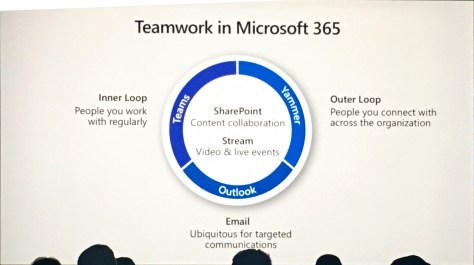
You might have seen the following PowerPoint slide before, it’s about the Microsoft teamwork vision, the Inner Loop with people you work with often and the Outer Look with people you with cross organizations.

teamwork

For the Outlook Loop Yammer is still being used, and I’m a bit surprised with that. Personally I expected Yammer to go away now that Microsoft Teams is around. And there’s still development going on, there’s a Yammer tab in Teams, and also integration of various Office 365 services like Planner or Streams or getting into Yammer.

Also the new Virtual Desktop was showed, where a Windows 10 desktop is hosted in Microsoft Azure, available anytime and for any device, and deployed in a couple of minutes. Oh, and autopilot, where a desktop is automatically installed with Windows 10 from Microsoft 365, Office Click-2-Run and your (personal) data in OneDrive for Business. Very impressive and you’ll see more of this popping up in (larger) organizations the upcoming years.

More information regarding the technical sessions are to follow soon. After all, I’m a technical consultant and hope to get a lot of technical information here at Ignite. Stay tuned….

Outlook 2010 disconnected with TLS 1.2

When my normal laptop died last week I had to use an older laptop, and this laptop had Windows 7 and Outlook 2010 installed, one of my personal favorite Outlook clients.

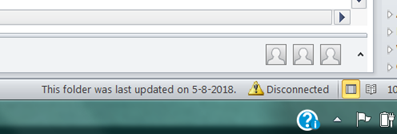
However, Outlook 2010 did work correctly with Mailboxen in Exchange Online, but Outlook refused to work with Mailboxen on my on-premises Exchange 2016 server. The only thing I saw in the lower right corner was “Disconnected” and every now and then Outlook tried to connect, but no luck.

image

When checking the Connection Status in Outlook I could see that the directory connection was established, but the Exchange Connections disconnected. The Exchange sever and mailbox were ok since I was able to connect using OWA and my Outlook for iPhone client.

image

The Test Email AutoConfiguration option in Outlook wasn’t very helpful either, it just showed that it was unable to determine the settings and none of the Autodiscover options worked.

image

image

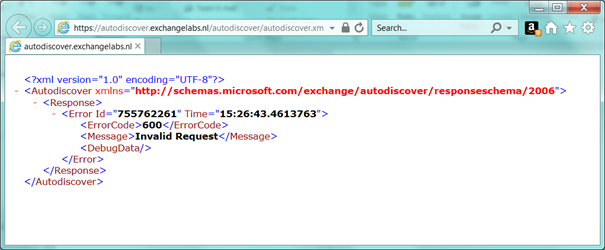
Using the Internet Explorer browser I tried to access my Autodiscover.exchangelabs.nl site, and after a logon prompt I got the famous ErrorCode 600. This is good, so I know my Autodiscover is at least listening properly.

image

The Exchange Remote Connectivity Analyzer (http://aka.ms/exrca) showed that there was an issue with my SSL certificate:

image

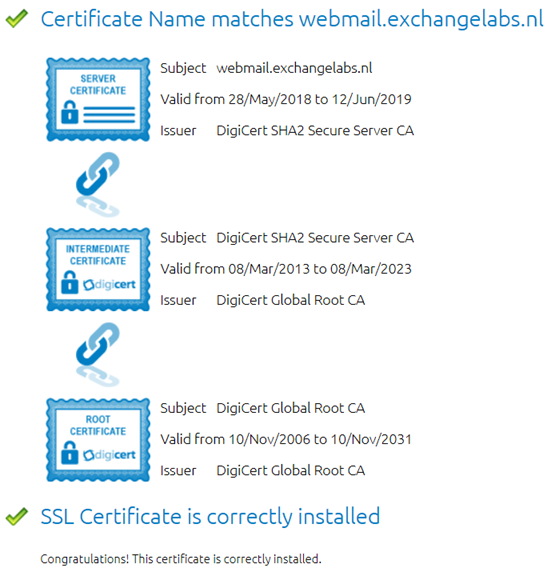
The SSL certificate however is a valid Digicert UC certificate and there’s nothing wrong with this certificate. IE does use it, and the Digicert help utility doesn’t show anything strange either.

image

Oh, and my Outlook 2016 running on another computer did work correctly, so there should be a configuration error impacting Outlook 2010 only.

Then I realized that a week before I accidentally ruined the Virtual Service on my Kemp Load Balancer and I quickly created a new Virtual Service using the correct template. As a security measure I only selected TLS 1.2 on the SSL properties of the Virtual Service.

image

After enabling TLS 1.0 on the Virtual Service, Outlook 2010 started to work correctly again and (to my surprise) so did the Remote Connectivity Analyzer.

image

image

So, obviously TLS 1.0 was the culprit here and by enabling TLS 1.0 Outlook 2010 started to work again.

When checking my laptop using the SSLLABS website (https://www.ssllabs.com/ssltest/viewMyClient.html), all looks fine and TLS 1.2 is fully supported by my Windows 7 client:

image

It must be something with Outlook 2010 and TLS1.2. I found an interesting article on Technet regarding enabling of TLS 1.1 and TLS 1.2. Create a DWORD value DefaultSecureProtocols in the registry under the following keys:

HKEY_LOCAL_MACHINE\SOFTWARE\Microsoft\Windows\CurrentVersion\Internet Settings\WinHttp


HKEY_LOCAL_MACHINE\SOFTWARE\Wow6432Node\Microsoft\Windows\CurrentVersion\Internet Settings\WinHttp

Its value should be one of the following:

For only TLS 1.1 and 1.2: A00 (hexadecimal)


For TLS 1.0, 1.1, and 1.2: A80 (hexadecimal)

clip_image002

Also, create the following DWORD values DisabledByDefault in the following locations and assign it the value of ‘0’:

HKEY_LOCAL_MACHINE\SYSTEM\CurrentControlSet\Control\SecurityProviders\SCHANNEL\Protocols\TLS 1.1\Client


HKEY_LOCAL_MACHINE\SYSTEM\CurrentControlSet\Control\SecurityProviders\SCHANNEL\Protocols\TLS 1.2\Client

image

When needed create the necessary subkeys under the \Protocols key.

Now your Windows 7 and Outlook 2010 will support a TLS 1.2 environment only (this is also true for Windows 8 BTW).

Summary

Outlook 2010 does not support TLS 1.2 out of the box. This can be an issue if you or your network department starts implementing a TLS 1.2 environment only. You have to enable TLS 1.2 on the workstation by setting a registry key. After this it works fine.

Next October Microsoft will stop support for TLS 1.0 and TLS 1.1. This means that if you run into an issue caused by TLS 1.0 or TLS 1.1 it won’t be fixed. Please note that Microsoft will continue to accept TLS 1.0 and TLS 1.1 connection from clients, it just won’t be supported anymore.

Microsoft is working on a plan to disable TLS 1.0 and TLS 1.1 but that won’t happen anytime soon. When this is going to happen, Microsoft will give notification 6 months in advance of disabling TLS 1.0 and TLS 1.1.

More information

https://www.ssllabs.com/ssltest/viewMyClient.html

https://blogs.technet.microsoft.com/schrimsher/2016/07/08/enabling-tls-1-1-and-1-2-in-outlook-on-windows-7/

https://support.microsoft.com/en-us/help/4057306/preparing-for-tls-1-2-in-office-365

https://technet.microsoft.com/en-us/library/dn786418(v=ws.11).aspx

Last edited on October 26, 2018.