Category Archives: Exchange

SenderID, SPF, DKIM and DMARC in Exchange 2016 – Part I

SenderID has been used in Exchange as a means for anti-spam for quite some time, as far as I can remember this was first used in Exchange 2010. Related to SenderID is SPF (Sender Policy Framework). SPF looks like SenderID functionality, but it differs in the way how it checks email messages.

Both use public DNS records with TXT records where information is stored regarding the sending SMTP server, and this information is used by the receiving (Exchange) server to validate if the sending server is allowed to send email on behalf of the sender.

Getting more popular for fighting spam are DKIM (DomainKeys Identified Mail) and DMARC (Domain-based Message Authentication, Reporting & Conformance). Just like SenderID and SPF, these solutions use public DNS for additional information as well, but since encryption is used most Exchange admin have some doubts about the complexity of DKIM and DMARC.

In the upcoming blogpost I’ll discuss SPF, DKIM and DMARC as implemented in my lab environment which looks like this:

image

There’s an Exchange 2016 CU2 Mailbox server hosting several Mailboxes. The server is accessible via webmail.exchangelabs.nl and autodiscover.exchangelabs.nl (same IP address, behind a Kemp LM3600 load balancer) and configured with a Digicert UC certificate.

In addition to this there’s an Exchange 2016 CU2 Edge Transport server with FQDN smtphost.exchangelabs.nl. Besides the regular A and MX record, the IP address is also configured in Reverse DNS. The Edge Transport server is also behind a Kemp LM3600 load balancer, and it has a Digicert SSL Certificate with the same domain name. There’s an Edge Synchronization configured between the Mailbox server and the Edge Transport server, and all inbound and outbound mail is handled by the Edge Transport server. Continue reading SenderID, SPF, DKIM and DMARC in Exchange 2016 – Part I
POP3, IMAP4, Get-Service and Startup Type

When installing lots of Exchange servers, automation with PowerShell scripting can be very useful. This will ensure you get a consistent platform, and it reduces the chance of errors and misconfiguration.

For a customer I had to deploy 38 Exchange 2013 servers, and they were using POP3 and IMAP4 as well, so these services need to be installed on all Exchange 2013 servers.

By default, POP3 and IMAP4 are not running on an Exchange 2013 server, and the service Startup Type is set to Manual.

You can change the startup type to automatic using the Services MMC snap-in, but for 38 Exchange 2013 servers this isn’t funny anymore.

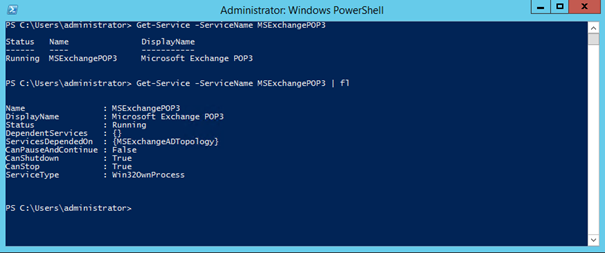
You can use the Get-Service cmdlet in Windows to retrieve information regarding Windows services, for example:

Get-Service –ServiceName MSExchangePOP3

Or add the Format-List option to get more detailed information:

image

You can use the –ComputerName option to retrieve similar information from another server:

image

There’s all kind of interesting information here, but the most important thing, the Startup Type information is missing here.

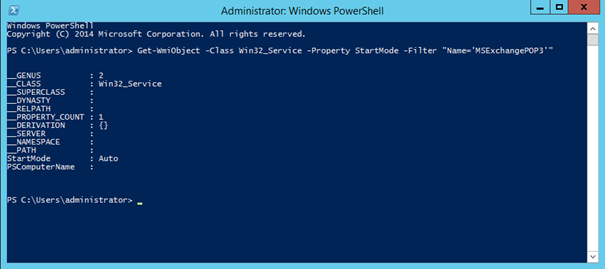
To retrieve the Startup Type information you can use the Get-WmiObjectcmdlet and filter on the service name, for example:

Get-WmiObject -Class Win32_Service -Property StartMode -Filter "Name='MSExchangePOP3'"

Please note the single and double quotes in the Filter option!

image

Again, you can use the –ComputerName option to retrieve this information from another server.

image

Note. On an Exchange 2013 (and Exchange 2016) server POP3 and IMAP4 are actually two services. There’s the CAS component (MSExchangePOP3) and the Mailbox server component (MSExchangePOP3BE). These services need to changed independently. The same is true for the IMAP4 service.

You can write a small script to create an overview of all Exchange servers with the Startup Type of all POP3 service, this will look something like:

$Servers = Get-ExchangeServer
ForEach ($Server in $Servers){
$Computer = $Server.Name
$Object = Get-WmiObject –Class Win32_Service –Property StartMode –Filter “Name=’MSExchangePOP3’”
Write-Host $Computer,$Object.StartMode
}

You can change the Startup Type of the POP3 service using the Set-Service command:

Set-Service –ServiceName MSExchangePOP3 –StartupType Automatic

And you can use the-ComputerName to change the Startup Type of a service running on another Server:

Set-Service –ServiceName MSExchangePOP3 –StartupType Automatic –ComputerName EXCH02

More information:

Use PowerShell to Find Non-Starting Automatic Services – https://blogs.technet.microsoft.com/heyscriptingguy/2012/12/18/use-powershell-to-find-non-starting-automatic-services/

Get-Service – https://technet.microsoft.com/en-us/library/hh849804.aspx

Set-Service – https://technet.microsoft.com/en-us/library/hh849849.aspx

Azure AD Connect Unable to update this object

In earlier blog post I explained how to create user account on-premises and accompanying Mailboxes in Office 365. This is possible with or without an Exchange server on-premises. The latter works, but it’s not supported.

There are also scenarios where you have cloud identities in Office 365 that you want to connect to user accounts in an on-premises Active Directory, so basically converting the cloud identity to a synced identity. This is a common scenario for example when moving from one tenant in Office 365 to another tenant, of maybe when moving from Groupwise or Notes to Office 365.

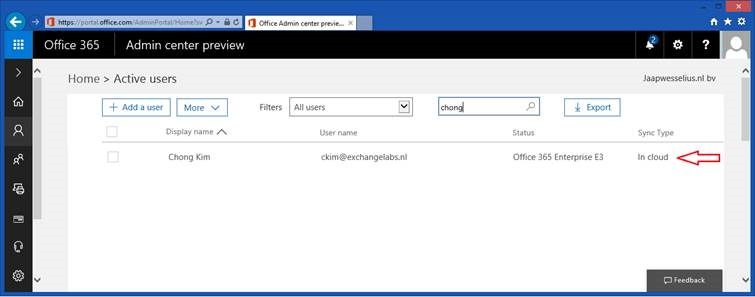
Suppose we have a cloud identity in Office 365 for a user named Chong Kim, he has an E3 license, a username ckim@exchangelabs.nl and this is also his primary SMTP address.

clip_image002 Continue reading Azure AD Connect Unable to update this object

Office 365 Directory Synchronization without Exchange server Part III

In my previous blog post I explained how to manage your Email attributes in Office 365 by directly editing the Exchange attributes in your on-premises Active Directory. This works fine, but it is not recommended nor is it supported by Microsoft.

In this blogpost I’ll discuss how to add an Exchange server on-premises (or keep the last Exchange server when you’ve moved all Mailboxes to Office 365 for that matter) and manage your Exchange Online environment properly.

Exchange Server on-premises

So, what options do you have? Add an Exchange server on-premises, or keep one of the existing (hybrid) Exchange servers for management purposes. Since this is a green field Active Directory, and there’s no Exchange server on-premises you can use the free Microsoft Hybrid License to for this management server. For additional details on this free Exchange license you can check the Microsoft knowledgebase article KB2939261: https://support.microsoft.com/en-us/kb/2939261.

Continue reading Office 365 Directory Synchronization without Exchange server Part III

Office 365 Directory Synchronization without Exchange server Part II

The question in my previous blog post was “Can we decommission our Exchange servers after moving to Office 365?” and the blunt answer was “No, you cannot decommission your last Exchange server on-premises”.

In this previous blog post I showed you what happens if you synchronize a user to Azure Active Directory from your on-premises Active Directory, and how to create a Mailbox in Exchange Online with a proper primary Email address. At the same time, it was only possible to set only one Email address, and there’s no possibility to add multiple Email addresses, nor is it possible to change any other Exchange related setting.

In this blog post I’ll discuss how to extend Active Directory with Exchange attributes to unleash more functionality and management options in Exchange Online. Please note that the solution in this blog works fine, but it is not recommended and not supported by Microsoft. Continue reading Office 365 Directory Synchronization without Exchange server Part II