Category Archives: Exchange

Exchange 2013 CU10

Microsoft silently released Exchange 2013 CU10 on September 15th 2015, right on track with their quarterly cadence, and as expected. There are no new features in this Cumulative Update, but besides a lot of hotfixes there’s also a change to RBAC which require changes to the Configuration Partition in Active Directory.

So, no changes to the Active Directory Schema, but you have to run Setup.exe /PrepareAD /IAcceptExchangeServerLicenseTerms before you start the actual setup. Please note that you have to do this, even if you run the GUI version of setup. If you omit this step the changes won’t be applied to Active Directory. As a result, the RBAC changes might not be available after your upgrade. A similar issue happened with CU9 as written down in this blog post MessageCopyForSentAsEnabled and MessageCopyForSendOnBehalfEnabled not available in CU9.

Before installing Exchange 2013 CU10 in your production environment I recommend testing it thoroughly in a lab environment. The last couple of CU’s have been pretty successful without too many issues, but there might be specific issues in your own organization that Microsoft is unaware of.

When upgrading DAG members please remember you disable all the Exchange server components as explained in my blog about deploying Exchange 2013 CU9.

You can download CU10 here, and the CU10 Language packs here. A complete list of issues resolved can be found in Knowledge Base Article KB3078678.

At the same time Microsoft released released Exchange Server 2010 Service Pack 3 Update Rollup 11 (KB3078674).

When Exchange 2016 is released in the (near) future, you will need Exchange 2013 CU10 or Exchange Server 2010 SP3 Update Rollup 11 for coexistence. This will be hardcoded in the product, so if you’re planning to deploy Exchange 2016 in the future you have to install these version.

Also, when you’re running an Exchange 2013 Hybrid scenario with Office 365 you have to use the latest version, so in this case Exchange 2013 CU10 is mandatory.
The requested HTTP URL was not available

While trying to setup Remote PowerShell to an Exchange 2013 Server I ran into a couple of issues. The most obvious was that the Exchange server only accepts SSL request, so you have to specify ‘https’ in the ConnectionUri, so I used these commands:

$Credential = Get-Credential administrator@posh.local
$Session = New-PSSession –ConfigurationName Microsoft.Exchange –ConnectionUri https://webmail.posh-workshop.com/PowerShell -Authentication Basic -Credential $Credential -AllowRedirection
Import-PSSession $Session

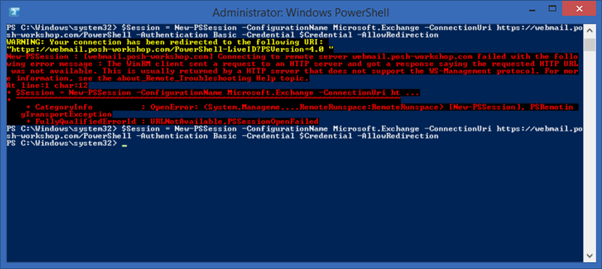
The following error was returned:
New-PSSession : [webmail.posh-workshop.com] Connecting to remote server webmail.posh-workshop.com failed with the following error message : The WinRM client sent a request to an HTTP server and got a response saying the requested HTTP URL was not available. This is usually returned by a HTTP server that does not support the WS-Management protocol. For mor e information, see the about_Remote_Troubleshooting Help topic.

image

When checking the PowerShell virtual directory using the Get-PowerShellVirtualDirectory | fl command I got the following response:

image

When you want to use Remote PowerShell from a non domain member (or via the Internet) you have to use Basic Authentication (as specified in my request), you also have to set Basic Authentication on the Virtual Directory as well, like this:

Get-PowerShellVirtualDirectory –Server MAIL01 | Set-PowerShellVirtualDirectory –BasicAuthentication:$TRUE

Once changed Remote PowerShell works as expected.

Exchange 2013 Health Manager generating alerts in SCOM after reboot

We have a 26 server Exchange 2013 server environment, monitored by SCOM. Within Exchange 2013 Managed Availability is monitoring the health of the individual servers, and alerts are escalated to SCOM which sends out text messages to the Exchange administrators.

It is crucial to have this configured properly to avoid invalid or unneeded text messages being sent out.

I’ve noticed that after a reboot of an Exchange server Managed Availability can send out alerts, even when the probes and monitors involved have a global override. Using a global override Managed Availability should never send out alerts to SCOM anyways.

To avoid this from happening you can set the Managed Availability service on your Exchange 2013 server, which is the Health Manager service MSExchangeHM to “Automatic (Delayed Start)”.

The easiest way to do this is to use PowerShell using the Set-Service command:

Set-Service –ComputerName EXCH01 -Name MSExchangeHM –StartupType Type;

Where Type can be Disabled, Manual or Automatic.

Unfortunately it is not possible to set this to “Automatic (Delayed Start)” using PowerShell, but you can create a Registry key on the Exchange 2013 server to achieve this by using the Set-ItemProperty command:

Set-ItemProperty -Path “Registry::HKLM\System\CurrentControlSet\Services\MSExchangeHM” -Name “DelayedAutostart” -Value 1 -Type DWORD

To do this for all Exchange 2013 servers in your organization you can do something like this:

$ExServers = Get-ExchangeServer | Where {$_.Name –like “EXCH*”}
ForEach ($Server in $ExServers) {
  Write-Host “Setting Health Manager service on $Server to Automatic (Delayed Start)”
  Invoke-Command –ComputerName $Server {
    Set-ItemProperty -Path Registry::HKLM\System\CurrentControlSet\Services\MSExchangeHM -Name DelayedAutostart -Value 1 -Type DWORD
  }
}

MessageCopyForSentAsEnabled and MessageCopyForSendOnBehalfEnabled not available in CU9

You have Exchange 2013 CU9 running in your environment and you want to configure the option to store sent messages in the shared Mailbox instead of the user’s mailbox as described in my blogpost Exchange 2013, Shared Mailbox and Sent Items.

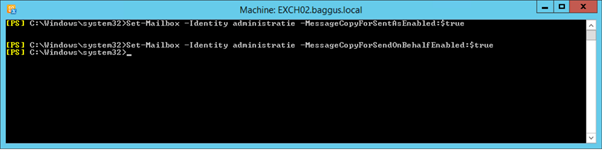
But when you open the Exchange Management Shell and try to change the Mailbox settings using the Set-Mailbox cmdlet, the options -MessageCopyForSentAsEnabled and -MessageCopyForSendOnBehalfEnabled are not available.

To solve this you can run the setup.exe /PrepareAD /IAcceptExchangeServerLicenseTerms command from the CU9 installation media.

But why wasn’t this run during installation of Exchange 2013 CU9 in the first place?

You might expect that when running the setup application (either using the GUI or using setup.exe /mode:upgrade) that the upgrade of the Active Directory Configuration partition automatically takes place.

However, this is not always the case. It turns out that when there are no Schema changes during the upgrade process, which is the case when upgrading from Exchange 2013 CU7 or CU8 to Exchange 2013 CU9, the preparation of the Configuration Partition in Active Directory is automatically skipped by the setup application.

This is a bit annoying and nothing will break (except the fact you’re missing some new functionality) and can be solved by running the Setup.exe /PrepareAD later on.

Exchange 2013, Shared Mailbox and Sent Items

When users are using shared mailboxes and send email messages out of this Mailbox, you want these messages to be stored in the shared Mailbox. This was already possible in Exchange 2010, but only starting in CU9 this is possible in Exchange 2013 as well.

It is a setting on the shared Mailbox and has to be set using the Exchange Management Shell and works for shared Mailboxes where both the Sent As permissions and Sent on Behalf of permissions are granted.

For shared Mailboxes with the Sent As permissions use the following command:

Set-Mailbox <mailbox> -MessageCopyForSentAsEnabled $True

For shared Mailboxes with the Sent On Behalf of permissions use the following command:

Set-Mailbox <mailbox> -MessageCopyForSendOnBehalfEnabled $True

image

When testing with Outlook (2013 in this case) and a shared Mailbox where Full Access and Sent As permissions are granted the email message that was sent is stored in the shared Mailbox.

image

A couple of remarks:

  • The email message is stored in the shared Mailbox, but a copy is stored in the user’s Mailbox as well.
  • This feature was already available in Office 365 (and can be set using Remote PowerShell).
  • If the –MessageCopyForSentAsEnabled and the –MessageCopyForSendOnBehalfEnabled are not available you should run the Setup.exe /PrepareAD /IAcceptExchangeServerLicenseTerms in your environment to make the appropriate changes in the AD’s Configuration partition.