Category Archives: PowerShell

The last Exchange server in the organization

Many organizations struggle with that Last Exchange Server (LES) in the organization. All their mailboxes are in Exchange Online, but an on-premises Exchange server is still needed for managing the mailboxes in Exchange Online since the Source of Authority (SOA) is still the local Active Directory.

On August 21, 2025 Microsoft announced the Cloud-managed remote mailboxes. Mailboxes in Exchange Online with an on-premises Active Directory and Exchange server can now be fully managed in the Exchange Online Admin Center (or Exchange Online PowerShell) and an on-premises Exchange server is no longer needed for management purposes.

In the current situation the SOA is on-premises. A user object or mailbox is edited on-premises, and the complete object is synchronized with EntraID. From there, a forward sync mechanism sends the Exchange specific attributes to Exchange Online. Be aware that the forward sync normally takes only a few seconds, but occasionally it can take hours. This is shown in the following figure:
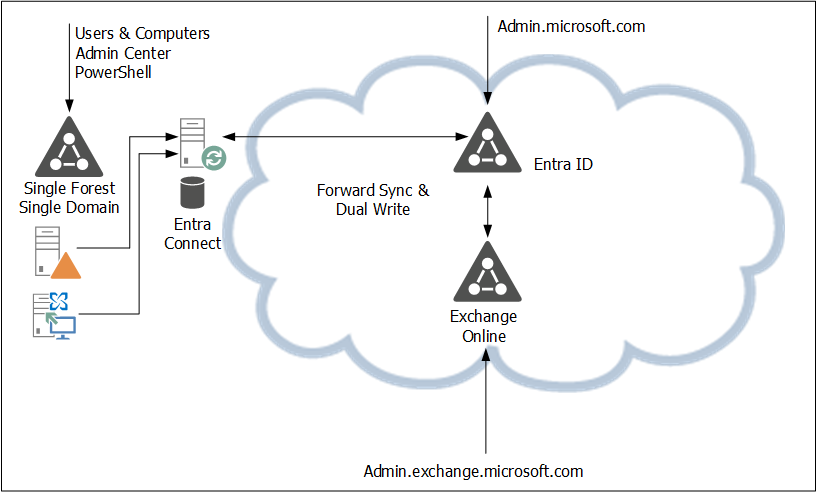
In the new situation, the user object is still in Active Directory and the remote mailbox in Exchange Online. Microsoft introduced a new property in EntraID called IsExchangeCloudManaged. Simply put, this breaks the synchronization of Exchange attributes and the user object in Entra ID, and the mailbox in Exchange Online can now be managed online. This is shown in the following figure:

There are a few gotchas, though:

  • The solution is available, but it is in Public Preview. This means that Microsoft can change it at any time, or even withdraw it at any time (I don’t expect this to happen, unless serious problems arise).
  • It is on a per-user basis, so the IsExchangeCloudManaged property must be set on every mailbox. This can lead to organizational chaos if you have mailboxes in both environments.
  • The Exchange properties still exist in Active Directory. They can be edited in Active Directory, but they are not synchronized with EntraID. As such, Exchange Online and Exchange Server can become out of sync, resulting in strange issues, especially when it comes to cross-premises mail flow.
  • An organization-level setting to make all newly synced users’ Exchange attributes cloud-managed is expected soon (September 2025).
  • This is an attribute-level SOA change. This means you can only edit Exchange-specific attributes in the online Admin Centers, but you cannot delete a synchronized account, for example.

Phase two of the IsExchangeCloudManaged implementation will contain write-back support for specific Exchange attributes from Exchange Online to Exchange server. It is unknown yet when phase 2 will be released and what specific attributes will be synced back.

A gotcha in phase 2 is that this will only be available in EntraID CloudSync, and not in EntraID Connect. Please note that phase 1 does support EntraID Connect, so there’s no immediate need to move to EntraID CloudSync because of this new feature.
As mentioned before, this is an attribute-level SOA change. Microsoft is also working on an object-level SOA change, where an entire object SOA is moved to the cloud. Microsoft recently released this for Groups, but for contacts and users this is still in the planning.

Enable the IsExchangeCloudManaged feature

To enable this new feature, you must use EntraID Cloud Sync version 2.5.76.0 or higher, see my previous blog about upgrading to this version. This version will prevent error when trying to sync Exchange attributes to EntraID when the IsExchangeCloudManaged attribute is set to $True.

Logon to Exchange Online PowerShell and request a list of mailboxes in Exchange Online with the IsExchangeCloudManaged attribute, as shown in the following example:

PS C:\> get-mailbox | select Name,IsExchangeCloudManaged

Name                                                         IsExchangeCloudManaged
----                                          ----------
jaap                                          False
DiscoverySearchMailbox{D919BA05-46A6-...}     False
Labs | TLSReports                             False
Jan Aart Wesselius                            False
Labs | Dmarc Reports                          False
Labs | Jaap Wesselius                         False
Labs | Errol Brown                            False
DMARC Reports Exchangelabs.nl                 False

The user Errol Brown is created as a regular user with a (remote) mailbox, so the Exchange properties are not populated in Active Directory. It is synchronized using EntraID Connect and has an Office 365 E5 license assigned to it.

Use the following example to set the IsExchangeCloudManaged attribute to true to enable the EAC in Exchange Online to manage this mailbox:

Set-Mailbox -Identity e.brown@exchangelabs.nl -IsExchangeCloudManaged:$TRUE

After some time, you can use Exchange Online PowerShell or the Exchange Online Admin Center to add for example, an e-mail address to this user:

Set-Mailbox -Identity E.Brown@Exchangelabs.nl -EmailAddresses @{add="Errol.MyMan.Brown@Exchangelabs.nl"}

This only relates to Exchange Online properties. When you want to change identity properties, for example, a first name or last name, it will generate an error. This must still be managed on-premises and is something that will be fixed in a future update.

More Information

You are currently using an older version of the Exchange Online PowerShell module

When connection to Exchange Online PowerShell using the command Connect-ExchangeOnline nothing special happens. But when executing a PowerShell command like Get-Mailbox you get the following warning:

PS C:\WINDOWS\system32> $mailboxes = Get-mailbox -ResultSize unlimited
Attention!
You are currently using an older version of the Exchange Online PowerShell module which uses RPS. RPS deprecation has been announced and you will need to move to the latest V3 module by June 2023. Read more here: https://aka.ms/RPSDeprecation 
Please install our new REST-based PS V3 module downloadable from https://www.powershellgallery.com/packages/ExchangeOnlineManagement/, which is more secure and reliable.
Please note that you will no longer be able to use -UseRPSSession after June 2023.

Microsoft has introduced a new Exchange Online PowerShell module (v3) and the previous modules will be deprecated in the (near) future.

To update the PowerShell module, the old module needs to be uninstalled first before you can install the latest version. To uninstall the old v2 module, execute the following command:

Uninstall-Module ExchangeOnlineManagement

And to install the new v3 module, execute the following command:

Install-Module -Name ExchangeOnlineManagement -RequiredVersion 3.0.0

To check which PowerShell modules and versions you have installed, execute the Get-InstalledModule command.

Export-ExchangeCertificate not accepting -FileName option

As long as I can remember I have been creating, updating, renewing, exporting and importing Exchange certificates on Exchange servers.

This morning I had to renew my own Exchange certificate, and my PowerShell command Export-ExchangeCertificate failed on the -FileName option so it would not accept the option to store the file somewhere. This is strange, because in our Exchange 2016/2019 book that was released less then a year ago we were able to use the -FileName option.

It turned out that for the Export-ExchangeCertificate and Import-Certificate the -FileName option was removed because of security concerns. In more detail, the -FileName option accepts a UNC path which makes it possible for compromised servers to access other servers using UNC paths.

The way to export a certificate in Exchange 2016 CU23 and Exchange 2019 CU12 (and higher) is to import the certificate in a variable and store this in a file:

[PS] C:\> $Cert = Export-ExchangeCertificate -BinaryEncoded -Thumbprint <Thumbprint> -BinaryEncoded -Password (ConvertTo-SecureString -String 'Pass1word' -AsPlainText -Force)
[PS] C:\> [System.IO.File]::WriteAllBytes('C:\Install\CertExport.pfx', $Cert.FileData)

For importing certificates it is similar, the -FileName is removed from the commandlet in Exchange 2016 CU23 and Exchange 2019 CU12 (and higher), and the -FileData needs to be used:

[PS] C:\> Import-ExchangeCertificate -FileData ([Byte[]]$(Get-Content -Path "<local or UNC path>" -Encoding byte)) -Password (ConvertTo-SecureString -String 'Pass1word' -AsPlainText -Force)

Note. For Exchange 2013 server the -FileName option can still be used.

More information can be found on https://docs.microsoft.com/en-us/powershell/module/exchange/export-exchangecertificate?view=exchange-ps and https://docs.microsoft.com/en-us/powershell/module/exchange/import-exchangecertificate?view=exchange-ps

New Exchange Online PowerShell v2

When using PowerShell with Exchange Online you can use the ‘good old traditional’ way to connect to Exchange Online:

$ExCred = Get-Credential 
$Session = New-PSSession -ConfigurationName Microsoft.Exchange -ConnectionUri https://ps.outlook.com/powershell/ -Credential $ExCred -Authentication Basic -AllowRedirection
Import-PSSession $Session

This is not a recommended way to connect to Exchange Online using your tenant admin account, it uses basic authentication (will be decommissioned in 2021) and MFA (number one prerequisite for tenant admin security!) is not possible.

The second option is the Exchange Online Remote PowerShell Module which you can download from the Exchange Online Admin Center (use Internet Explorer for this download!) as shown in the following screenshot:

Exchange Online PowerShell Module

This is a separate PowerShell module you can start and use the Connect-EXOPSSession command to connect to Exchange Online. This PowerShell module users Modern Authentication and supports Multi-Factor Authentication.

The latest (and newest) option is the Exchange Online PowerShell V2 module. This module works far more efficient with large datasets than the previous PowerShell modules for Exchange Online. It also supports Modern Authentication and Multi-Factor Authentication.

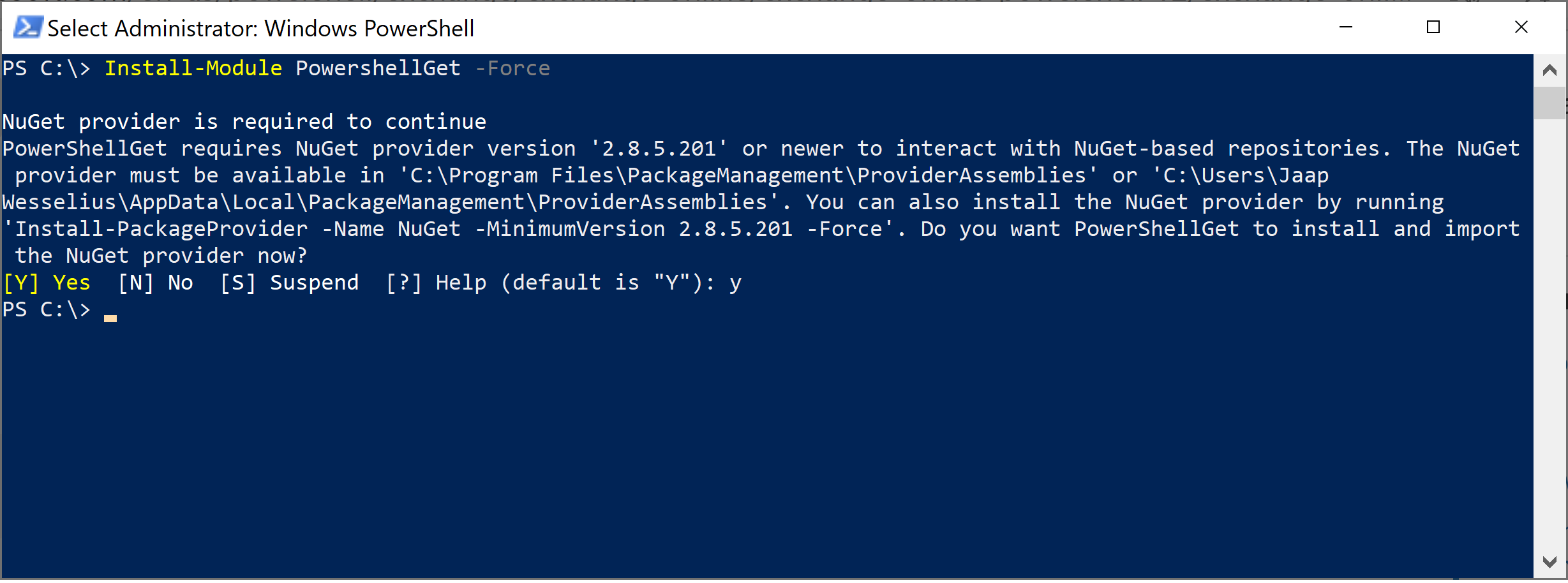
To install the Exchange Online PowerShell V2 module you first have to install the PowerShellGet module using the Install-Module PowershellGet command:

Install-Module PowershellGet

Followed by the Install-Module -Name ExchangeOnlineManagement command:

Install-Module ExchangeOnlineManagement

When installed you can use the Connect-ExchangeOnline command to connect to Exchange Online. When MFA for your admin account is configured it will automatically use it:

Connect-ExchangeOnline

The differences between V1 and V2 are clearly visible in the commands. All V2 commands contain EXO, like:

  • Get-Mailbox vs Get-EXOMailbox
  • Get-Recipient vs Get-EXORecipient
  • Get-MailboxStatistics vs Get-EXOMailboxStatistics
  • Get-CASMailbox vs Get-EXOCASMailbox

This means that all scripts you have written for use with Exchange Online need to be changed to reflect the V2 commands.

For a complete overview you can use the Get-Command *EXO* to retrieve all PowerShell commands that contain EXO (still very limited 🙂 ):

Get-Command EXO

The Exchange Online PowerShell V2 module is still in preview, the current version is 0.3582.0 which you can check using the Get-Module ExchangeOnlineManagement command:

Get-Module ExchangeOnlineManagement

The Exchange Online PowerShell v2 module is a work in progress, but it the future of PowerShell in Exchange Online, so you should keep an eye on this development.

More Information

Use the Exchange Online PowerShell V2 module – https://docs.microsoft.com/en-us/powershell/exchange/exchange-online/exchange-online-powershell-v2/exchange-online-powershell-v2?view=exchange-ps

Install-Module MSOnline fails with unable to download from URI

When installing the MSOnline module using the Install-Module MSOnline command in PowerShell it fails with a cryptic error like:

WARNING: Unable to download from URI ‘https://go.microsoft.com/fwlink/?LinkID=627338&clcid=0x409&#8217; to ”.
WARNING: Unable to download the list of available providers. Check your internet connection.
PackageManagement\Install-PackageProvider : No match was found for the specified search criteria for the provider ‘NuGet’. The package provider requires ‘PackageManagement’ and ‘Provider’ tags. Please check if the specified package has the tags.

And

WARNING: Unable to download from URI ‘https://go.microsoft.com/fwlink/?LinkID=627338&clcid=0x409&#8217; to ”.
WARNING: Unable to download the list of available providers. Check your internet connection.
PackageManagement\Get-PackageProvider : Unable to find package provider ‘NuGet’. It may not be imported yet. Try ‘Get-PackageProvider -ListAvailable’.
Install-Module : NuGet provider is required to interact with NuGet-based repositories. Please ensure that ‘2.8.5.201’ or newer version of NuGet provider is installed.

As shown in the following screenshot:

Install-PackageProvider

It turns out that this is a TLS issue, PowerShell does not use TLS 1.2 by default, while Microsoft requires TLS 1.2 from clients. To set TLS 1.2 usage for PowerShell, you can use the following command:

[Net.ServicePointManager]::SecurityProtocol = [Net.SecurityProtocolType]::Tls12

Now if you try again, it will install the MSOnline module:

Install-Module MSOnline

This is a per session setting, if you want to enable it for all sessions, add the previous command to the Microsoft.PowerShell_profile.ps1 and Microsoft.PowerShellISE_profile.ps1 profiles (use Notepad $Profile for this.

More information

Azure ActiveDirectory (MSOnline) – https://docs.microsoft.com/en-us/powershell/azure/active-directory/install-msonlinev1?view=azureadps-1.0