Tag Archives: Directory Synchronization

Upgrade Entra Connect Sync to Entra Cloud Sync

Microsoft is offering two directory synchronization solutions for synchronizing identities from Active Directory to Entra ID:

  • Entra Connect Sync.
  • Entra Cloud Sync.

The first one is available since the beginning of directory synchronization (with different names over the years), Cloud Sync was introduced in January 2019 as the successor of the Entra Connect server.

With the introduction of Cloud-Managed Remote Mailboxes, Microsoft also announced that subsequent phases of this solution will run on Entra Cloud Sync. Therefore, it is time to consider migrating from Connect Sync to Cloud Sync.

Entra Cloud Sync

Entra Connect sync is using an on-premises server where the synchronization server is installed. This synchronization server utilizes a SQL Database (SQL Express for smaller deployments, or a SQL server/cluster for larger deployments), where all information is stored. This is called the metaverse. All aggregated data from Active Directory and Entra ID is synchronized with Entra ID.

Entra Cloud Sync is using a Sync Service in Microsoft Azure. This is where all the logic and processing take place. There’s a lightweight agent on a server on-premises that communicates with the sync service in Azure.
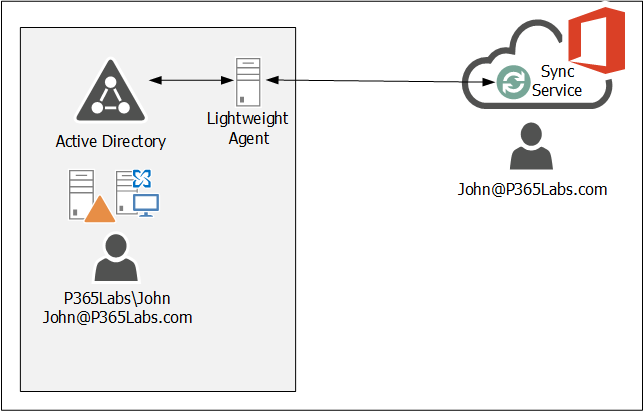
For available purposes, multiple of these lightweight agents can be installed on multiple servers (as long as they have internet connectivity, of course).

The features and functionality are similar; you can filter recipients by Organizational Unit, and you can create your own rules (in the rules editor) in the sync service.

Upgrade to Entra Cloud Sync

Installing the cloud sync agent is similar to installing the connect sync server. The following prerequisites apply to installing the cloud sync agent:

  • The admin account that installs the cloud sync agent and configures the cloud sync service needs an Entra ID P1 license.
  • The installation account must be a Domain Administrator or Enterprise Administrator. During the installation, a group managed service account (gMSA) is created to run the agent.
  • The minimum requirement to configure the cloud sync service is to use a Hybrid Identity Administrator in Entra ID.
  • The server where the agent is installed must run Windows 2016 or higher.

To install and configure the cloud sync agent/service, use the following steps:

  • Create a backup of your Entra Connect sync.
  • Download the cloud sync agent from the Microsoft Entra portal (https://entra.microsoft.com –> Entra ID –> Entra Connect –> Cloud Sync –> Agents as shown in the following screenshot:
  • Installing the Agent is straightforward; open the downloaded agent and follow the wizard. And for the provisioning agent extension, select HR-driven provisioning.
  • Follow the wizard and use your (cloud) admin credentials to logon to EntraID and the on-premises Active Directory and select the create gMSA option. It takes one or two minutes for the agent installation to complete, and when finished click Exit.
  • To configure the cloud sync engine, go to the Entra portal and select Entra ID –> Entra Connect –> Cloud Sync. Click +New Configuration to start the wizard.
  • In the New cloud sync configuration window you will see the Active Directory domain where the agents are installed. This does not have to be a regular TLD, but can also be a .local domain as shown in the following screenshot:
  • If you don’t see the local Active Directory domain, restart the server where the agent is installed (not sure if a reboot is mandatory, but it did help in my environment). Click Create to start the process.
  • There are multiple step you must or can do:
    • Add scoping filter (mandatory)
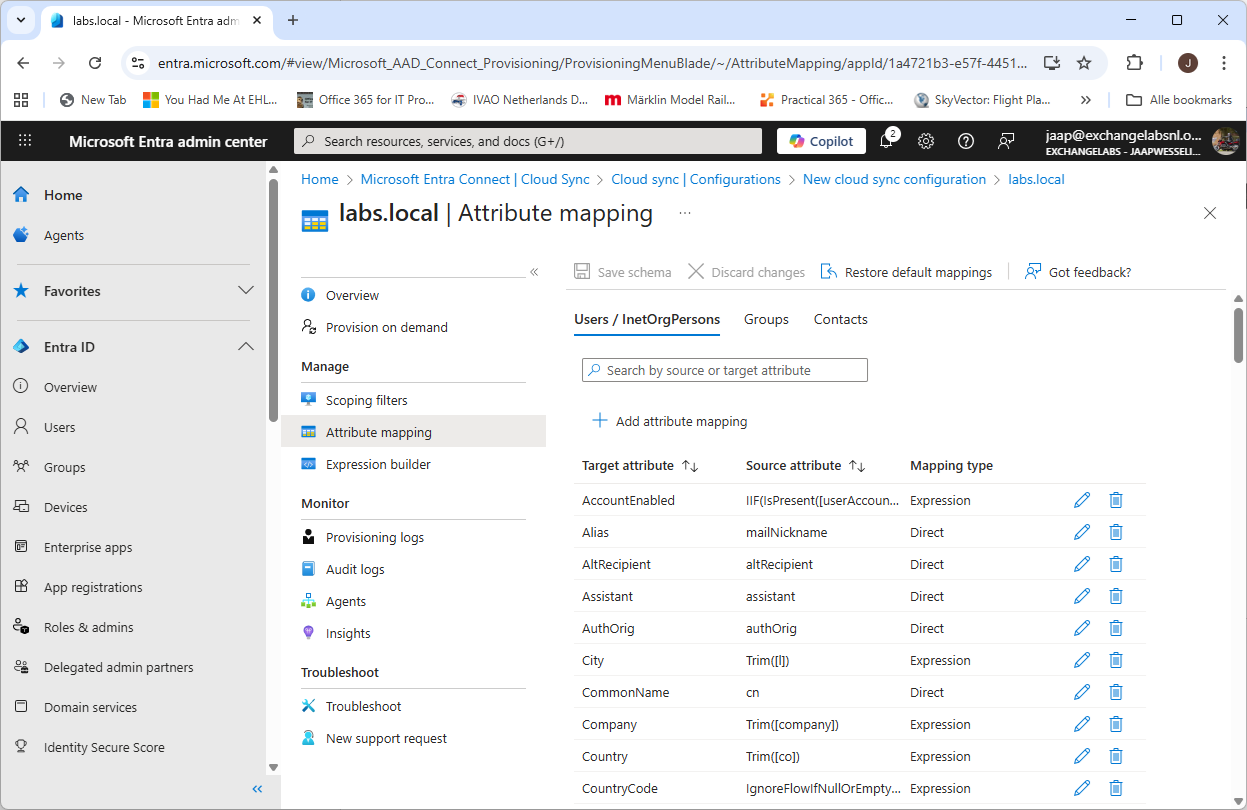
    • Add attribute mapping (optional)
    • Synchronization test (recommended)
  • Scoping is mandatory; this is where the agent selects the identities that need to be synchronized to Entra ID. My Entra Connect server was scoped on an Organizational Unit, so in Cloud Sync the same OU must be selected. The OU must be entered with its distinguished name, and there’s no AD browse button as shown in the following screenshot:
  • When the DN of the OU is entered, click Add, and click Save to continue.
  • The attribute mapping is optional, this is where the attributes in Active Directory are mapped to attributes in Entra ID. In a typical environment there’s no need to change this, but your environment can be different of course. Change this when needed.
  • When everything is ok, select the Provision on Demand option. Here you can test the cloud sync configuration. Create a user account in Active Directory and select this user in the Provision on demand window. Again, no browse button so you must enter the distinguished name of this user as shown in the following screenshot:
  • When everything is ok and the user account is successful created in Entra ID, click Overview, select Review and Enable and click Enable Configuration. This will finalize the wizard and cloud sync will continue to synchronize accounts with Entra ID.
  • You can now uninstall Entra Connect Sync and continue synchronizing with Entra Cloud Sync.

Manage Entra Cloud Sync

Entra Cloud Sync can be managed using the Entra Portal (https://entra.microsoft.com). Login with your administrator account and navigate to Entra Connect –> Cloud Sync. Here, you can view the cloud configuration (created in the previous step) and check provisioning logs and audit logs.

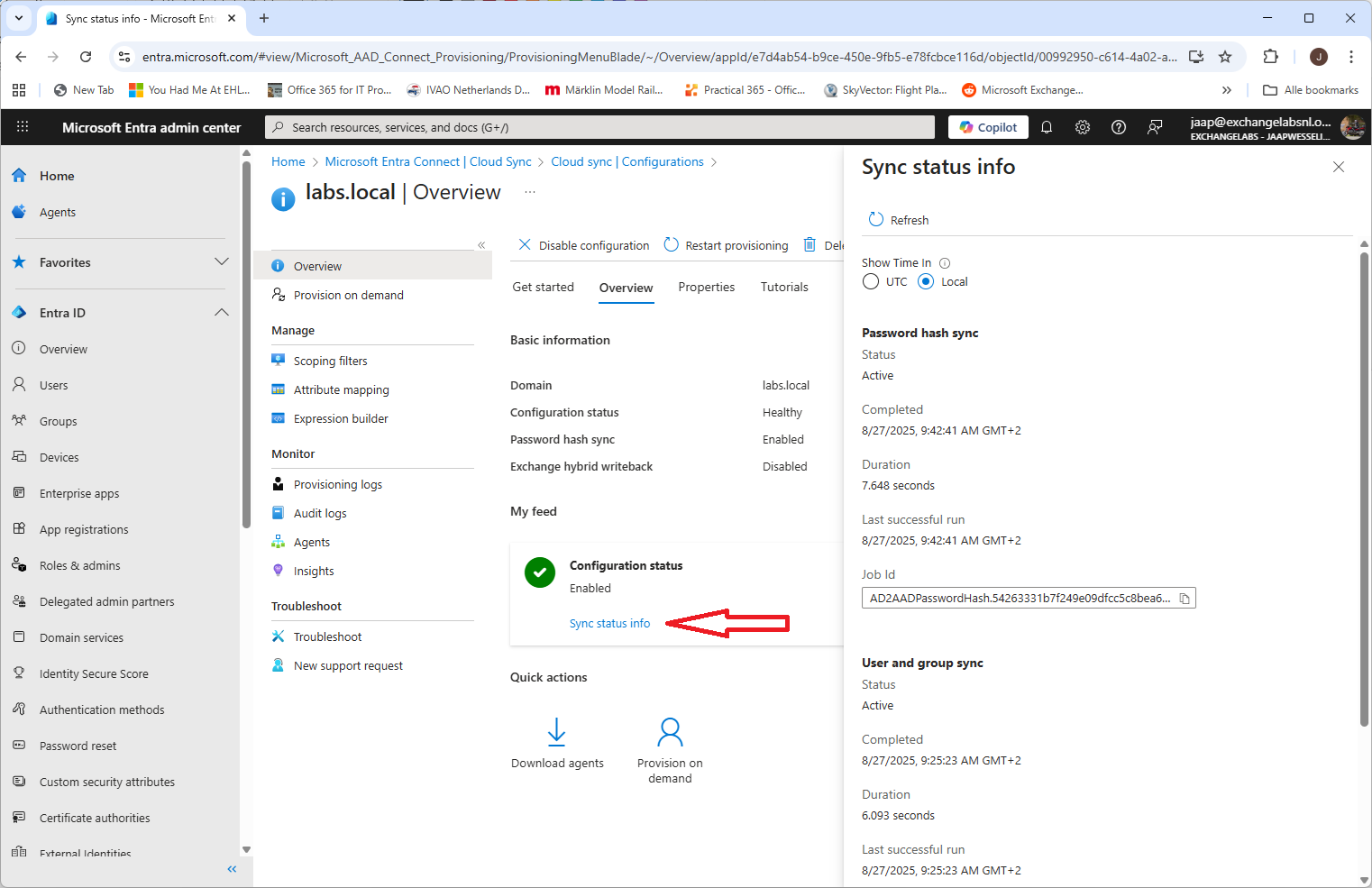
When you open the configuration for your environment, you can change it, but you can also check the properties and check the sync status info, as shown in the following screenshot:
It is also possible to manage Entra cloud sync using PowerShell. To do this, you have to install the AADCloudSyncTools PowerShell module. To install the prerequisites for this PowerShell module, execute the following commands on the server where the connect sync agent is installed:

[PS] C:\> Import-module -Name "C:\Program Files\Microsoft Azure AD Connect Provisioning Agent\Utility\ AADCloudSyncTools"
Azure AD Cloud Sync Agent configured with TenantId '54263331-b7f2-49e0-9dfc-c5c8bea6ff8b'
Please start with 'Connect-AADCloudSyncTools [-LoginHint <UserPrincipalName>]' before calling any other cmdlets.

PS C:\> Install-AADCloudSyncToolsPrerequisites
Installing 'PowerShellGet' Module. Please wait...
WARNING: 'PowerShellGet' Module installed successfully. Close this PowerShell window and run 'Install-AADCloudSyncToolsPrerequisites' again.

Close the PowerShell window and rerun both commands.

PS C:\> Import-module -Name "C:\Program Files\Microsoft Azure AD Connect Provisioning Agent\Utility\AADCloudSyncTools"
Azure AD Cloud Sync Agent configured with TenantId '54263331-b7f2-49e0-9dfc-c5c8bea6ff8b'
Please start with 'Connect-AADCloudSyncTools [-LoginHint <UserPrincipalName>]' before calling any other cmdlets.

PS C:\> Install-AADCloudSyncToolsPrerequisites
Installing 'MSAL.PS' Module. Please wait...
Installing 'AzureAD' Module. Please wait...
All AADCloudSyncTools prerequisites installed successfully.

No dedicated PowerShell cloud sync is created, so every time you want to use this PowerShell module, you must load it in a regular PowerShell window using the following command:

PS C:\> Import-module "C:\Program Files\Microsoft Azure AD Connect Provisioning Agent\Utility\AADCloudSyncTools"

To manage Entra cloud sync, execute the Connect-AADCloudSyncTools command and login to your tenant with your admin credentials. Use the Get-Command CloudSync command to get a list of all CloudSync related PowerShell commands:

PS C:\> Get-Command *CloudSync*
CommandType Name
----------- ----
Function    Connect-AADCloudSyncTools
Function    Disable-AADCloudSyncToolsDirSyncAccidentalDeletionPrevention
Function    Export-AADCloudSyncToolsLogs
Function    Get-AADCloudSyncToolsInfo
Function    Get-AADCloudSyncToolsJob
Function    Get-AADCloudSyncToolsJobSchedule
Function    Get-AADCloudSyncToolsJobSchema
Function    Get-AADCloudSyncToolsJobScope
Function    Get-AADCloudSyncToolsJobSettings
Function    Get-AADCloudSyncToolsJobStatus
Function    Get-AADCloudSyncToolsServiceAccount
Function    Get-AADCloudSyncToolsServicePrincipal
Function    Install-AADCloudSyncToolsPrerequisites
Function    Invoke-AADCloudSyncToolsGraphQuery
Function    Remove-AADCloudSyncToolsGroupMembers
Function    Repair-AADCloudSyncToolsAccount
Function    Restart-AADCloudSyncToolsJob
Function    Resume-AADCloudSyncToolsJob
Function    Set-AADCloudSyncToolsJobSchema
Function    Set-AADCloudSyncToolsTenantId
Function    Start-AADCloudSyncToolsVerboseLogs
Function    Stop-AADCloudSyncToolsVerboseLogs
Function    Suspend-AADCloudSyncToolsJob

For example, use the Get-AADCloudSyncToolsJobStatus command to view information about the most recent synchronization run between the agent and the sync service. If you need to restart a synchronization or force an interim synchronization for any reason, you can use the Restart-AADCloudSyncToolsJob command.

The Microsoft documentation on the various commands is poor (to say the least…) but you can also use the Get-Help command in PowerShell. For example, to get more information about restarting a synchronization job, execute the following command:

PS C:\> Get-Help Restart-AADCloudSyncToolsJob -Detailed

Summary

Microsoft Entra Cloud Sync is the successor to the well-known and widely used Entra Connect Server, a directory synchronization tool. Over time, you will see Microsoft move towards cloud sync, which is becoming visible with the recently announced Cloud-Managed Remote Mailboxes.

If you are still running Entra Connect Sync it time is here to start thinking about moving to cloud sync.
The last Exchange server in the organization

Many organizations struggle with that Last Exchange Server (LES) in the organization. All their mailboxes are in Exchange Online, but an on-premises Exchange server is still needed for managing the mailboxes in Exchange Online since the Source of Authority (SOA) is still the local Active Directory.

On August 21, 2025 Microsoft announced the Cloud-managed remote mailboxes. Mailboxes in Exchange Online with an on-premises Active Directory and Exchange server can now be fully managed in the Exchange Online Admin Center (or Exchange Online PowerShell) and an on-premises Exchange server is no longer needed for management purposes.

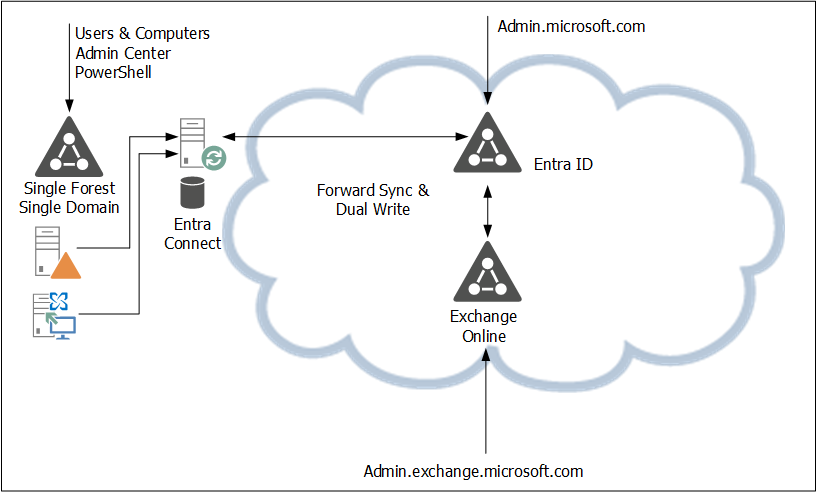
In the current situation the SOA is on-premises. A user object or mailbox is edited on-premises, and the complete object is synchronized with EntraID. From there, a forward sync mechanism sends the Exchange specific attributes to Exchange Online. Be aware that the forward sync normally takes only a few seconds, but occasionally it can take hours. This is shown in the following figure:

In the new situation, the user object is still in Active Directory and the remote mailbox in Exchange Online. Microsoft introduced a new property in EntraID called IsExchangeCloudManaged. Simply put, this breaks the synchronization of Exchange attributes and the user object in Entra ID, and the mailbox in Exchange Online can now be managed online. This is shown in the following figure:

There are a few gotchas, though:

  • The solution is available, but it is in Public Preview. This means that Microsoft can change it at any time, or even withdraw it at any time (I don’t expect this to happen, unless serious problems arise).
  • It is on a per-user basis, so the IsExchangeCloudManaged property must be set on every mailbox. This can lead to organizational chaos if you have mailboxes in both environments.
  • The Exchange properties still exist in Active Directory. They can be edited in Active Directory, but they are not synchronized with EntraID. As such, Exchange Online and Exchange Server can become out of sync, resulting in strange issues, especially when it comes to cross-premises mail flow.
  • An organization-level setting to make all newly synced users’ Exchange attributes cloud-managed is expected soon (September 2025).
  • This is an attribute-level SOA change. This means you can only edit Exchange-specific attributes in the online Admin Centers, but you cannot delete a synchronized account, for example.

Phase two of the IsExchangeCloudManaged implementation will contain write-back support for specific Exchange attributes from Exchange Online to Exchange server. It is unknown yet when phase 2 will be released and what specific attributes will be synced back.

A gotcha in phase 2 is that this will only be available in EntraID CloudSync, and not in EntraID Connect. Please note that phase 1 does support EntraID Connect, so there’s no immediate need to move to EntraID CloudSync because of this new feature.
As mentioned before, this is an attribute-level SOA change. Microsoft is also working on an object-level SOA change, where an entire object SOA is moved to the cloud. Microsoft recently released this for Groups, but for contacts and users this is still in the planning.

Enable the IsExchangeCloudManaged feature

To enable this new feature, you must use EntraID Cloud Sync version 2.5.76.0 or higher, see my previous blog about upgrading to this version. This version will prevent error when trying to sync Exchange attributes to EntraID when the IsExchangeCloudManaged attribute is set to $True.

Logon to Exchange Online PowerShell and request a list of mailboxes in Exchange Online with the IsExchangeCloudManaged attribute, as shown in the following example:

PS C:\> get-mailbox | select Name,IsExchangeCloudManaged

Name                                                         IsExchangeCloudManaged
----                                          ----------
jaap                                          False
DiscoverySearchMailbox{D919BA05-46A6-...}     False
Labs | TLSReports                             False
Jan Aart Wesselius                            False
Labs | Dmarc Reports                          False
Labs | Jaap Wesselius                         False
Labs | Errol Brown                            False
DMARC Reports Exchangelabs.nl                 False

The user Errol Brown is created as a regular user with a (remote) mailbox, so the Exchange properties are not populated in Active Directory. It is synchronized using EntraID Connect and has an Office 365 E5 license assigned to it.

Use the following example to set the IsExchangeCloudManaged attribute to true to enable the EAC in Exchange Online to manage this mailbox:

Set-Mailbox -Identity e.brown@exchangelabs.nl -IsExchangeCloudManaged:$TRUE

After some time, you can use Exchange Online PowerShell or the Exchange Online Admin Center to add for example, an e-mail address to this user:

Set-Mailbox -Identity E.Brown@Exchangelabs.nl -EmailAddresses @{add="Errol.MyMan.Brown@Exchangelabs.nl"}

This only relates to Exchange Online properties. When you want to change identity properties, for example, a first name or last name, it will generate an error. This must still be managed on-premises and is something that will be fixed in a future update.

More Information

Upgrade Entra Connect Sync to version 2.5.76.0

Minor versions of Entra Connect Sync are (mostly) installed automatically. Major upgrades need to be installed manually, so after downloading the latest version from the Microsoft download center.

When trying to download Entra Connect Sync version 2.5.3.0 the only thing that was downloaded was the DecommissionDownloadCentre.pdf file, and it stated the following:

Important Update: New Entra Connect Sync Versions on Entra Portal Only
Following up on our earlier What’s New communication, new versions of Entra Connect Sync are only available on the Microsoft Entra Connect blade within Microsoft Entra Admin Center and will no longer be released to the Microsoft Download Centre.

It took me some time, but logon to the EntraID portal (https://entra.microsoft.com) and navigate to the Entra Connect blade. Next to Version you will see the option to download the latest Entra Connect Sync version, as shown in the following screenshot:

The upgrade itself is not difficult. Download the latest version, start the MSI file, click on Upgrade and follow the wizard.

When finished, close the wizard and check the latest version of EntraID Connect in the Control Panel or using PowerShell with the following command:

PS C:\> (Get-ADSyncGlobalSettings).Parameters['Microsoft.Synchronize.ServerConfigurationVersion']
Name                   : Microsoft.Synchronize.ServerConfigurationVersion
InputType              : String
Scope                  : SynchronizationGlobal
Description            :
RegexValidationPattern :
DefaultValue           :
Value                  : 2.5.76.0
Extensible             : False
PageNumber             : 0
Intrinsic              : False
DataType               : String

Exchange Hybrid strange calendar behavior and mail flow

In a hybrid Exchange environment, mail flow is erratic, meetings are not always visible, and the Teams calendar does not match the calendar in Outlook. The user sends an email, and all recipients receive it. However, the sender does not always receive replies, sometimes resulting in a Non-Delivery Report (NDR). Another issue is that external users send emails to a user, but the user does not always receive the messages. Also, the calendar in Teams does not match the information shown in the Outlook calendar.

This issue occurs in a hybrid Exchange environment when this user accidentally has two mailboxes: one in the Exchange server and one in Exchange Online.

One account with two mailboxes? Yes, this is usually a result of a glitch in the provisioning. Let me explain what happens:

  • A user account is created in Active Directory and most of the time, the user is added to a security group used to assign licenses in Office 365.
  • When Entra Connect runs, the user account is synchronized with Entra ID, and a license is automatically assigned to the new account. As a result, a mailbox in Exchange Online is automatically and immediately created.
  • The last step is creating a mailbox on the Exchange server. The Exchange Server will gladly accept this since it does not know the mailbox in Exchange Online.

Outlook will then connect to the mailbox in Exchange on-premises. Depending on how the mail flow is configured, mail is sometimes delivered to the Exchange Online mailbox and sometimes to the Exchange server mailbox. Since the user’s Outlook is connected to the mailbox in the Exchange server, the user will never see items delivered to the Exchange Online mailbox.

In this situation, the Teams client shows the calendar information found in Exchange Online, while the user’s Outlook looks at the calendar information in Exchange on-premises. You can guess the results.

To fix this, the mailbox in Exchange Online must be removed and to do this, you can follow these instructions:

  • Remove the M365 license from the user, typically by removing the user account from the Security Group that’s used for licensing and wait for Entra Connect Sync to kick in and synchronize with Entra ID.
  • Open Exchange Online PowerShell and execute the following command:
    Get-User | Select name,Recipient
  • The property PreviousRecipientTypeDetails must have the value ‘MailUser’. If it contains the value ‘UserMailbox’ it means that the user has a mailbox in Exchange Online (which is not what we want in this situation)
  • Execute the following command:
    Set-User -PermanentlyClearPreviousMailboxInfo
  • This will permanently remove the mailbox in Exchange Online from the user (keep in mind that it also cannot be restored anymore!)
  • Wait for Entra Connect Sync to synchronize the latest attributes so that the account now becomes a mail-enabled account.
  • Assign the license again to the server, typically by adding the user again to the Security Group used for licensing.

The user now has a mailbox in Exchange on-premises, and this mailbox is represented as a mail-enabled user in Exchange Online.

As a side note: I’ve seen this happen also in a situation where Exchange is running on-premises and Entra Connect Sync is configured without the ‘Exchange Hybrid Deployment’ option as shown in the following screenshot:

If this is the case you can use the same procedure as outlined above.

HCW8001 – Unable to determine the tenant routing domain

As a consultant in messaging and collaboration I have created dozens of Exchange hybrid configurations that last years, ranging from Exchange 2010 to Exchange 2019.
Today we’ve run into an issue I have not seen before, the HCW8001 – Unable to determine the Tenant Routing Domain error:

Unable to determine the tenant routing domain

Note. In one of my earlier blogs Moving from Exchange 2010 to Office 365 somebody mentioned this specific error in the comments in September 2018.

When you click Learn more you are redirected to the following Microsoft page:
https://support.microsoft.com/en-us/help/3068010/unable-to-determine-the-routing-domain-for-the-cloud-organization-erro which states you have to enable Directory Synchronization using the following command:

Set-MsolDirSyncEnabled -EnableDirsync $true

Which of course we did, but no success.

Azure AD Connect was running fine, I checked the configuration (optional features) and found nothing strange and no errors were logged.

Optional Features

When checking the Microsoft Portal I could see Directory Synchronization was running:

Azure AD Connect

The tenant routing domain is typically something like <tenantname>.mail.onmicrosoft.com and this is set in Office 365 when installing Azure AD Connect. But when checking the Accepted Domains (in Exchange Online) this domain is not available:

Accepted Domains

There’s no way you can add this <tenantname>.mail.onmicrosoft.com domain manually (also not via the Microsoft Online Portal) so you are out of luck (I tried the Azure AD Connect server multiple times, but it didn’t work).

You can open a ticket with Microsoft Support or see if you can create a new tenant and start over again. Since this happens rarely I would be surprised you run into this again with a new tenant.