Tag Archives: PowerShell

Upgrade Azure Active Directory Synchronization to AADConnect

The Microsoft Directory Synchronization has been available in a variety of versions and names:

  • DirSync (the original).
  • Azure Active Directory Sync (AADSync).
  • Azure Active Directory Connect (AADConnect).

Each version of the tool had a number of releases, for the original DirSync for example there were 14 different releases as can be seen here. Similar information for AADSync (5 releases) can be found here, and for AADConnect (12 releases) you can find it here.

In my test environment (Exchange hybrid) I’m currently running AADSync 1.0.491.413. Since the current (as of March 2016) version is AADConnect 1.1.110.0 it’s time to upgrade J

When upgrading from a previous version there are two options:

  • In-place upgrade – this is the recommended way if the upgrade time takes less than three hours.
  • Parallel upgrade – This is the recommended way if the upgrade time takes more than three hours.

Why three hours? The Directory Synchronization runs every three hours. It is also estimated that if you have more than 50,000 objects to synchronize, the upgrade will take more than 3 hours.

Continue reading Upgrade Azure Active Directory Synchronization to AADConnect
The requested HTTP URL was not available

While trying to setup Remote PowerShell to an Exchange 2013 Server I ran into a couple of issues. The most obvious was that the Exchange server only accepts SSL request, so you have to specify ‘https’ in the ConnectionUri, so I used these commands:

$Credential = Get-Credential administrator@posh.local
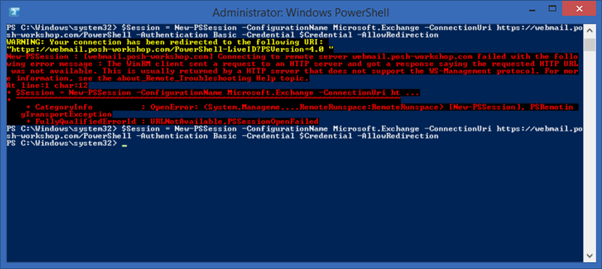
$Session = New-PSSession –ConfigurationName Microsoft.Exchange –ConnectionUri https://webmail.posh-workshop.com/PowerShell -Authentication Basic -Credential $Credential -AllowRedirection
Import-PSSession $Session

The following error was returned:
New-PSSession : [webmail.posh-workshop.com] Connecting to remote server webmail.posh-workshop.com failed with the following error message : The WinRM client sent a request to an HTTP server and got a response saying the requested HTTP URL was not available. This is usually returned by a HTTP server that does not support the WS-Management protocol. For mor e information, see the about_Remote_Troubleshooting Help topic.

image

When checking the PowerShell virtual directory using the Get-PowerShellVirtualDirectory | fl command I got the following response:

image

When you want to use Remote PowerShell from a non domain member (or via the Internet) you have to use Basic Authentication (as specified in my request), you also have to set Basic Authentication on the Virtual Directory as well, like this:

Get-PowerShellVirtualDirectory –Server MAIL01 | Set-PowerShellVirtualDirectory –BasicAuthentication:$TRUE

Once changed Remote PowerShell works as expected.

Exchange 2013, Shared Mailbox and Sent Items

When users are using shared mailboxes and send email messages out of this Mailbox, you want these messages to be stored in the shared Mailbox. This was already possible in Exchange 2010, but only starting in CU9 this is possible in Exchange 2013 as well.

It is a setting on the shared Mailbox and has to be set using the Exchange Management Shell and works for shared Mailboxes where both the Sent As permissions and Sent on Behalf of permissions are granted.

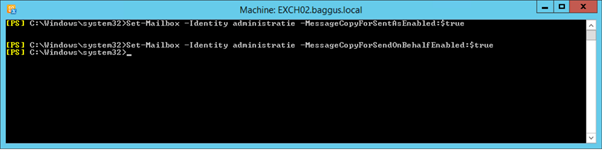
For shared Mailboxes with the Sent As permissions use the following command:

Set-Mailbox <mailbox> -MessageCopyForSentAsEnabled $True

For shared Mailboxes with the Sent On Behalf of permissions use the following command:

Set-Mailbox <mailbox> -MessageCopyForSendOnBehalfEnabled $True

image

When testing with Outlook (2013 in this case) and a shared Mailbox where Full Access and Sent As permissions are granted the email message that was sent is stored in the shared Mailbox.

image

A couple of remarks:

  • The email message is stored in the shared Mailbox, but a copy is stored in the user’s Mailbox as well.
  • This feature was already available in Office 365 (and can be set using Remote PowerShell).
  • If the –MessageCopyForSentAsEnabled and the –MessageCopyForSendOnBehalfEnabled are not available you should run the Setup.exe /PrepareAD /IAcceptExchangeServerLicenseTerms in your environment to make the appropriate changes in the AD’s Configuration partition.

The Secure Mail Certificate on server HYBRID01 is not bound to the SMTP Service

While configuring an Exchange 2013 organization in a hybrid scenario with Office 365 the Exchange Hybrid wizard stopped and showed the following error message:

Subtask CheckPrereqs execution failed: Configure Mail flow The Secure Mail Certificate on server HYBRID01 is not bound to the SMTP Service at Microsoft.Exchange.Management.Hybrid.MailFlowTask.CheckCertPrereqs()…

image

Continue reading The Secure Mail Certificate on server HYBRID01 is not bound to the SMTP Service

Remove Million Log Files from Exchange Server

Customer is running Exchange 2010 with NetBackup for backup. At some point the backup stalled and the Exchange server (passive node) froze. Only hard reboot turned the node back to life.

After lots of troubleshooting it turned out that there were several million (small) log files located in C:\Program Files\Veritas\NetBackup\online_util\ which caused the backup to freeze.

The problem is… how do you remove so many files from a (local) hard disk? A command prompt or Windows Explorer is generally speaking not a good idea, but you can do this with PowerShell.

First load the file into an array with this command:

$Logfiles = [System.IO.Directory]::GetFiles("C:\Program Files\VERITAS\NetBackup\online_util\_fi_cntl", "*.*")

It took approx. 3 minutes to load all files in the $Logfiles array.

To remove the first 100,000 files and determin the time needed the following commands was used:

a=get-date;$Logfiles[0..99999]|%{[System.IO.file]::delete($_)};
$b=get-date

This took only 61 seconds. Disk activity never came over 15%

As a side note: The admins also tried it using a command prompt and a standard del command, this took approx. 53 minutes to remove 100,000 files.

A second batch with 2,000,000 logfiles took 1500 seconds (15 minutes) to remove. Disk activity however kept raising during this 15 minutes up to 100%. To prevent too many issues with (disk) performance customer decided to remove the logfiles in batches of 500,000 items until all logfiles are removed.

Special thanks to Kees de Groot (Big-IT.nl and ex2013.com)