I am working on an Exchange 2010 project (no typo!) where all mailboxes need to be moved to Exchange Online. Since Exchange 2010 is out-of-support for years, creating an Exchange 2010 hybrid environment is not a good idea. So, instead I installed Exchange 2016 and created a hybrid Exchange 2016 environment. But that brings it challenges as well.
The first issue we ran into when creating the hybrid configuration was the TLS 1.2 issue. Exchange 2016 (on Windows 2016) supports TLS 1.2, but it needs to be enabled. To enable TLS 1.2 on Exchange 2016, follow the instructions on the Exchange Server TLS configuration best practices article on the Microsoft website.
When running the Hybrid Configuration Wizard for the first time you must add the domains for federation with Office 365. DNS TXT records were added for all four domains but validating failed after validating the first domain. The wizard hangs on validating subsequent domains.
Removing the other three domains from the wizard and thus validating with only one domain solved our problem and the wizard successfully finished. Later on we were able to add the other domains, but only one at a time.
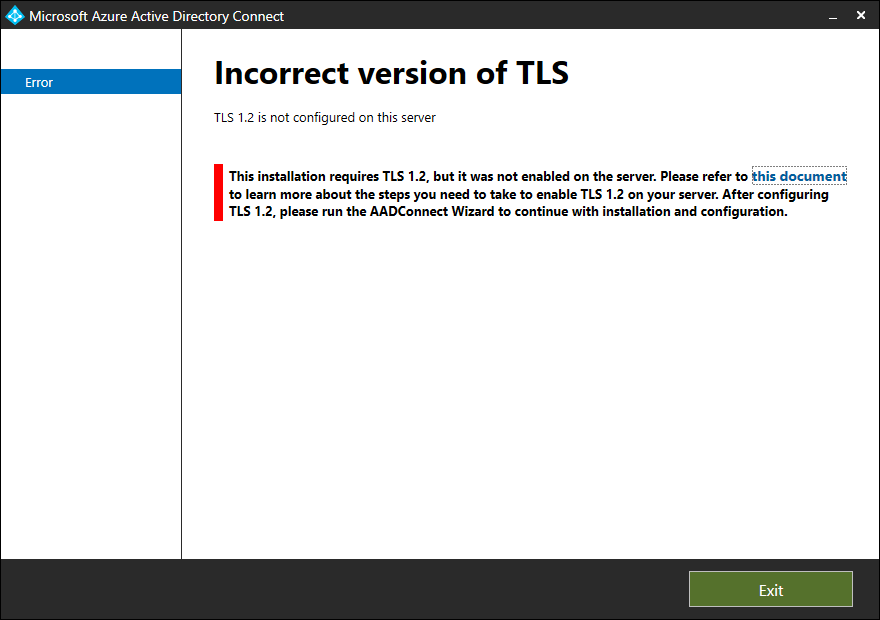
So, I installed a brand-new Windows 2019 server where I wanted to install Azure AD Connect version 2.x. Or better, I wanted to upgrade an existing Azure AD Connect version 1.x server to version 2.x. After starting I got the following error message:
This installation requires TLS 1.2, but it was not enabled on the server. Please refer to this document to learn more about the steps you need to take to enable TLS 1.2 on your server. After configuring TLS 1.2, please run AADConnect Wizard to continue with installation and configuration.
Luckily it’s not that difficult to enable TLS 1.2 on a Windows 2019 server (although I am wondering why this is not enabled by default) by using the following registry keys:
For a current project I am working with Exchange 2019 and for OWA we want to implement Office Online Server. I did this in the past and blogged about it (Install Office Online Server 2016) so I thought it should not be a big deal.
Installed Windows 2016, installed prerequisite software, configured an SSL certificate, installed Office Online Server and created a new Office Web Apps farm.
When opening an attachment in OWA I do see the OOS environment, it tries to open a document and then generates this error:
“Sorry, there was a problem and we can’t open this document. If this happens again, try opening the document in Microsoft Word.”
When opening an Excel attachment, I get the following error message: “Unable to open the file. We couldn’t find the file you wanted. It’s possible the file was renamed, moved or deleted.”
I know Office Online Server is sensitive for SSL certificates, but this was a regular Digicert certificate. Name resolution was fine as well. But the check https://fqdn/op/generate.aspx failed as well with the following (pretty useless) error:
“Server Error. We’re sorry. An error has occurred. We’ve logged the error for the server administrator.”
Unfortunately, nothing useful in the eventlog, or in the ULS logging on the Office Web Apps server. Asked colleagues, but they had only experience with Exchange 2016 and OOS.
After two days of searching, fiddling with the server, checking .NET versions (Windows 2016 comes with a newer version of .NET then required by Office Online Server), rebuilding the Office Online Server several times I realized it might be a TLS 1.2 issue. Exchange 2019 is using TLS 1.2 only by default, whereas Exchange 2016 can use multiple versions of TLS.
So, on the Windows 2016 server with OOS, I enabled strong cryptography in .NET and disabled older versions of TLS on Windows to fix the issue.
To enable strong cryptography in the .NET Framework, add the following registry key:
When installing the MSOnline module using the Install-Module MSOnline command in PowerShell it fails with a cryptic error like:
WARNING: Unable to download from URI ‘https://go.microsoft.com/fwlink/?LinkID=627338&clcid=0x409’ to ”.
WARNING: Unable to download the list of available providers. Check your internet connection.
PackageManagement\Install-PackageProvider : No match was found for the specified search criteria for the provider ‘NuGet’. The package provider requires ‘PackageManagement’ and ‘Provider’ tags. Please check if the specified package has the tags.
And
WARNING: Unable to download from URI ‘https://go.microsoft.com/fwlink/?LinkID=627338&clcid=0x409’ to ”.
WARNING: Unable to download the list of available providers. Check your internet connection.
PackageManagement\Get-PackageProvider : Unable to find package provider ‘NuGet’. It may not be imported yet. Try ‘Get-PackageProvider -ListAvailable’.
Install-Module : NuGet provider is required to interact with NuGet-based repositories. Please ensure that ‘2.8.5.201’ or newer version of NuGet provider is installed.
As shown in the following screenshot:
It turns out that this is a TLS issue, PowerShell does not use TLS 1.2 by default, while Microsoft requires TLS 1.2 from clients. To set TLS 1.2 usage for PowerShell, you can use the following command:
Now if you try again, it will install the MSOnline module:
This is a per session setting, if you want to enable it for all sessions, add the previous command to the Microsoft.PowerShell_profile.ps1 and Microsoft.PowerShellISE_profile.ps1 profiles (use Notepad $Profile for this.
In a previous blogpost I discussed an issue I had with Outlook 2010 and TLS 1.2. At the same time this reminded me that Microsoft will remove support for TLS 1.0 and TLS 1.1 in Office 365 on October 31, 2018 as communicated in https://support.microsoft.com/en-us/help/4057306/preparing-for-tls-1-2-in-office-365. This means that when you have communication issues with Office 365 because of an older and weaker protocol, you won’t get any support. Time to do some research….
Existing Exchange 2010 environment
As you may have seen on this side, I still am a big fan of Exchange 2010 and also have an pure Exchange 2010 hybrid environment up-and-running and it looks like this:
MX records is pointing to my Exchange 2010 Edge Transport Server (running on Windows 2008 R2), webmail and Autodiscover are routed via an F5 LTM load balancer to an Exchange 2010 CAS/HUB/Mailbox server (also running on Windows 2008 R2), and hybrid is configured directly on Exchange 2010 (for hybrid mail flow I’m using a separate FQDN, o365mail.inframan.nl) without any Exchange 2013 or Exchange 2016 server.
So, how do you test which TLS version is used by your Exchange 2010 server? In Exchange 2010 this should be done using the protocol logfiles. Message headers in Exchange 2010 do not contain enough information for showing this TLS information. So, you must enable protocol logging for the appropriate Receive Connectors and Send Connectors. In my environment this means the Default Receive Connector on the Exchange 2010 Edge Transport server (for O365 traffic from other tenants), the Default-First-Site-Name to Internet Send Connector, and both connectors between the Exchange 2010 server and Office 365 for hybrid. Analyzing the protocol logfiles can best be done in Excel (import as CSV files). When analyzing, look for a string like TLS protocol SP_PROT_TLS1_0_SERVER (when receiving) or TLS protocol SP_PROT-TLS1_0_CLIENT (when sending). When TLS 1.2 is used, look for a string like TLS protocol SP_PROT_TLS1_2_SERVER and TLS protocol SP_PROT-TLS1_2_CLIENT.


 Jaap Wesselius
You must be logged in to post a comment.