All posts by jaapwesselius

Self Service Password Reset in Office 365

One option, not only for security, but also for user convenience is Self Service Password Reset (SSPR). This feature enables cloud users to reset their own passwords in Azure Active Directory, and this way they don’t have to contact the local IT staff with reset password questions.

Note. For Self Service Password Reset you need an additional Azure AD Basic license.

To enable Self Service Password Reset, logon to the Azure Portal (https://portal.azure.com) as a Global Administrator. Select Azure Active Directory, select Password Reset and in the actions pane, select Selected or All. Using the Selected option, you can enable SSPR only to member of the security group SSPRSecurityGroupUsers for a more targeted approach. Of course, if you want to enable SSPR for all your users you should select the All option.

Password-Reset-Selected

Click Save to store your selection. Click the second option Authentication Methods to select the number of methods available to your users. In my example, I’m going to select just one, and options I select are Email and Mobile Phone.

Methods_Available

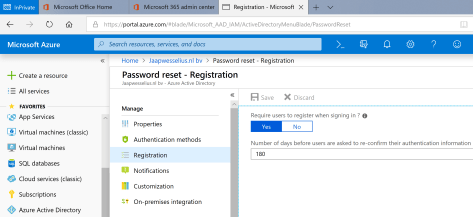
Click Save to continue. The last step is to configure the registration. This is to require users to register when signing in, and the number of days the users are asked to re-confirm their authentication information, as shown in the following screenshot:
password-reset-registration

You’re all set now.

When a (new) user logs on now, he is presented with a pop-up, asking for verification methods. As configured earlier the authentication phone and authentication email is used. The mobile phone number that’s presented here was configured earlier in Azure Active Directory when provisioning the user. Click Verify and you’ll receive a text message with a verification code.

You can chose an email address for authentication purposes, as long as it’s not an email address in your own tenant. Follow the wizard when you click Set it up now as shown in the following screenshot.

dont-lose-access

To test the SSPR, use the browser van navigate to https://passwordreset.microsoftonline.com/, enter your userID (UPN) and enter the CAPTCHA code.

You can choose to send an email to your verification account, send a text message to your mobile phone (see screenshot below) or have Microsoft call you.

Get-Back-Into-Your-Account

Enter your phone number (the phone number that’s also registered in Azure AD) and within seconds you’ll receive a verification text message. After entering this code you can enter a new password, and with this new password you can login again.

As a bonus you’ll receive an email that you password has been changed.

Summary

In this blogpost I’ve shown you how to implement the Self Service Password Reset (SSRP), a feature that’s available in the default Office 365 Enterprise licenses, so no additional Azure AD licenses are needed. You can choose to implement text messages or email messages (as shown in this blogpost) but you can also implement additional security questions.

Now this is a nice solution for cloud identities, but it does not work for synced identities or federated identities. For this to work you need to implement password write-back, a nice topic for the next blog 😊
Multi Factor Authentication MFA in Office 365 for Admin Accounts

The last thing you want to happen is when your (global) admin accounts are compromised. One easy way to avoid this is to enable multi factor authentication or MFA for you tenant admin accounts.

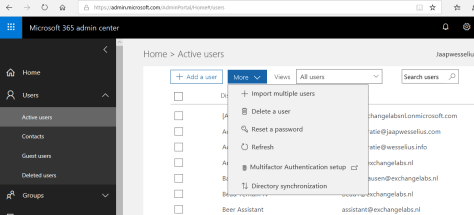
To achieve this, go to the Office 365 admin center and select the active users. Click More and select Multifactor Authentication setup as shown below:

Active_Users

You’ll see a list of all users in your organization that have MFA enabled. If this is the first time you’re here, most likely all users will have MFA set to disabled.

To show only the Global Administrators select Global Administrators in the View dropdown box. Select the Global Administrator and select Enable under Quick Steps.

MFA_Enable

Continue reading Multi Factor Authentication MFA in Office 365 for Admin Accounts

Microsoft Secure Score – Improve security of your tenant

During Ignite 2018 in Orlando there was a lot of focus on security in Office 365 and Azure Active Directory. That makes sense, a cloud solution is accessible for everyone. Not only your own internal users, but also the bad guys that are out for your data, accounts or money. And not only your user accounts are at risk, your admin accounts even more, and when losing your admin accounts, you are pretty much out of business.

It was shocking to hear that there are 6,000 compromised admin accounts each month, and only 4% of all admin accounts have MFA enabled. And the number of compromised admin accounts decreases with 99,9% with MFA enabled. Go figure!

Other issues that impact security negatively is weak passwords. Everybody knows about brute force attacks, but ever heard of password spray attacks? Based on user lists and (default) weak passwords all combinations of usernames and passwords are tried, without you as an admin even knowing what’s going on.

The list with security issues is impressive…. Weak (legacy) authentication, no password changes, phishing attacks, spoofing, auto-forwarding, too many global admins, permissions and roles, unmanaged devices, etc. etc.

Continue reading Microsoft Secure Score – Improve security of your tenant

Exchange 2010 and TLS 1.2

In a previous blogpost I discussed an issue I had with Outlook 2010 and TLS 1.2. At the same time this reminded me that Microsoft will remove support for TLS 1.0 and TLS 1.1 in Office 365 on October 31, 2018 as communicated in https://support.microsoft.com/en-us/help/4057306/preparing-for-tls-1-2-in-office-365. This means that when you have communication issues with Office 365 because of an older and weaker protocol, you won’t get any support. Time to do some research….

Existing Exchange 2010 environment

As you may have seen on this side, I still am a big fan of Exchange 2010 and also have an pure Exchange 2010 hybrid environment up-and-running and it looks like this:

Inframan-hybrid

MX records is pointing to my Exchange 2010 Edge Transport Server (running on Windows 2008 R2), webmail and Autodiscover are routed via an F5 LTM load balancer to an Exchange 2010 CAS/HUB/Mailbox server (also running on Windows 2008 R2), and hybrid is configured directly on Exchange 2010 (for hybrid mail flow I’m using a separate FQDN, o365mail.inframan.nl) without any Exchange 2013 or Exchange 2016 server.

So, how do you test which TLS version is used by your Exchange 2010 server? In Exchange 2010 this should be done using the protocol logfiles. Message headers in Exchange 2010 do not contain enough information for showing this TLS information. So, you must enable protocol logging for the appropriate Receive Connectors and Send Connectors. In my environment this means the Default Receive Connector on the Exchange 2010 Edge Transport server (for O365 traffic from other tenants), the Default-First-Site-Name to Internet Send Connector, and both connectors between the Exchange 2010 server and Office 365 for hybrid. Analyzing the protocol logfiles can best be done in Excel (import as CSV files). When analyzing, look for a string like TLS protocol SP_PROT_TLS1_0_SERVER (when receiving) or TLS protocol SP_PROT-TLS1_0_CLIENT (when sending). When TLS 1.2 is used, look for a string like TLS protocol SP_PROT_TLS1_2_SERVER and TLS protocol SP_PROT-TLS1_2_CLIENT.

Continue reading Exchange 2010 and TLS 1.2

Hybrid Configuration Wizard diagnostics

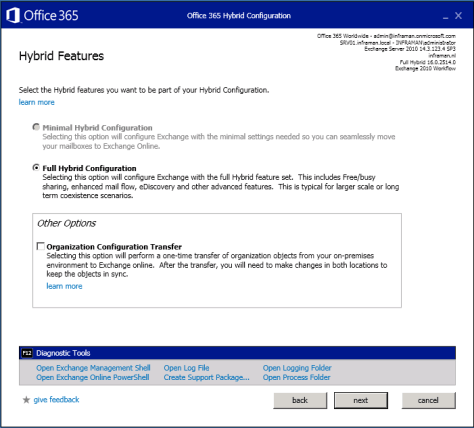
Life can be so simple sometimes… learned this nice feature at Microsoft Ignite last week… when running the Hybrid Configuration Wizard (HCW) and you press F12, the diagnostics tools becomes available:

hybrid-diagnostics

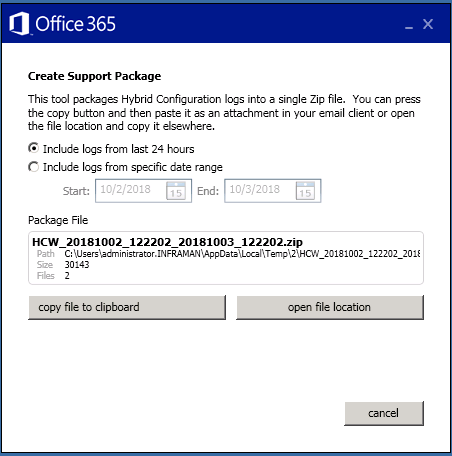
You can open the individual directories, open the log file itself or create a support package when you have to contact Microsoft support in case of issues. Very nice and useful!

support-package