All posts by jaapwesselius

Extend Office 365 trial

In my previous blog I explained how to create a new tenant in Office 365 which start with a 30 days trail period. It can happen that you haven’t finished testing within 30 days, so it’s good to know there’s the option to extend the Office 365 trial with another 30 days.

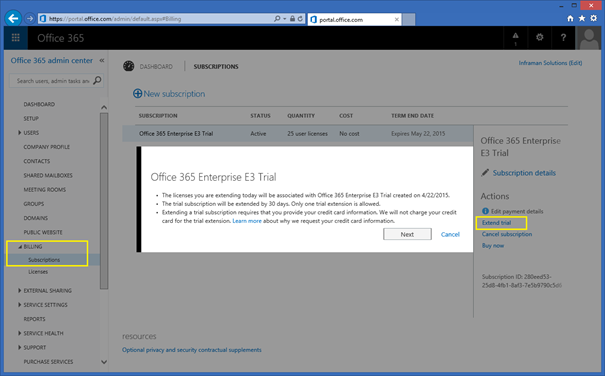
To achieve this logon to the Microsoft Online Portal via https://portal.microsoftonline.com and login with the global administrator account. In the main menu select Billing and Subscriptions and in the subscription details (on the right) click Extend trial.
image

To extend the trial subscription you need to enter your credit card details, but your card won’t be charged for extending the trial period. In the pop-up windows, click Next and in the following windows enter your credit card details. Once entered click Extend trial and you’re good for another 30 days.

Please note you can extend your Office 365 trial only once.
Create a new organization in Office 365

Creating a new organization in Office 365 is relatively easy. You need a valid domain, a unique tenant name and if you want to use it beyond the 30 days trial period a valid credit card.

Before creating (or provisioning) a new tenant you have to select the Business Plan that will match your business needs. You can find a nice overview of all Office 365 Business Plans on the Microsoft site via http://bit.ly/CompareAllO365BusinessPlans.

When you scroll down you’ll the Business Plans that have a free trial available. In this blog post I’ll focus on the Enterprise E3 plan.

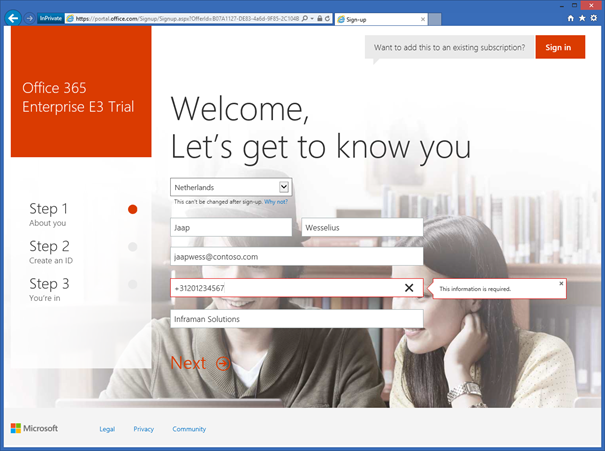
When you click Free Trial at the bottom of the page you can configure a new tenant in Office 365 with a 30 days trial period. You need to enter you name, email address, telephone number and organization name as shown in the following figure.

image

The next step is to create your first user ID. This will automatically the Global Administrator of your Office 365. I always recommend not using a regular user for this, but create a dedicated administrator with an appropriate name like admin or administrator.

Continue reading Create a new organization in Office 365

Cloud identities, Linked Identities and Federated Identities

When you are using a cloud service, whether it be Office 365, Facebook, LinkedIn or Gmail you are using a user account, and these are also referred to as ‘identities’. Typically there are three types of identities in a cloud service: Cloud Identities, Synced Identities and Federated Identities.

  • Cloud Identity – a Cloud Identity is a user account that’s created and managed in the cloud service. In case of Office 365 this account is created and managed in the Microsoft Online Portal. Important to note is that when you access an Office 365 service, authentication takes place against the Windows Azure Active Directory Domain Controllers.
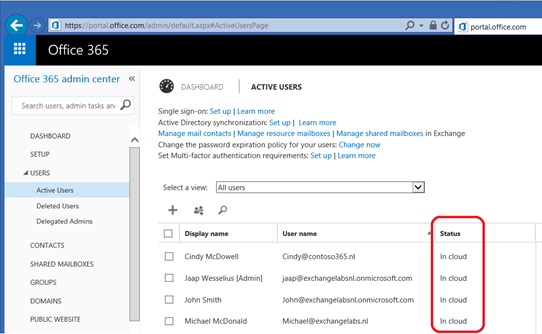
    In the Microsoft Online Portal these accounts are easily identifiable as Cloud Identities as can be seen in the following figure:
    image
  • Synced Identity – a Synced Identity is created and managed in your local Active Directory and synchronized with the Cloud service. In Office 365 you can opt to synchronize the passwords as well, although not the actual password is synchronized but a hash of the password. Like Cloud Identities authentication takes place against the Windows Azure Active Directory Domain Controllers. These accounts are identified in the Microsoft Online Portal as ‘Synced with Active Directory’ as shown in the following figure:
    image
    Although the username and password are identical in Office 365 and in the local Active Directory, this is not a Single Sign-On solution, but I always refer to this as a ‘Same Set of Credentials’ solution.
  • Federated Identity – a Federated Identity is a user account that’s created and managed in your local Active Directory and that’s synchronized with Office 365. When the account is synchronized an account in Office 365 (Windows Azure Active Directory) is created. When a service in Office 365 is accessed, the user is not authenticated against the Windows Azure Active Directory Domain Controllers, but the authentication request is redirected to your local Active Directory and Domain Controllers. To achieve this an Active Directory Federation Service (ADFS) needs to be in place. Since there’s only one set of credentials (all authentication takes place against your local Domain Controllers!) this is referred to as ‘Single Sign-On’.

Continue reading Cloud identities, Linked Identities and Federated Identities

Install Exchange 2013 Cumulative Update 8

On March 17 Microsoft released the 8th Cumulative Update for Exchange Server 2013, 98 days after the release of CU7 which is nicely in line with the quarterly release cadence of Cumulative Updates. This Cumulative Update is called CU8, not a word about Service Pack 2, so SP1 still continues to be the officially supported Service Pack.

There are some new features in CU8 that are worth noticing.

  • With CU8 there are improvements for mobile clients in a Hybrid Configuration. When a Mailbox is moved the Outlook client will automatically detect and reconfigure accordingly. This was not the case with Mobile clients. This behavior has changed in CU8. When a mobile client connects the local Exchange server and the Mailbox is moved to Exchange Online an additional check for the TargetOWAUrl on the Organization Relationship object is performed. This will return an HTTP/451 redirect to the mobile client which in turn will be redirected to this new URL. This feature will be available to all EAS compatible devices that can handle the HTTP/451 redirect option. Unfortunately this feature is only available for onboarding customers (i.e. to Office 365) and not for offboarding (from Office 365) customers.
  • There an improved migration for Public Folders migration, now supporting batch migrations. This is faster (supports multiple jobs), more reliable and provides an easier migration management.
  • CU8 supports viewing calendar and contact types of modern Public Folders in OWA

Continue reading Install Exchange 2013 Cumulative Update 8

Free Kemp LoadMaster

Kemp recently released a free version of their virtual LoadMaster (VLM) load balancer solution. It is just like a regular VLM with some restrictions of course. There’s no High Availability support in the free LoadMaster, there’s only web-based support and you cannot update the firmware to a newer version for example. Also the bandwidth is limited to 20Mbit (L7) throughput with 50 transactions (TPS) 2K SSL keys.

However, it does support the nice features such as Global Server load balancing, the Application Firewall Pack and the Edge Security Pack. This makes it a perfect solution for small organizations, for lab environment or for regular test environments. It is possible though to upgrade the free LoadMaster to a regular device, making it also a perfect solution for a Proof-of-Concept. When finished the POC you an easily bring the LoadMaster to production by upgrading the license.

Continue reading Free Kemp LoadMaster