I get a lot of questions regarding Office 365, Directory Synchronization from an on-premises Active Directory and decommissioning Exchange servers on-premises. A lot of customers want an Active Directory on-premises, they want Mailboxes in Office 365 and they don’t want an Exchange server on-premises anymore.
So the question is basically “Can we decommission our Exchange servers after moving to Office 365?”
It is an easy question with an easy answer, and the answer is “No, you cannot decommission your last Exchange server on-premises”. Let me explain why.
Source of authority
In an earlier blogpost I already discussed the three types of Identities:
- Cloud Identities.
- Synced Identities.
- Federated Identities.
With Directory Synchronization (through Azure AD Connect) in place we’re talking about Synced Identities or Federated Identities. Important to note is that the Source of Authority, which means where the identities are managed, is the on-premises Active Directory. Account are created and managed on-premises and not in the cloud. This is also true for properties of the accounts.
Suppose we have the following situation. There’s an Active Directory environment, no Exchange servers on-premises and there’s an AADConnect server for replication purposes to Azure Active Directory as shown in the following picture.
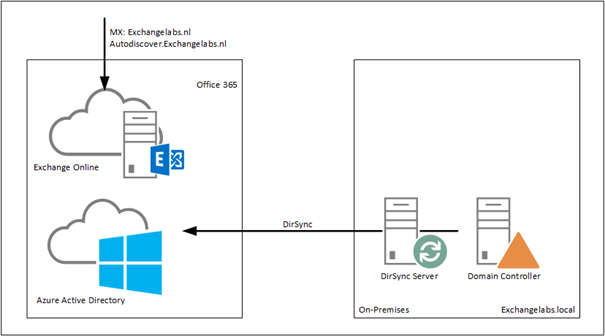
Figure 1. Azure AD Connect is synchronizing user accounts to Office 365.
The internal domain is Exchangelabs.local, the external domain Exchangelabs.nl is only verified in Office 365 and set as the default domain. In the on-premises Active Directory there’s an OU=Accounts where objects are in various OU’s like OU=Groups, OU=Users, OU=Contacts etc.

Figure 2. User accounts in Active Directory Users and Computers. Please note the different settings in the E-mail Address column.
The installation of Azure AD Connect automatically detects that there’s no Exchange server installed (the Active Directory Schema is not even prepared, so it’s truly a green-field Active Directory) and thus the Exchange Hybrid option is not available in the setup application:

Figure 3. Azure AD Connect is configured with Password hash synchronization
The only option that’s selected is the Password hash synchronization. The Organizational Unit OU=Accounts as mentioned before is the only OU that’s selected for object replication, so after finishing the setup application and the initial synchronization the user account will appear in the Microsoft Online Portal.
When the Office 365 (E3) licenses are assigned to the replicated user accounts, one strange thing is visible. The user account is exactly as expected, i.e. bwesselius@exchangelabs.nl, but the primary SMTP address does not reflect this, and is actually based on the tenant name, i.e. bwesselius@exchangelabsnl.onmicrosoft.com as shown in the following screenshot.

Figure 4. User’s email address is set incorrectly. The tenant email address is set as primary SMTP address.
When you want to change the email address from the tenant email address to the regular email address you’ll see the following warning:
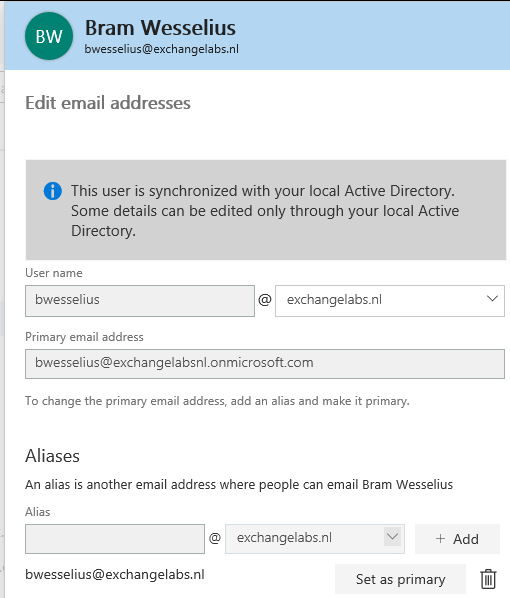
Figure 5. It is not possible to change the user’s primary SMTP address
The Set as Primary button is greyed out, so it’s not possible to change the email address.
When you try this in the Exchange Admin Center (in Exchange Online) it doesn’t work either and you get the following error message:
The operation on mailbox “Bram Wesselius” failed because it’s out of the current user’s write scope. The action ‘Set-Mailbox’, ‘EmailAddresses’, can’t be performed on the object ‘Bram Wesselius’ because the object is being synchronized from your on-premises organization. This action should be performed on the object in your on-premises organization.

Figure 6. An error message about ‘write scope’ is shown when the user’s Email address is changed.
Now it gets interesting. Have a closer look at Figure 2. You will see that user BWesselius does not have an email address set in Active Directory, but user Ahaverkamp does have an email address. This is not an Exchange email address (since Exchange is not installed on-premises, Active Directory doesn’t have the Exchange schema changes applied, it really is a green-field Active Directory) but the email address is set in Active Directory Users and Computers.

Figure 7. The user’s Email address is set in Active Directory Users and Computers.
When the Email address is set using Active Directory Users and Computers it is synchronized correctly to Office 365 and used in Exchange Online as the user’s primary Email address.
So, now we know how to set the primary Email address when the user is provisioned in the on-premises Active Directory. Despite the fact the user now has the correct primary Email address, it is still not possible to change the user’s Email address in the Office 365 portal or Exchange (online) Admin Center.
This behavior is caused by the fact that the account in this scenario is a Synced Account. The source of authority is the on-premises Active Directory, and this is where all changes need to be made. Once changed the new settings are synchronized to Office 365.
So, to change the primary Email address for user BWesselius it’s a matter of adding the Email address to the mail property in Active Directory users and computers and wait for synchronization to happen (or force directory synchronization). If you want to change an Email address, for example for user AHaverkamp you can just change the mail property of the user in Active Directory Users and Computers.
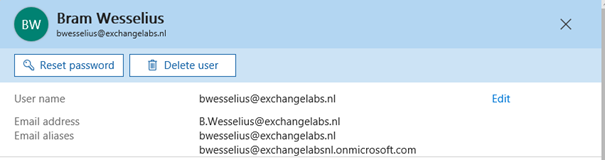
So, now we know how to create a user in the on-premises Active Directory and have the Exchange Online primary Email address set correctly. In my next blog I’ll talk more about an on-premises Exchange server.

 Jaap Wesselius
You must be logged in to post a comment.