Category Archives: Office365

Create a new organization in Office 365

Creating a new organization in Office 365 is relatively easy. You need a valid domain, a unique tenant name and if you want to use it beyond the 30 days trial period a valid credit card.

Before creating (or provisioning) a new tenant you have to select the Business Plan that will match your business needs. You can find a nice overview of all Office 365 Business Plans on the Microsoft site via http://bit.ly/CompareAllO365BusinessPlans.

When you scroll down you’ll the Business Plans that have a free trial available. In this blog post I’ll focus on the Enterprise E3 plan.

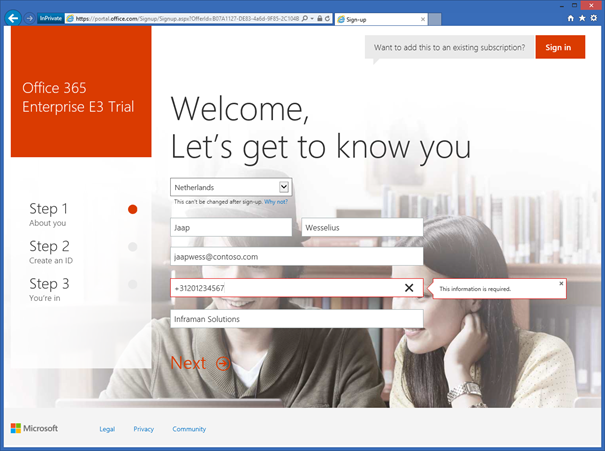
When you click Free Trial at the bottom of the page you can configure a new tenant in Office 365 with a 30 days trial period. You need to enter you name, email address, telephone number and organization name as shown in the following figure.
image

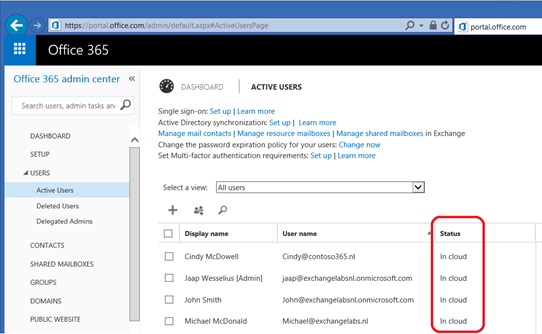
The next step is to create your first user ID. This will automatically the Global Administrator of your Office 365. I always recommend not using a regular user for this, but create a dedicated administrator with an appropriate name like admin or administrator.
Continue reading Create a new organization in Office 365

Cloud identities, Linked Identities and Federated Identities

When you are using a cloud service, whether it be Office 365, Facebook, LinkedIn or Gmail you are using a user account, and these are also referred to as ‘identities’. Typically there are three types of identities in a cloud service: Cloud Identities, Synced Identities and Federated Identities.

  • Cloud Identity – a Cloud Identity is a user account that’s created and managed in the cloud service. In case of Office 365 this account is created and managed in the Microsoft Online Portal. Important to note is that when you access an Office 365 service, authentication takes place against the Windows Azure Active Directory Domain Controllers.
    In the Microsoft Online Portal these accounts are easily identifiable as Cloud Identities as can be seen in the following figure:
    image
  • Synced Identity – a Synced Identity is created and managed in your local Active Directory and synchronized with the Cloud service. In Office 365 you can opt to synchronize the passwords as well, although not the actual password is synchronized but a hash of the password. Like Cloud Identities authentication takes place against the Windows Azure Active Directory Domain Controllers. These accounts are identified in the Microsoft Online Portal as ‘Synced with Active Directory’ as shown in the following figure:
    image
    Although the username and password are identical in Office 365 and in the local Active Directory, this is not a Single Sign-On solution, but I always refer to this as a ‘Same Set of Credentials’ solution.
  • Federated Identity – a Federated Identity is a user account that’s created and managed in your local Active Directory and that’s synchronized with Office 365. When the account is synchronized an account in Office 365 (Windows Azure Active Directory) is created. When a service in Office 365 is accessed, the user is not authenticated against the Windows Azure Active Directory Domain Controllers, but the authentication request is redirected to your local Active Directory and Domain Controllers. To achieve this an Active Directory Federation Service (ADFS) needs to be in place. Since there’s only one set of credentials (all authentication takes place against your local Domain Controllers!) this is referred to as ‘Single Sign-On’.

Continue reading Cloud identities, Linked Identities and Federated Identities

Password never expire in Office 365

When creating user accounts and Mailboxes in Office 365 the default Microsoft password policy is applied, which means you have to change your password every 90 days.

While it is a best practice to change your password on a regular basis not every customer is too happy with this. I can think of one exception and that’s a service account, this makes sense to have the password set to never expire.

To change this option for user accounts in Office 365 you have to use the Windows Azure Active Directory PowerShell module to connect to Office 365 using the following commands:

$msolcred = get-credential

connect-msolservice -credential $msolcred

Continue reading Password never expire in Office 365

Purge deleted users in Office 365

When deleting users in the Microsoft Online Portal these deleted users are moved to the Recycle Bin where they will be retained for another 30 days. You can see this when selecting Deleted Users in the Portal:

image

In the Portal it is not possible to permanently remove users, or purge deleted user accounts. This can only be done using Remote PowerShell. Please note that the Azure Active Directory Module for Windows PowerShell need to be installed. Click here to install this PowerShell module. Continue reading Purge deleted users in Office 365

Can’t verify domain

Recently I configured a new Office 365 E3 tenant for my lab environment and one of the domains I use (and had in mind for configuring Federation) was exchangelabs.nl.

When adding a domain to a tenant Microsoft has to verify if you’re the owner of the domain being added and this is achieved by you adding a TXT record to public DNS. Microsoft checks for this TXT and thus knows you’re the one and only owner.

After adding the TXT record the verification wizard failed with the following error:

Can’t verify domain

Exchangelabs.nl was already added to a different Office 365 account exchangelabs.onmicrosoft.com.
Sign in to that account as ad admin, and remove domain <domain>. Then come back here and try adding <domain> to this account again.
If you can’t sign in to exchangelabs.onmicrosoft.com as an admin, try resetting your admin password. Continue reading Can’t verify domain