Category Archives: Office365

DNSSEC and DANE support in Exchange server and Exchange Online

In the past I have written about SPF, DKIM and DMARC for email authentication in Exchange server to improve e-mail security. Additional topics to improve security are secure DNS (DNSSEC) and DNS-based Authentication of Named Entities (DANE). Where SPF, DKIM and DMARC are focusing more on the email messages and the sending hosts they are coming from, is DANE more focusing on setting up the TLS connection between mail servers. DANE has a dependency on DNSSEC but since my focus is on Exchange and Exchange Online, I don’t discuss DNSSEC and leave that to my provider (DANE only works when DNSSEC is enabled).

When two mailservers setup a connection, they negotiate a common TLS protocol and this handshake as it is called is unencrypted. As such, this handshake is vulnerable for man-in-the-middle or downgrade attacks.

DANE is using a special DNS record (a TLSA record, Transport Layer Security Authentication) where an organization can publish information regarding the certificate on the mail server and thus the TLS options available.

The TLSA record for my own domain is shown in the following example:

_25._tcp.smtphost.exchangelabs.nl IN TLSA 3 1 1 50167c478a2f536a88ee9ec232b14b0d223c2d5bdc837451eee104c153376cbe

When a mailserver wants to send email to my Exchange environment it retrieves the MX record first which is smtphost.exchangelabs.nl (this is an Exchange 2019 Edge transport server, with a Digicert certificate that matches the servername). When DNSSEC is not used at the recipient domain, opportunistic TLS is used. When DNSSEC is used at the recipient domain, a DANE capable mail server will check for a TLSA record.

When a TLSA record is found and retrieved, the sending server sets up a TLS connection with the receiving server, which in turn returns the fingerprint of the certificate. The sending server compares the fingerprint with the information found in DNS and when it matches, the connection is established and communication between the two servers continue, and the email is sent.

So, how do you create the TLSA record? There are publicly available webservers that can create TLSA records. Shumon Huque is a software engineer and technologist based in Washington DC who has a site that can generate TLSA records. As a bonus his site can also check TLSA records.

To generate a new TLSA record, navigate to his website on https://www.huque.com/bin/gen_tlsa and fill out the necessary information as shown in the following screenshot:

The easiest way to create a PEM format X.509 certificate is using the MMC certificate snap-in. Select your certificate and export it. Select the ‘No, do not export the private key’ option, select the ‘Base-64 encoded X.509 (CER)’ option and export the certificate. You can use Notepad to open the certificate export, and copy-and-past this into the PEM format X.509 textbox.

Select the port number (25), the protocol (TCP, not SMTP) and enter the domain name. This is the FQDN of the receiving server, so in my example it is smtphost.exchangelabs.nl and click Generate.

It will show the generated TLSA record, including the certificate information as shown in the following screenshot:

For my domain the following TLSA record is generated:

_25._tcp.smtphost.exchangelabs.nl. IN TLSA 3 1 1 a63d74fc7ec1acad702017d13479a1b60b36f234ccb96b90f97c9619ba2c91ab

How is this TLSA record structured?

TCP port 25 and the FQDN of the server make up the first part of this TLSA record.

The first number after the TLSA text is the certificate verification or the certificate usage on the server and this number can have 4 values:

  • 0 – CA Constraint. The certificate provided when establishing the TLS connection must be issued by the listed root-CA or one of its intermediate Certificate Authorities.
  • 1 – Service Certificate constraint. – The certificate used must match the TLSA record, and it must also pass the certification path validation to a trusted root-CA.
  • 2 – Trust Anchor Assertion. The TLSA record must match the certificate of the root CA, or one of the intermediate CAs of the certificate in use by the mailserver.
  • 3 – Domain Issued Certificate. The TLSA record matches the used certificate itself. The certificate does not need to be signed by other parties and as such a self-signed certificate can be used (this is interesting on an Exchange server).

In my TLSA record a value of 3 is used for the certificate usage, so the TLSA record must match the certificate on the Exchange 2019 server.

The second number that is used is the selector. The selector can have two values:

  • 0 – The entire certificate is used for matching.
  • 1 – Only the public key of the certificate is used for matching.

In my TLSA record the value is 1 for the selector, so only the public key is used.

The third number that is used is the matching type. The matching type can have three values:

  • 0 – the entire information select is present in the certificate associated data (the last text string in the TLSA record)
  • 1 – The SHA-256 hash of the public key of the certificate must match the certificate associated data.
  • 2 – The SHA-512 hash of the public key of the certificate must match the certificate associated data.

In my TLSA record a value of 1 is used for matching, to a SHA-256 has of the public key of the Exchange server certificate must match the data in the TLSA record.

The next step is to add the generated TLSA record in DNS and check the TLSA record once added.

You can use the same site (https://www.huque.com/bin/danecheck-smtp) to check the TLSA record. The site queries the MX record for your domain and checks the accompanying TLSA record. The result is shown in the following screenshot:

But there are more sites that can check your TLSA records. Mailhardener (https://www.mailhardener.com/tools/dane-validator) for example can do the same as shown in the following screenshot:

In this blog I am discussing DANE for mail server, but it can also be used for other services. For a website a TLSA record can be:

_443._tcp.www.exchangelabs.nl. IN TLSA 3 1 1 a63d74fc7ec1acad702017d13479a1b60b36f234ccb96b90f97c9619ba2c91ab

Or for IMAP it can be:

_995._tcp.mail.exchangelabs.nl. IN TLSA 3 1 1 a63d74fc7ec1acad702017d13479a1b60b36f234ccb96b90f97c9619ba2c91ab

The ugly part is that Exchange 2019 does not support DANE out of the box. For incoming mail, you can configure the TLSA record based on the certificate that is installed on the Exchange (Edge Transport) server. A DANE capable mail server automatically checks for a TLSA record and when available, use this to setup the TLS connection.

Exchange Online on the other hand only supports DANE for outbound connections at the time of writing. As an Exchange Online customer, there’s nothing you must configure, it’s available for everyone. DANE for inbound mail will become available in the future, but when is unclear. According to Microsoft it is ‘near future’ but unfortunately this is already the case for quite some time.

One final (and very important) closing note: When you have configured a TLSA record for your (inbound) Exchange server you MUST update your TLSA record when renewing the Exchange certificate. You must also do this when the Exchange server is used in a hybrid configuration, since Exchange Online will check for a TLSA record. Mail flow from Exchange Online to Exchange 2019 will halt and the following error message is shown in Exchange Online message trace:

Reason: [{LED=450 4.7.323 tlsa-invalid: The domain failed DANE validation [Message=450 4.7.323 tlsa-invalid: The domain failed DANE validation] [LastAttemptedServerName=smtphost.exchangelabs.nl] [LastAttemptedIP=185.116.41.45:25] [SmtpSecurity=11;-1] [HE1EUR01FT069.eop-EUR01.prod.protection.outlook.com 2023-06-06T10:23:06.0. OutboundProxyTargetIP: 185.116.41.45. OutboundProxyTargetHostName: smtphost.exchangelabs.nl

This is solved when a new TLSA record is generated and published in DNS.

Sync-ModernMailPublicFolders.ps1  fails with access denied

Moving mailboxes from Exchange 2016 to Exchange Online is not that difficult, that is when you have all the prerequisites in place of course. Public Folders is a bit different, but luckily Public Folders in Exchange 2016 are ‘Modern Public Folders’ and as such similar to Public Folders in Exchange Online.

You must move Public Folders from Exchange 2016 to Exchange Online when all mailboxes are in Exchange Online, and before doing that you must use Public Folders cross-premises. When mailboxes are in Exchange Online, they must use Public Folders in Exchange 2016.

The first step is to synchronize the Public Folder mailboxes from Exchange 2016 to Exchange Online using Azure AD Connect. Then the mail-enabled folders must be synchronized to Azure AD using the Sync-ModernMailPublicFolders.ps1 script that you can download from the Microsoft download site.

When starting the script, it wants to setup a Remote PowerShell connection to Exchange Online, and the following screenshot says it all: this is a basic authentication login prompt:

When entering the global admin credentials, it fails with an ‘access denied’ error:

And in plain text:

[3/24/2022 11:40:25 AM] Creating an Exchange Online remote session...
InitializeExchangeOnlineRemoteSession : Unable to create a remote shell session to Exchange Online. The error is as follows: "Connecting to remote server outlook.office365.com failed with the following error message : Access is denied. For more information, see the about_Remote_Troubleshooting Help topic.".
At C:\Scripts\Sync-ModernMailPublicFolders.ps1:687 char:5
+     InitializeExchangeOnlineRemoteSession;
+     ~~~~~~~~~~~~~~~~~~~~~~~~~~~~~~~~~~~~~
    + CategoryInfo          : NotSpecified: (:) [Write-Error], WriteErrorException
    + FullyQualifiedErrorId : Microsoft.PowerShell.Commands.WriteErrorException,InitializeExchangeOnlineRemoteSession
[PS] C:\Scripts>

This is because the script is using Basic Authentication, and in Office 365 basic authentication is disabled (at least in our tenant). 

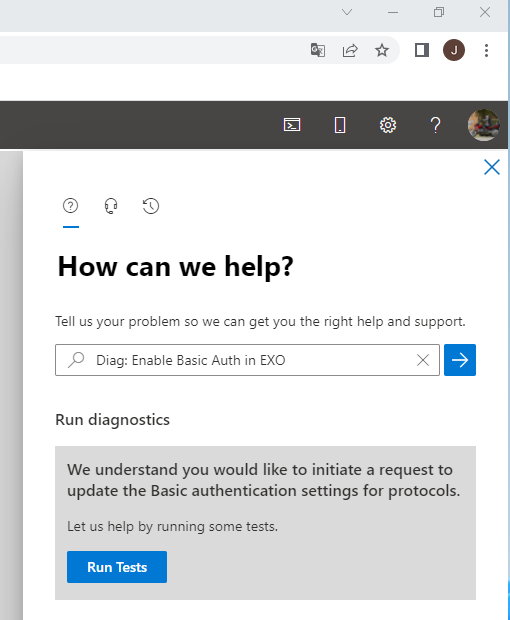
A workaround is to enable basic authentication only for PowerShell. To do this, click ‘Help & Support’ in lower right corner and in the ‘how can we help’ enter the following text “Diag: Enable Basic Auth in EXO” as shown in the following screenshot:

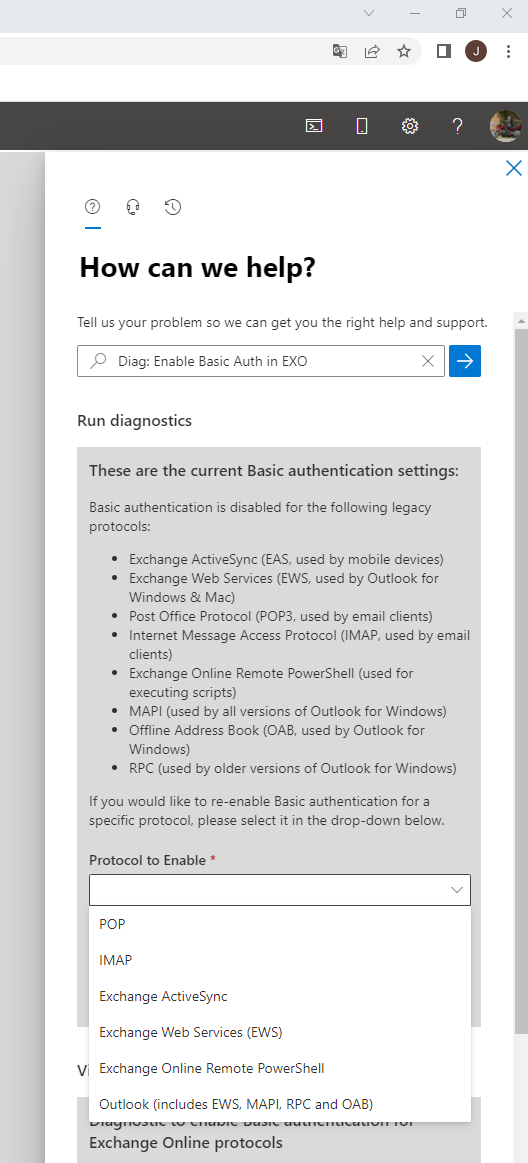
In the next pop-up window, the current basic authentication settings are shown and in the drop-down box you can select the protocol you want to enable basic authentication for: 

Select the Exchange Online Remote PowerShell option.

It takes some time before basic authentication is enabled. In my case, I disabled it late in the afternoon and the next morning it was possible to login using basic authentication. Most likely it will take less time, but overnight was not a big deal 🙂

Now when running the Sync-ModernMailPublicFolders.ps1 again it succeeds and finishes successfully.

However, enabling basic authentication is just a work-around and not really a long-term solution. And, Microsoft will turn off Basic Authentication by the end of this calendar year. But in the meantime, we must wait for Microsoft to release a new script that support Modern Authentication.

Send from Alias in Exchange Online

A bit later than planned, but I was attending a training last week, but a long-awaited feature in Exchange is sending mail from another email address that is stamped on a user, a so called alias. In a typical environment, a mailbox has a primary SMTP address and this address is used to send an receive email. This can be something like j.wesselius@exchangelabs.nl. Besides this primary SMTP address there can be more SMTP addresses that can be used to receive mail, for example Mr.Exchange@exchangelabs.nl or MasterOfDisaster@exchangelabs.nl. In Exchange on-premises and Exchange Online, these Aliasses are only used to receive email, not to send email. Up until now that is (for Exchange Online, no idea if they want to enable this for Exchange on-premises).

Microsoft has started to roll out the Send From Alias in Exchange Online starting in January 2022 (it was already announced back in April 2021) and it is available in Outlook on the Web and Outlook for iOS and Outlook for Android. Outlook for the PC will follow, according to Microsoft in Q2, 2022.

To enable the Send from Alias in Exchange Online, execute the following command in Exchange Online PowerShell:

[PS] C:\> Set-OrganizationConfig -SendFromAliasEnabled $True

It takes some time before effective, in my case it worked the next day.

All SMTP proxy addresses on a mailbox are available for this. When you logon as a user and go to settings | Mail | Compose and Reply you can check which aliases you want to use. + Addresses are also shown and so are the mail.onmicrosoft.com addresses. Don’t know who thought this was useful, in my opinion you don’t want to use these (internal) addresses at all:

Now when you write a new email in Outlook on the Web and select the From option, you can select the email address that you checked in the previous step.

The proxy addresses that are selected in the first step (the OWA settings) will automatically available in Outlook for Android and Outlook for iOS.

When you send an email using one of these aliases as a from address, it will automatically be visible in the recipient mailbox, in this example in Gmail:

I don’t expect much use of this feature until Outlook for the desktop will offer it, but it’s a nice add-on (finally).

Older Outlook versions will not connect to Office 365

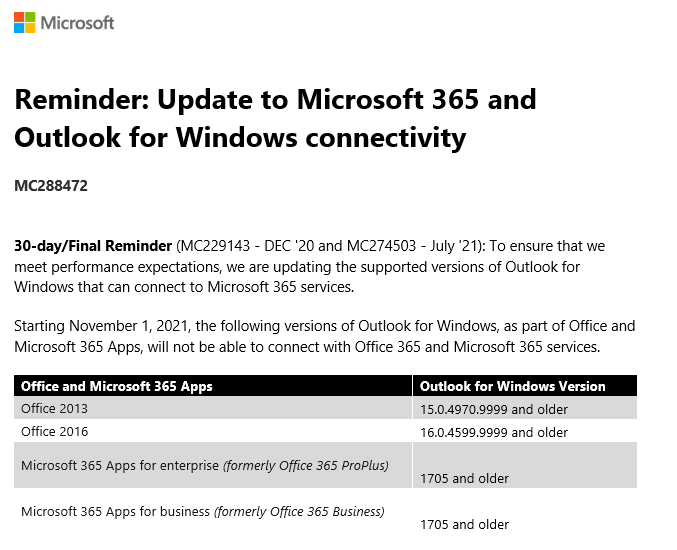
it was already announced on the Microsoft blogpost New minimum Outlook for Windows version requirements for Microsoft 365, Microsoft will stop support for older Outlook clients on November 1, 2021 (which is 24 days from the time of writing!).

In short, all clients older than Outlook 2013 SP1 with the latest fixes are no longer able to connect to Exchange Online. And yes, this includes Outlook 2010 (I know there are still clients out there running Office 2010!).

More detailed version numbers of Outlook that will not connect anymore:

Office versionOutlook version
Office 2010All versions
Office 201315.0.4970.9999 and older
Office 201616.0.4599.9999 and older
Office 365 ProPlus1705 and older

To check the version of Outlook you are using, select File –> Office Account –> About Outlook. It will show something like Microsoft® Outlook® for Microsoft 365 MSO (16.0.14326.20384) 64-bit.

Please be aware that this is completely independent from the Basic Authentication strategy that Microsoft is following. Older versions will just stop connecting to Exchange Online.

For more information, check MC288472 in the Microsoft 365 Message Center.

Microsoft disables basic authentication in Office 365

I already wrote about Office 365 and Basic Authentication in two earlier blogposts:

The last update from Microsoft regarding basic authentication is published in June 2021:

https://techcommunity.microsoft.com/t5/exchange-team-blog/basic-authentication-and-exchange-online-june-2021-update/ba-p/2454827

Microsoft has announced that it starts to disable basic authentication for customers that do not use basic authentication (for new Office 365 basic authentication is disabled by default).

I have disabled basic authentication is my tenant long ago and last week I got an email from Microsoft (MC274505, which can also be found in the admin portal) announcing basic authentication will be disabled in my tenant:

We’re making some changes to improve the security of your tenant. We announced in 2019 we would be retiring Basic Authentication for legacy protocols and in early 2021 we announced we would begin to retire Basic Authentication for protocols not being used in tenants.

30 days from today we’re going to turn off Basic Authentication for POP3, IMAP4, Remote PowerShell, Exchange Web Services, Offline Address Book, MAPI, RPC and Exchange ActiveSync protocol in your tenant, and will also disable SMTP AUTH completely.

Note: Based on our telemetry, no users in your tenant are currently using Basic Authentication with those protocols and so we expect there to be no impact to you.

If disabling basic authentication causes issues for your tenant, you can always re-enable basic authentication as outlined in the Microsoft link in the beginning of this blogpost. But please remember that basic authentication will be disabled permanently some day!