Tag Archives: Azure

Exchange Server in Azure – Part II

In my previous blog I wrote about creating a virtual network in Microsoft Azure and a site-to-site VPN connection to connect your on-premises network to the virtual network in Azure. The next step is to create a Domain Controller and (optional) an Azure AD Connect server in Microsoft Azure.

On a Domain Controller on-premises, create a new site in Active Directory and a new subnet and assign it to the new site. In my environment, the new site is called ‘Azure’ and the new subnet is ‘172.16.1.0/24’ as shown in the following screenshot:

Adding a new VM to Azure is not too difficult, but you must be careful with change the network properties. Do not change the DNS setting on the NIC inside the VM, but change it on the properties of the networking interface object in Azure.

Open the properties of the Virtual Machine in Azure, scroll down to Networking (under Settings) and click on the Network Interface. Select DNS Servers (under Settings) and add the (AD Integrated) DNS server on-premises shown in the following screenshot:

It takes some time before the new settings are active. Once active, you should be able to resolve other machines on the on-premises network and more important, join the new VM to Active Directory. And once joined, install the ADDS components on the new VM and promote it to a new Domain Controller, running in Azure.

Another thing I have changed in Azure is the DNS setting of the virtual network. Open the virtual network properties and scroll down to DNS Servers (again under settings). Open the DNS servers properties, select the ‘custom’ radio button and add the IP address of the new Domain Controller (with Integrated DNS of course). All VM’s on this virtual network now use the new Domain Controller for name resolution.

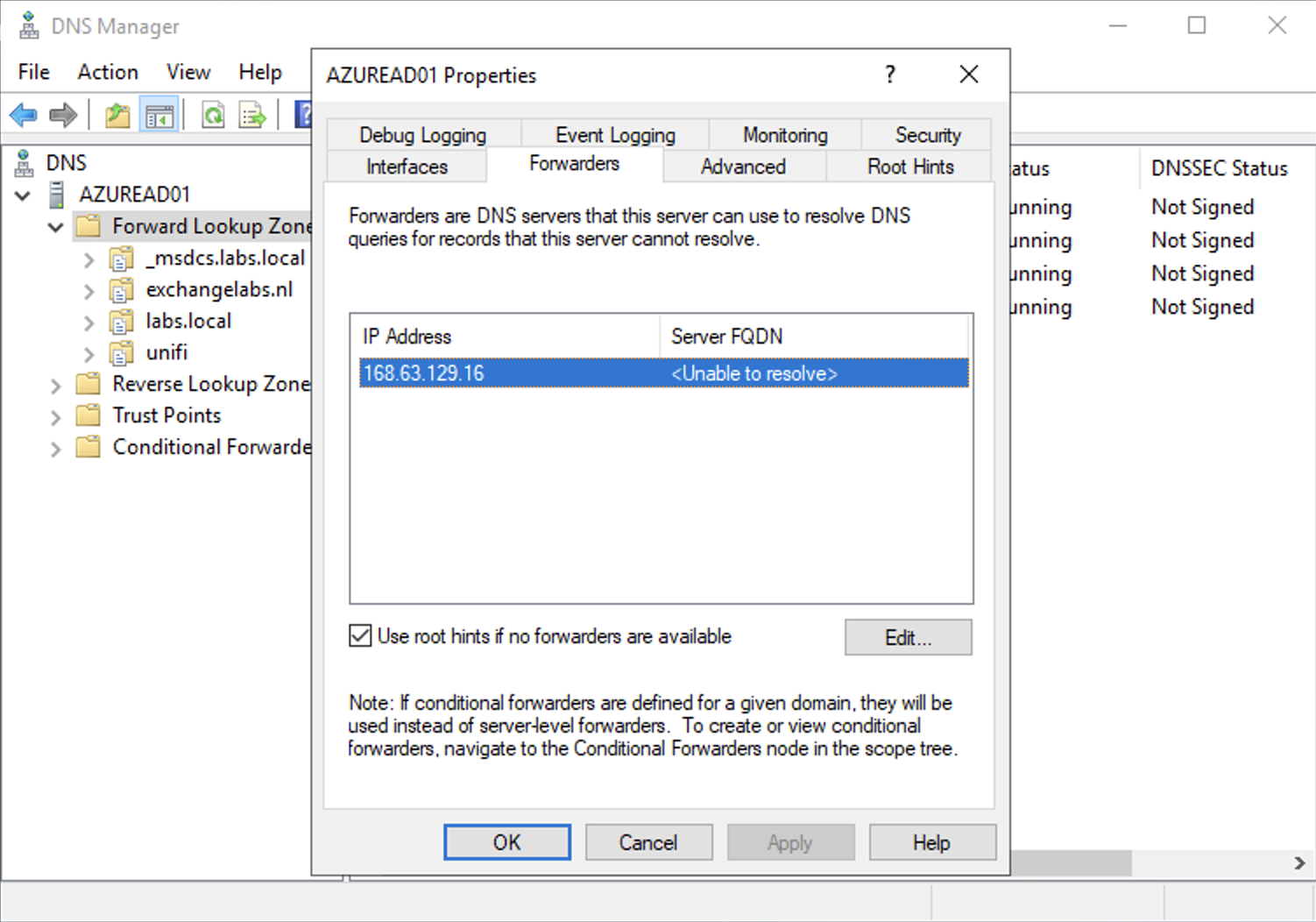
For external recurring DNS queries, and the Azure forwarder with IP address 168.63.129.16 on the forwarders tab of the DNS server as shown in the following screenshot:
The next step is to create a VM that will host the Azure AD Connect server. It still is my test environment so VMs don’t have to be that big, so for the Azure AD Connect server I’m using the Standard DS1 v2 (1 vcpu, 3.5 GiB memory) as well. You can also install Azure AD Connect on the Domain Controller in Azure, but personally I’m not a big fan of installing other services on Domain Controllers.

Make sure the new VM is connected to the Virtual Network that was created earlier, it will automatically get an IP address in the correct range.

Once installed, logon to the new server, join it to the domain and reboot again, just you would do with a server on-premises.
Since we are working post migration to Exchange Online we do have an Azure AD Connect server running on-premises. Moving this server to Azure is just like upgrading an Azure AD Connect server. Export the configuration of the existing server to a JSON file, and import this JSON file using the Azure AD Connect setup application. I have blogged about this process in an earlier upgrade blog: https://jaapwesselius.com/2021/12/24/upgrade-azure-ad-connect-from-1-x-to-2-x/ but it’s similar to moving to Azure.

When using this method, the new server will automatically be in ‘staging mode’, so it will fill its database with information, but it won’t sync anything with Azure AD. When you are ready, set the old server in staging mode and get the new server out of staging mode. At this point you are synchronizing using Azure AD Connect in Azure instead of on-premises.
Exchange server in Azure Part I

As an Exchange consultant I still do a lot of work with Exchange server on-premises, like migrations to Exchange 2019 and hybrid migrations to Exchange Online. In a typical Exchange hybrid environment 99% of all mailboxes are in Exchange Online, and only a handful of mailboxes are in Exchange on-premises. As a result, only one or two Exchange servers are left on-premises; for management purposes, for SMTP routing purposes and host these leftover mailboxes. A logical follow-up question is “why not put them in Azure?”.

Placing the last Exchange server in Azure can be costly, but a lot of customers are working hard to decommission their on-premises server room, so from that point of view it’s a valid question.

Before going into detail about this Exchange server in Azure, a couple of other things need to be in place:

  1. Site-to-Site VPN connection between on-premises and Azure.
  2. Domain Controller in Azure (optional: Azure AD Connect in Azure).
  3. Exchange server in Azure.

These make a couple of interesting blogs 🙂

Site-to-Site VPN with Ubiquity EdgeRouter

The first step is to create a site-to-site VPN connection between the internal network and Microsoft Azure, and we begin with a virtual network in Microsoft Azure.

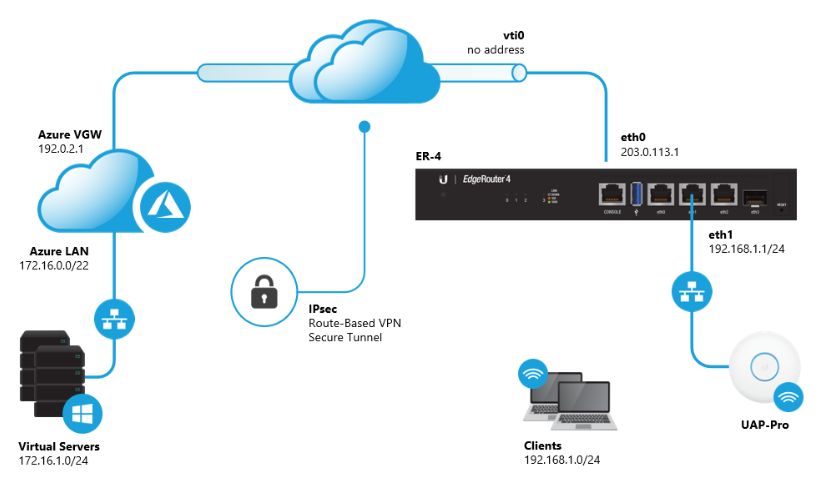
The internal network is 10.83.4.0/24 and the Azure Virtual Network is 172.16.0.0/22, separated in a gateway subnet (172.16.0.0/24) and a server network (172.16.1.0/24).

My configuration looks like this (but my external IP addresses are different):

These are the steps I executed in the Microsoft Azure Portal:

  1. Create a new Azure Virtual Network:
    • Name: ServerNetwork
    • Address Space: 172.16.0.0/22
    • Subnet name: Default
    • Subnet Address Space: 172.16.1.0/24
    • Resource Group: MyTestRG
  2. Create a Gateway Subnet (under Virtual Networks, select Subnets and click +Gateway Subnet. The properties of the Gateway Subnet are automatically populated.
    • Name: GatewaySubnet
    • Address space: 172.16.0.0/24
  3. Create a new Azure Virtual Network Gateway:
    • Name: VirtualGateway
    • Gateway type: VPN
    • VPN type: Route-Based
    • SKU: Basic
    • Basic is using a dynamic external IP address. Static IP Address is only available in better (ie more expensive) versions. More info on https://learn.microsoft.com/en-us/azure/vpn-gateway/vpn-gateway-about-vpngateways
    • Virtual Network: ServerNetwork
    • Public IP Address: Create new during creation of VirtualGateway
    • Public IP Name: ..cloudapp.azure.com
    • Public IP Address SKU (dynamic)
    • The creation of the VirtualGateway can take quite some time, so be patient…
  4. Create a local network gateway
    • Name: LocalGateway
    • IP Address:
    • Address Space: 10.83.4.0/24 (your own internal IP address space)
    • Create the VPN Connection (under VirtualGateway  Connections)
    • Name: IPsecER
    • Connection type: Site-to-Site (IPSec)
    • Virtual Network Gateway: VirtualGateway
    • Local Network Gateway: LocalGateway
    • Shared Key: <secret>

For testing purposes, I created a new Virtual Machine in Azure (Standard DS1 v2 (1 vcpu, 3.5 GiB memory). This is automatically connected to the newly created Virtual Network. Using the external IP address, you can use RDP for the initial connection. For security purposes, use the Network Security Group (NSG) to restrict RDP only to your own IP address. After connecting, enable the ‘File and Printer Shared (Echo request – ICMPv4-In) Inbound Rule in Windows Defender Firewall. This makes connectivity testing a lot easier.

The Ubiquite EdgeRouter supports site-to-site VPN solutions, including site-to-site to Microsoft Azure which is documented in the EdgeRouter Route Based Site-to-Site VPN to Azure article. Not all devices are supported by Microsoft as documented in the Microsoft article About VPN devices and IPsec/IKE parameters for Site-to-Site VPN Gateway connections. Keep in mind though that not tested by Microsoft means ‘not supported by Microsoft’ but that does not automatically include ‘does not work’. If the vendor (Ubiquity in my case) supports it, you’re good to go.

When the router is configured correctly the site-to-site connection is automatically setup and the VPN Connection status should change to ‘Connected’ as shown in the following screenshot:

At this point you should be able to ping the VM in Azure (that’s connected to the virtual network that we created earlier) from a machine in your local network and vice versa.

In my next blog I will discuss installing a Domain Controller in Azure.

Ignite 2018 – The conference starts

I’ve been at the Microsoft Ignite conference in Orlando from Sunday September 23 until Friday September 28. It’s been some time since I’ve visited a Microsoft conference, I think the Microsoft Exchange Conference in Austin, TX in early 2013. Also I did some TechEd events, both as speaker as well as attendee but that’s also a long time ago. And what’s the best way to get up-to-speed with Microsoft vision, strategy and new products? Yes, Ignite…. So off to Orlando 😊

Ignite is an annual event held in the US, and it’s big. This year approx. 30,000 attendees from 5,000 organizations worldwide. That’s a reasonable sized city walking around in a conference center, and it’s pretty impressive to see all this.

Ignite2018-1

Ignite starts with keynote sessions. The opening keynote is also a vision keynote, delivered by Satya Nadella, CEO of Microsoft. It should not be a surprise, but it’s all about the cloud at such a keynote, “intelligent cloud”  and “intelligent edge”, how the various applications and services can use this, for the benefit of the user. Data in the cloud, software in the cloud, Artificial Intelligence (AI), Machine Learning (ML), all services, organization and users benefit from this.

AI and ML sound scary, especially if you are a fan of science fiction movies where computers take over, but there are better solution. For example, in Exchange Online Protection Microsoft is receiving billion and billion of messages. Al these servers send out all kinds of monitoring information, and this is analyzed using AI and ML. Based on this, it is possible to predict certain actions, and take pro-active measures. The same happens in Azure Active Directory. It is now possible to check where logins are coming from, what kind of attacks are happening or if an attack is going to happen. You can use this yourself, and by doing so create a safer environment for you Azure and Office usage.

That’s what you see in a lot of sessions here at Ignite, security, security and security. Oh, did I already mention security? And be honest, Microsoft has to, don’t they? If Office 365 or Azure is massively compromised, it will take out customers’ trust and potentially lose business….

Another area where you can see the influence of the cloud is in desktop application. Microsoft Search is completely rewritten, and will now deliver a consistent search and search result throughout all application, where you are working in Outlook on the Web, PowerPoint, Windows 10 or Outlook, it will all give consistent results. Related to this in Microsoft Office is ‘ideas’. When working in PowerPoint on a presentation, you can use ‘ideas’ to enhance your presentation. A demo was given in PowerPoint with a list of bullets with several countries. Using ‘ideas’ it is possible to add information regarding these countries, and this information is retrieved from Microsoft Search. Also information regarding people in Outlook, where additional information can be retrieved from LinkedIn. Very useful usage of cloud technology in day to day applications.

Technical keynotes are more like what the various applications and services are doing and how these can take advantage of the cloud. I’m more in the Workplace and Microsoft 365 arena, so two keynotes about transforming your workplace to Microsoft 365 and transforming collaboration and communications with Microsoft 365. Amazing to see how Microsoft Teams is taking a big role these days. In the Microsoft cloud, Microsoft Teams will take over from Skype for Business Online. Starting October 1st, new smaller tenants will not get Skype for Business Online, but only Microsoft Teams. Skype for Business Online will continue to be available for existing tenants, but customers are encouraged to move from Skype for Business Online to Microsoft Teams.

You might have seen the following PowerPoint slide before, it’s about the Microsoft teamwork vision, the Inner Loop with people you work with often and the Outer Look with people you with cross organizations.

teamwork

For the Outlook Loop Yammer is still being used, and I’m a bit surprised with that. Personally I expected Yammer to go away now that Microsoft Teams is around. And there’s still development going on, there’s a Yammer tab in Teams, and also integration of various Office 365 services like Planner or Streams or getting into Yammer.

Also the new Virtual Desktop was showed, where a Windows 10 desktop is hosted in Microsoft Azure, available anytime and for any device, and deployed in a couple of minutes. Oh, and autopilot, where a desktop is automatically installed with Windows 10 from Microsoft 365, Office Click-2-Run and your (personal) data in OneDrive for Business. Very impressive and you’ll see more of this popping up in (larger) organizations the upcoming years.

More information regarding the technical sessions are to follow soon. After all, I’m a technical consultant and hope to get a lot of technical information here at Ignite. Stay tuned….

Exchange 2016 Database Availability Group and Cloud Witness

When implementing a Database Availability Group (in Exchange 2010 and higher) you need a File Share Witness (FSW). This FSW is located on a Witness Server which can be any domain joined server in your internal network, as long as it is running a supported Operating System. It can be another Exchange server, as long as the Witness Server is not a member of the DAG you are deploying.

A long time ago (I don’t recall exactly, but it could well be around Exchange 2013 SP1) Microsoft started to support using Azure for hosting the Witness server. In this scenario you would host a Virtual Machine in Azure. This VM is a domain joined VM, for which you most likely also host a Domain Controller in Azure, and for connectivity you would need a site-2-site VPN connection to Azure. Not only from your primary datacenter, but also from your secondary datacenter, i.e. a multi-site VPN Connection, as shown in the following picture:

image

While this is possible and fully supported, it is costly adventure, and personally I haven’t seen any of my customers deploy it yet (although my customers are still interested).

Windows 2016 Cloud Witness

In Windows 2016 the concept of ‘Cloud Witness’ was introduced. The Cloud Witness concept is the same as the Witness server, but instead of using a file share it is using Azure Blob Storage for read/write purposes, which is used as an arbitration point in case of a split-brain situation.

The advantages are obvious:

  • No need for a 3rd datacenter hosting your Witness server.
  • No need for an expensive VM in Azure hosting you Witness server.
  • Using standard Azure Blob Storage (thus cheap).
  • Same Azure Storage Account can be used for multiple clusters.
  • Built-in Cloud Witness resource type (in Windows 2016 of course).

Looking at all this it seems like a good idea to use the Cloud Witness when deploying Windows 2016 failover clusters, or when deploying a Database Availability Group when running Exchange 2016 on Windows 2016.

Unfortunately, this is not a supported scenario at this point. All information you find on the Internet is most likely not officially published by the Microsoft Exchange team. If at one point the Cloud Witness becomes a supported solution for Exchange 2016, you can find it on the Exchange blog. When this happens, I’ll update this page as well.

More information

Using a Microsoft Azure VM as a DAG witness server – https://technet.microsoft.com/en-us/library/dn903504(v=exchg.160).aspx

Azure AD Connect Pass-Through Authentication

At Ignite 2017 it was announced that Pass Through Authentication (PTA) has reached General Availability (GA) so it is a fully supported scenario now.

But what is PTA? If Office 365 there are Cloud Identities, Synced Identities and Federated Identities. The first two are authenticated in Azure Active Directory, the last one is authenticated against on-premises Domain Controllers. For this to happen you need an ADFS infrastructure, consisting of multiple internal ADFS servers and multiple WAP (Windows Application Proxy) servers in the DMZ acting as ADFS proxies. Oh, and all servers need to be load balanced as well to provide redundancy and scalability.

PTA on the other hand is built on top of Azure AD Connect, and as such an interesting extension of the Synced Identities. PTA installs an agent on the Azure AD Connect server (AuthN agent) which accepts authentication requests from Azure AD and sends these to on-premises Domain Controllers. The advantage of authentication against on-premises Domain Controllers is that no passwords (or password hashes to be more precise) are stored in Azure Active Directory.

My first thought was how an authentication mechanism based on an asynchronous replication tool (Azure AD Connect synchronizes accounts every 30 minutes, and passwords within 2 minutes) ever be a reliable and safe solution. The last thing you want to happen is that you cannot authenticate to any service in the Microsoft cloud, because your Azure AD Connect server is busy doing other stuff (like automatically updating its engine for example ).

My second thought was how secure this could be. There’s no inbound connection to the Azure AD Connect server, there’s only an outbound connection on ports 80 (only used for SSL certificate revocation lists) and 443. And the communication itself should be secured as well, so…. But now that PTA is generally available more information becomes available, and things become clearer.

Authentication flow

For authentication to happen PTA uses a ‘service bus’ in Azure. The service bus is a standard Azure solution where application can store system messages in the service bus and where other applications can use these system messages. Using a service bus, you can create an asynchronous but reliable communication mechanism.

When logging to an Office 365 service the credentials are requested by Azure Active Directory, nothing new here. The credentials are encrypted and stored in the service bus. The AuthN agent on the Azure AD Connect server has a persistent connection to Azure AD and to the service bus, and retrieves the encrypted credentials from the service bus, decrypts them and presents them to the on-premises Domain Controller. The Domain Controller response (success, failure, password expired or user locked out) is returned to the AuthN agent and stored it on the service bus. Azure AD picks up this response and the user can continue working (or not of course, depending on the Domain Controller response).

image

Continue reading Azure AD Connect Pass-Through Authentication