Tag Archives: Office 365

Inbound DANE authentication for Exchange Online

Outbound DANE in Exchange Online is available for some time now and I wrote about this before in the following blogpost: DNSSEC and DANE support in Exchange server and Exchange Online.

Microsoft recently announced the public preview (!) of inbound SMTP DANE for Exchange Online and it’s fairly easy to configure.

Implementing DANE consist of two steps:

  • Enabling DNSSEC in Exchange Online.
  • Enabling DANE in Exchange Online.

I will show both in the following sections.

Enable DNSSEC in Exchange Online

An important prerequisite of course is that you have DNSSEC up and running. If you have, you can open an PowerShell window and connect to Exchange Online.

When connected, execute the following to command:

Enable-DnssecForVerifiedDomain -DomainName Exchangelabs.nl

The output of the command will show the (new) MX record for the domain as shown in the following screenshot:

Add the new MX record to your domain, but give it a lower priority than the existing MX record (which typically should also point to Exchange Online).

Important: If you have configured MTA-STS for your inbound mail in Exchange Online, DO NOT FORGET to change the MTA-STS policy to reflect the new MX record!

Use the Remote Connectivity Analyzer (https://testconnectivity.microsoft.com/tests/O365InboundSmtp/input) to check the MX records and if all is working correctly.

In the following screenshot you can see both MX records and all is green:

You can now lower the priority of the new MX record to ’10’ and delete the old MX record.

Enabling DANE in Exchange Online

The second step is to actually enable DANE for inbound message. To do this, execute the following command in Exchange Online PowerShell:

Enable-SmtpDaneInbound -DomainName Exchangelabs.nl

Not much output as can be seen in the following screenshot:

It takes approximately 15 to 30 minutes for the TLSA record to propagate. After this time, you can use the Remote Connectivity Analyzer on https://testconnectivity.microsoft.com/tests/O365DaneValidation/input (or any other tool like https://www.huque.com/bin/danecheck-smtp
) to check as shown in the following screenshot:

DNSSEC and DANE are now ready to use.

Multiple mailbox users match identity “Mailbox1”

So I’m working on a nice Public Folder migration from Exchange 2016 to Exchange Online. Last week all preparations were performed and this morning I was planning to start the migrationbatch. Fourteen Public Folder mailboxes in Exchange 2016 to eighteen Public Folder mailboxes in Exchange Online. What could possibly go wrong….

Creating the new endpoint for the migrationbatch failed with an error saying “Multiple mailbox users match identity “PFMailbox1″. Specify a unique value” as shown in the following screenshot:

Or in plain text:

PS C:\PFScripts> $PfEndpoint = New-MigrationEndpoint -PublicFolder -Name PublicFolderEndpoint -RemoteServer $Source_RemoteServer -Credentials $Source_Credential
Multiple mailbox users match identity "Mailbox1". Specify a unique value.
    + CategoryInfo          : NotSpecified: (:) [New-MigrationEndpoint], MigrationPermanentException
    + FullyQualifiedErrorId : [Server=AM0PR09MB2402,RequestId=bccebc4f-d231-41d3-b8fe-a676311b3575,TimeStamp=22-8-2022 09:33:52] [FailureCategory=Cmdlet-MigrationPermanentException] 80069390,Microsoft.Exchange.Management.Migration. MigrationService.Endpoint.NewMigrationEndpoint
    + PSComputerName        : outlook.office365.com
PS C:\PFScripts>

This is strange since there’s no mailbox user named “Mailbox1”, there’s only one Public Folder mailbox named “Mailbox1” and that is holding the Public Folder hierarchy. But, last week I have been preparing the Public Folder migration, and one step was to create a Public Folder mailbox, just to see if it would work. I deleted the Public Folder mailbox, but it is a soft deleted state, and this conflicts with the creation of the Public Folder migration endpoint.

To find the Public Folder mailboxes including the soft deleted mailboxes, execute the following command against Exchange Online:

PS C:\PFScripts> Get-Recipient  -IncludeSoftDeletedRecipients -RecipientTypeDetails publicfoldermailbox | fl Name, OrganizationalUnit, DistinguishedName, ExchangeGuid

It will return a list of Public Folder mailboxes, including the ones in a soft deleted state. Clearly visible in the following screenshot is the soft deleted Public Folder mailbox:

Use the following command against Exchange Online to remove the soft deleted Public Folder mailbox:

[PS] C:\> Remove-Mailbox -PublicFolder "<ExchangeGuid>" -PermanentlyDelete

Wait some time for replication to happen in EXODS and try again to create the Public Folder migration endpoint. This time it succeeded.

Older Outlook versions will not connect to Office 365

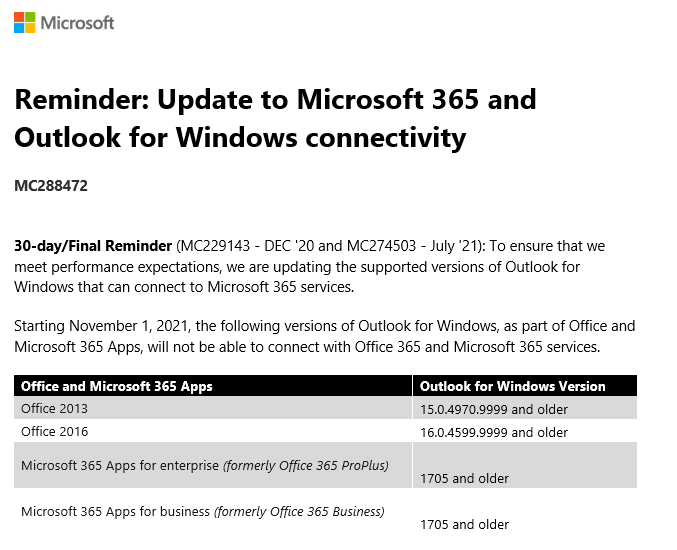
it was already announced on the Microsoft blogpost New minimum Outlook for Windows version requirements for Microsoft 365, Microsoft will stop support for older Outlook clients on November 1, 2021 (which is 24 days from the time of writing!).

In short, all clients older than Outlook 2013 SP1 with the latest fixes are no longer able to connect to Exchange Online. And yes, this includes Outlook 2010 (I know there are still clients out there running Office 2010!).

More detailed version numbers of Outlook that will not connect anymore:

Office versionOutlook version
Office 2010All versions
Office 201315.0.4970.9999 and older
Office 201616.0.4599.9999 and older
Office 365 ProPlus1705 and older

To check the version of Outlook you are using, select File –> Office Account –> About Outlook. It will show something like Microsoft® Outlook® for Microsoft 365 MSO (16.0.14326.20384) 64-bit.

Please be aware that this is completely independent from the Basic Authentication strategy that Microsoft is following. Older versions will just stop connecting to Exchange Online.

For more information, check MC288472 in the Microsoft 365 Message Center.

Exchange 2016 End of (mainstream) support

As you should (must) know, Exchange 2010 support will end this October. At that point, Microsoft will stop all support for Exchange 2010, including all security fixes. If you are still running Exchange 2010, you must act now and start moving to Exchange 2016 or to Office 365. For an Exchange 2010 to Office 365 migration I have written a couple of blogs before:

Moving from Exchange 2010 to Office 365.

Moving from Exchange 2010 to Office 365 Part II.

But what most people don’t realize is that Exchange 2016 mainstream support will also end this October. From that point forward, Exchange 2016 will be in extended support. This means no more Cumulative Updates and only Security Updates will be released when there updates are marked as ‘critical’.

Note. There’s no direct upgrade path from Exchange 2010 to Exchange 2019, so if you want to follow this route, you must move to Exchange 2016 first, followed by a migration to Exchange 2019.

If you move to Office 365 and have moved all your Mailboxes to Exchange Online, things are getting interesting. In this situation, you still need at least one Exchange server on-premises for management purposes. Microsoft supplies a free Exchange 2016 hybrid license for this situation (there is no free Exchange 2019 hybrid license!), and Microsoft is committed to support this configuration. At least until the moment a final solution is delivered by Microsoft to remove that last Exchange server from your on-premises organization. According to Microsoft, “this does not increase your risk profile in any way” as stated in their article “Exchange Server 2016 and End of Mainstream Support”.
If you still have mailboxes on-premises, the Microsoft recommendation is to move to Exchange 2019. Mainstream support for Exchange 2019 will end on January 1st, 2024, and extended support for Exchange 2019 will end on October 14, 2025 (this is the same date as end of extended support for Exchange 2016).

What to do

  1. If you are still on Exchange 2010, I would urge you to move to Exchange 2016 as soon as possible. Mainstream support for Exchange 2016 will stop this October, but according to Microsoft you are still safe since Security Updates will be released when needed. There’s no direct need to upgrade to Exchange 2019 at this moment, but this is something you must consider the upcoming time. I do know customers however that only want products that are in mainstream support, so if you are in this boat you must move to Exchange 2019 of course.
  2. If you are running Exchange 2013, you must start moving to Exchange 2019 anytime soon for optimal support and skip Exchange 2016.
  3. If you are in an Exchange 2016 hybrid scenario and all your mailboxes are in Exchange Online, you are safe to stay in this situation until Microsoft releases a final solution for that dreaded last Exchange server on-premises for management purposes.

Microsoft Teams without an Office 365 license

Now with all this Working from Home going on you might want to use Teams, even if you don’t have a valid Office 365 license that contains the Teams software. For this Microsoft has introduced the Microsoft Teams Exploratory license. This Exploratory license replaces the previous Microsoft Commercial Cloud Trial.

When a user without a (Teams) license logs on for the first time to Teams via https://teams.microsoft.com he must login (of course) and the standard logon screen is shown:

login to teams

When logged on for a couple of seconds a license error is shown, and a minute later the user is successfully logged on to Teams, “without” a license:

Teams first time

I have written “without” in quotes, when you navigate to the license portal you will see that the Microsoft Exploratory License is added and one license is (automatically) assigned:

Teams Exploratory License

This one user is the user that was logged in to Teams in the previous step.

The Microsoft Teams Exploratory License is for users to self-assign a license the first time they logon to the service. Typically, this self-assign option is enabled in your tenant, but that might not always be the case. Check the Office 365 admin portal and select Settings | Org settings | User owned apps and services:

User owned apps and services

Open this and check if the Let users access the Office Store and Let users install trial apps and services are checked. Of course, if you do not want your users to do this, uncheck the options.

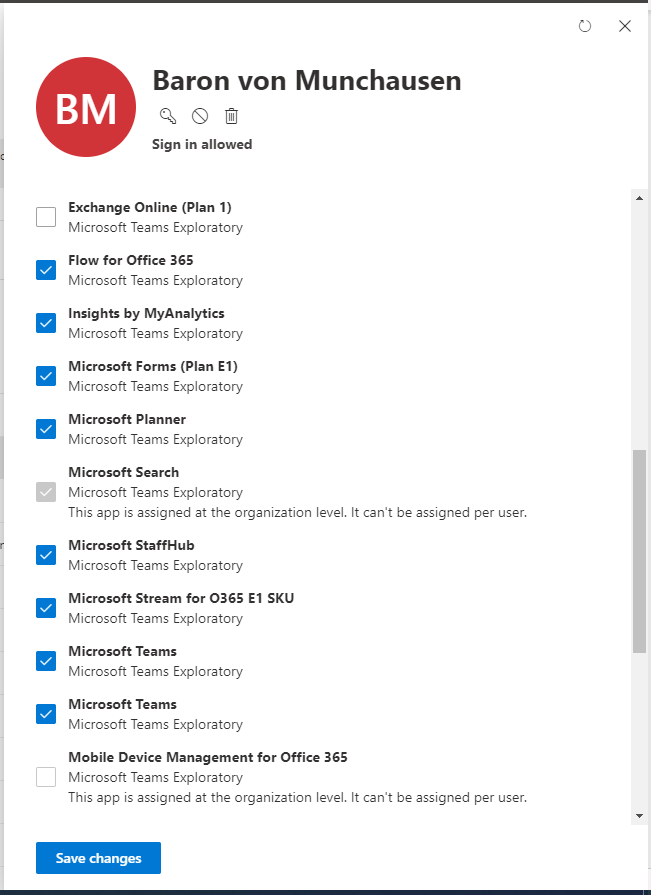
But besides the Microsoft Teams license, there’s a lot more in the Exploratory license, like an Exchange Online P1, Forms, Planner, Stream etc. available in this license:

Teams Exploratory License Apps

The Microsoft Teams Exploratory license is available at no cost until your renewal on or after January 2021. So, at the time of writing this is at least 7 months away.

Of course you can also integrate the Teams license with an on-premises Exchange 2016 environment, for this please check my previous blogpost Microsoft Teams and Exchange 2016.

More information