Tag Archives: PowerShell

Manage users in Office 365 using PowerShell

After you’ve add domains to your Office 365 environment (using PowerShell of course) you might want to add users as well. In this blog post I’ll discuss how to add users, add and change licenses, remove users and change password settings.

Add Users using PowerShell

Use the Get-MsolUser command to get an overview of all users in Azure Active Directory (these were created in an earlier blog post):

image

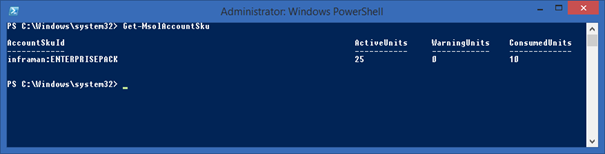
And use the Get-MsolAccountSku command to see what license is available:
image

When creating a new user in Azure Active Directory you can use the New-MsolUser command, combined with the results of the Get-MsolAccountSku command for the license information. You can use the –LicenseAssignment and –UsageLocation options to assign a proper license.

New-MsolUser -UserPrincipalName Santa@office365labs.nl -FirstName Santa -LastName Klaus -DisplayName 'Santa Klaus' -Password 'Pass2015' –ForceChangePassword:$TRUE -LicenseAssignment "inframan:ENTERPRISEPACK" -UsageLocation NL

image

Continue reading Manage users in Office 365 using PowerShell

Manage Domains in Office 365 using PowerShell

In a previous blogpost I showed you how to create new domains in Office 365 using the Microsoft Online Portal. You can do the same using PowerShell which can be much more interesting, especially for partner reselling Office 365 through the Cloud Solution Provider (CSP) program. If you want to know more about PowerShell, check my previous blog post Manage Office 365 with PowerShell.

Add a new domain

Adding a new domain in Windows Azure Active Directory can be broken down into three steps as we’ve seen in adding a domain using the Microsoft Online Portal:

  • Add and validate the actual domain;
  • Configure and validate DNS records (domain purpose);
  • Configure or add users;

These steps will be described in the following sections

Add and validate the actual domain

To add a new domain you can use the New-MsolDomain command. The –Name option is used to pass the domain name and the –Authentication option is used to pass the type of domain, which is either Managed or Federated. The latter is used in a federated environment with Directory Synchronization and ADFS, so in this example we use ‘Managed’:

New-MsolDomain –Authentication Managed –Name office365labs.nl

image Continue reading Manage Domains in Office 365 using PowerShell

Manage Office 365 with PowerShell

The core components of Office 365 are Exchange Online, Lync Online and SharePoint Online, all are running on top of Windows Azure Active Directory as shown in the following figure:

image

All services can be managed from the Microsoft Online Portal. When logged on to the portal you can select the various services under Admin in the navigation pane. It is also possible to manage Office 365 using PowerShell, but all services require a different approach or module.

Managing Windows Azure Active Directory using PowerShell

To manage Windows Azure Active Directory with PowerShell you have to install the Azure Active Directory Module for Windows PowerShell (64-bit version) but before you can use this you also have to install the Microsoft Online Services Sign-In Assistant. Continue reading Manage Office 365 with PowerShell

Export Email Addresses in Exchange 2013

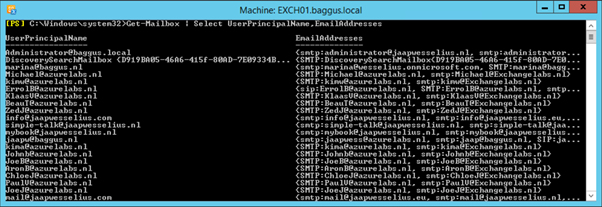
For a project I had to create a CSV file with all Mailboxes, their UPN and their Email addresses. Not a big deal since you can use the following command:

Get-Mailbox | Select UserPrincipalName,EmailAddresses

image

Exporting to a CSV is a default feature in PowerShell using the Export-Csv command, like this:

Get-Mailbox | Select UserPrincipalName,EmailAddresses | Export-Csv C:\Temp\Addresses.csv

Continue reading Export Email Addresses in Exchange 2013

Configure disks using PowerShell in Windows 2012 R2

When installing and configuring a large Exchange environment you most likely will have a lot of disks attached to the Exchange servers. Manual configuration of the disks is no fun so PowerShell is your friend here.

These are the steps that need to be done:

  • Create directory structure for the Mount Points (New-Item).
  • Set the disks online and initialize them (Initialize-Disk).
  • Create the partitions (New-Partition).
  • Link them into the Mount Point structure (Add-PartitionAccessPath)
  • Format them (Format-Volume).

Continue reading Configure disks using PowerShell in Windows 2012 R2