All posts by jaapwesselius

Your browser is currently set to block JavaScript

I hate this…. And most likely you too otherwise you didn’t end up here

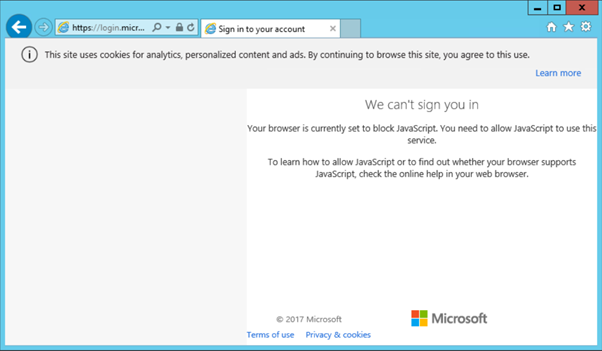
When logged on to an Exchange server, ready for starting the Hybrid Configuration Wizard, you try to logon to Exchange Online you end up with a warning (or ‘error’) message:

We can’t sign you in

Your browser is currently set to block JavaScript. You need to allow JavaScript to use this service.

To learn how to allow JavaScript or to find out whether your browser supports JavaScript, check the online help in your web browser.

Like the screenshot below:

image

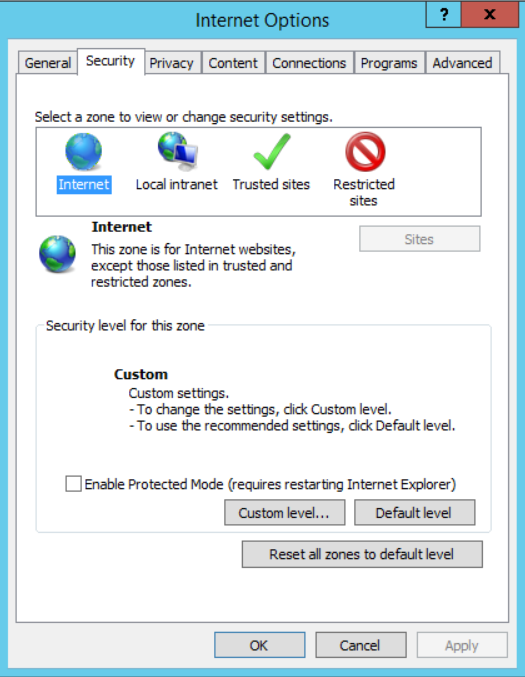
To enable JavaScript on your computer you have to enable Active Scripting. To do so, go to Internet Options, select the Security tab and choose Custom Level.

image

image

Now scroll all the way down (or press page down 12 times ) and enable Active Scripting:

image

You will get a warning message “Are you sure you want to change the settings for this zone”, click Yes and click OK.

image

Restart your Internet Explorer browser and you can login on Exchange Online and continue with the Hybrid Configuration Wizard (or whatever you were trying to achieve).

Azure Active Directory PowerShell v2

Maybe you’ve already heard about Microsoft Graph and the Graph API. Microsoft Graph is the way resources in the Microsoft cloud are connected to each other. The Graph API is an API you can use to access Microsoft Graph, and browse (or traverse) through all the resources.

image

You can use the Graph API when building your own applications, but Microsoft is moving all their apps, tools etc. to the Graph API as well.

Azure Active Directory PowerShell v2 is moving from the Azure AD API’s to the Graph API as well. This automatically implies that Azure AD PowerShell v2 comes with new cmdlets and new options. The output of these cmdlets should be similar of course (creating a new domain, group or user in Azure Active Directory), but that these cmdlets are in no way compatible with the old Azure AD PowerShell.

Unfortunately, you have no choice then moving to Azure AD PowerShell v2. The existing PowerShell v1 will of course be supported for quite some time as it is impossible for everyone to convert their processes, cmdlets, scripts etc. from one version to another.

Note. We’ve seen similar when Microsoft moved from Azure ASM to Azure ARM. It has been taken years for Microsoft to move everything to ARM, so no worries for end-of-support scenarios anytime soon.

Installing Azure AD PowerShell v2 is easy, just install the module using the Install-Module command. This will download the module from the PowerShell repository.

Install-Module AzureAD

When executed you will receive a notification about an untrusted repository. Click [Y] or [A] to continue. The module will be downloaded and installed.

image

image

image

You can use the following commands to store the credentials of your Office 365 and/or Azure tenant administrator account and use it to login to Azure Active Directory:

$AzureADCred = Get-Credential &lt;your tenant admin&gt;<p>Connect-AzureAD -Credential $AzureADCred

image

You’ve now installed the Azure Active Directory PowerShell v2 module and are logged on to your tenant. If you want to retrieve a list of all new v2 PowerShell commands use can use the Get-Command command:

Get-Command *AzureAD*

image

In future blogposts I will continue with the Azure AD PowerShell v2 module.

More information

<updated on March 21, 2018>

Exchange 2016 CU7 and Exchange 2013 CU18

Microsoft has released its quarterly updates for Exchange:

  • Exchange 2016 CU17.
  • Exchange 2013 CU18.

It has been quiet around these updates, and they do not bring a whole lot of features.

Important to note is that the minimum Forest Functional Level (FFL) has been raised to Windows Server 2008 R2. Personally I think this is an indication that more exciting stuff is along the way, especially around Exchange 2016 (my personal expectation, don’t shoot the messenger :-))

There are schema changes in Exchange 2016 CU7, so when installing this update you have to execute the following commands:

Setup.exe /PrepareSchema /IAcceptExchangeServerLicenseTerms
Setup.exe /PrepareAD /IAcceptExchangeServerLicenseTerms
Setup.exe /PrepareDomain /IAcceptExchangeServerLicenseTerms

When it comes to the .NET Framework, Microsoft is working on a new .NET Framework release (version 4.7.1). The upcoming quarterly update of December 2018 will support this version of the .NET Framework.

More information (well, not a lot more) can be found here: https://blogs.technet.microsoft.com/exchange/2017/09/19/released-september-2017-quarterly-exchange-updates/


MigrationTransientException: Target database GUID cannot be used (Mailbox database size limits in Exchange Online)

If you are designing Exchange 2016 (or have been designing Exchange 2013) environment you are aware of the The Exchange 2016 Preferred Architecture (https://blogs.technet.microsoft.com/exchange/2015/10/12/the-exchange-2016-preferred-architecture/) and articles like Ask the Perf Guy: How big is too BIG? (https://blogs.technet.microsoft.com/exchange/2015/06/19/ask-the-perf-guy-how-big-is-too-big/) which explain pretty much how to design an Exchange solid (and large) Exchange environment.

When it comes to Mailbox databases, the recommended size limit for non-replicated databases is 200GB and for replicated databases 2 TB (when running 3 or 4 copies of a Mailbox database).

One can only guess how Microsoft has designed their Exchange servers in Exchange Online, but we can assume that the Preferred Architecture is written with their Exchange Online experiences in mind.

Sometimes error messages that are generated in Exchange Online can reveal more information. While moving mailboxes from Exchange 2010 to Exchange Online in a hybrid configuration the following error message was returned in a migration batch for a number of Mailbox databases:

Error: MigrationTransientException: Target database ‎’07bdf507-ab94-479b-aeb6-1bfef1458c4c‎’ cannot be used: Current database file size: 1502835900416 Current space available inside database: 100237312 Allowed database growth percentage: 90 Maximum database file size limit: 1622722691784 Is database excluded from provisioning: ‎’False‎’. –> Target database ‎’07bdf507-ab94-479b-aeb6-1bfef1458c4c‎’ cannot be used: Current database file size: 1502835900416 Current space available inside database: 100237312 Allowed database growth percentage: 90 Maximum database file size limit: 1622722691784 Is database excluded from provisioning: ‎’False‎’.

Obviously it’s telling us the migration cannot proceed since the target Mailbox (in Exchange Online!) has reached its size limit. The following sizes are reported:

  • Current database file size: 1502835900416 (1,502,835,900,416 bytes, approx. 1.5TB)
  • Current space available inside database: 100237312 (100.237.312 bytes, approx. 100MB)
  • Maximum database file size limit: 1622722691784 (1.622.722.691.784 bytes, approx. 1.6 TB)

So, the maximum size limit for Exchange 2016 in Exchange is not really used in Exchange Online, but it’s getting close, which is interesting to see.

What I don’t understand is why this issue occurs in the first place. To me it looks like a failing part in the provisioning service but I have to admit I’ve never seen this before in the last couple of years so I expect it’s only one Exchange server that’s failing here.

Exchange 2013 Mailbox database Disaster Recovery

In Exchange 2010 Microsoft introduced the Database Availability Group to implement redundancy on mailbox server level and mailbox database level. If a mailbox database (or a server) fails, another one can take over. This concept is carried forward into Exchange 2013 and Exchange 2016 and has improved ever since.

There are still customers that do not use a Database Availability Group and rely on a single server and a solid backup software solution. A backup of the mailbox database is created every night and this continue to run for years. You hope. Until disaster strikes…..

image

I got a call earlier today from a customer. He has been patching his Hyper-V host, and after a reboot his Exchange 2013 server didn’t come up properly. Well, after questioning it turned out that the Exchange server booted correctly, but that only one of three Mailbox databases mounted properly. So, two Mailbox databases (approx. 250 GB in size) seem to be corrupt and this is where the pain begins.

To ‘resolve’ the issue the customer tried to reboot the box again, tried to restore the databases from backup, tried a ‘soft repair’ and tried a ‘hard repair’. No idea what the latter are by the way, but that was according to the customer. But if you know anything about Mailbox databases in Exchange, then you also know that most destruction happens in the first 15 minutes!

If you rely on a single server and a backup solution for restoring services or a disaster recovery scenario you have to know the basics of Exchange database technology. Know what a mailbox database is (except for a large .edb file), know what transactional logging is and how the mailbox database, the transaction log file and the checkpoint file relate to each other. And related to this, it is of utmost importance that you know how to replay transaction log files into a Mailbox database.

Although old, these are good starting points:

Furthermore, you have to know how your backup solution works, and how to restore mailbox database into a production environment. There are streaming backups, but these are rare these days and VSS snapshot backups. You can find more detailed information in the following articles:

Besides the technical knowledge about the Mailbox database technology you have to perform regular ‘fire drills’. Restore a Mailbox database into production, restore using a recovery database, perform replaying of transaction log files, get your hands on ESEUTIL and see what the /G, /K, /P and /R are doing. It will save you a considerable amount of time when you know the technology and the tools, it will reduce risk of data loss and you are able to give a proper planning to your users/manager/customer when the mailboxes are available again.

If you don’t know this you’re playing with fire, and it will backfire to you, believe me!