Category Archives: Exchange Hybrid

The last Exchange server in the organization

Many organizations struggle with that Last Exchange Server (LES) in the organization. All their mailboxes are in Exchange Online, but an on-premises Exchange server is still needed for managing the mailboxes in Exchange Online since the Source of Authority (SOA) is still the local Active Directory.

On August 21, 2025 Microsoft announced the Cloud-managed remote mailboxes. Mailboxes in Exchange Online with an on-premises Active Directory and Exchange server can now be fully managed in the Exchange Online Admin Center (or Exchange Online PowerShell) and an on-premises Exchange server is no longer needed for management purposes.

In the current situation the SOA is on-premises. A user object or mailbox is edited on-premises, and the complete object is synchronized with EntraID. From there, a forward sync mechanism sends the Exchange specific attributes to Exchange Online. Be aware that the forward sync normally takes only a few seconds, but occasionally it can take hours. This is shown in the following figure:
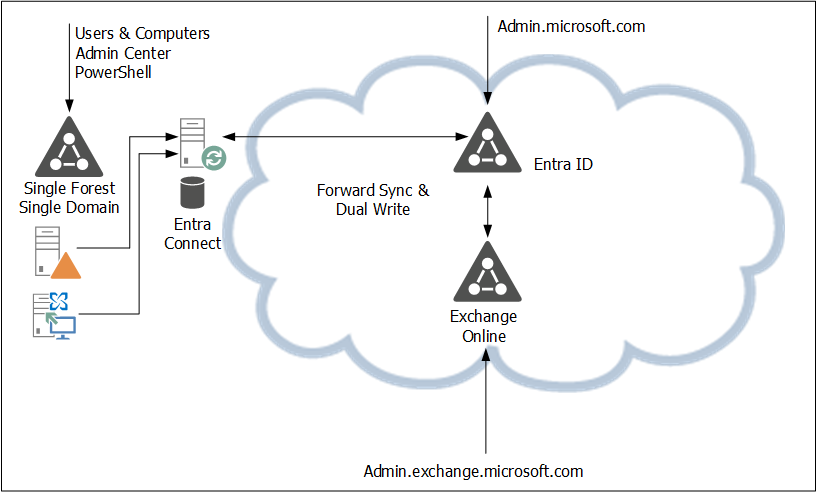
In the new situation, the user object is still in Active Directory and the remote mailbox in Exchange Online. Microsoft introduced a new property in EntraID called IsExchangeCloudManaged. Simply put, this breaks the synchronization of Exchange attributes and the user object in Entra ID, and the mailbox in Exchange Online can now be managed online. This is shown in the following figure:

There are a few gotchas, though:

  • The solution is available, but it is in Public Preview. This means that Microsoft can change it at any time, or even withdraw it at any time (I don’t expect this to happen, unless serious problems arise).
  • It is on a per-user basis, so the IsExchangeCloudManaged property must be set on every mailbox. This can lead to organizational chaos if you have mailboxes in both environments.
  • The Exchange properties still exist in Active Directory. They can be edited in Active Directory, but they are not synchronized with EntraID. As such, Exchange Online and Exchange Server can become out of sync, resulting in strange issues, especially when it comes to cross-premises mail flow.
  • An organization-level setting to make all newly synced users’ Exchange attributes cloud-managed is expected soon (September 2025).
  • This is an attribute-level SOA change. This means you can only edit Exchange-specific attributes in the online Admin Centers, but you cannot delete a synchronized account, for example.

Phase two of the IsExchangeCloudManaged implementation will contain write-back support for specific Exchange attributes from Exchange Online to Exchange server. It is unknown yet when phase 2 will be released and what specific attributes will be synced back.

A gotcha in phase 2 is that this will only be available in EntraID CloudSync, and not in EntraID Connect. Please note that phase 1 does support EntraID Connect, so there’s no immediate need to move to EntraID CloudSync because of this new feature.
As mentioned before, this is an attribute-level SOA change. Microsoft is also working on an object-level SOA change, where an entire object SOA is moved to the cloud. Microsoft recently released this for Groups, but for contacts and users this is still in the planning.

Enable the IsExchangeCloudManaged feature

To enable this new feature, you must use EntraID Cloud Sync version 2.5.76.0 or higher, see my previous blog about upgrading to this version. This version will prevent error when trying to sync Exchange attributes to EntraID when the IsExchangeCloudManaged attribute is set to $True.

Logon to Exchange Online PowerShell and request a list of mailboxes in Exchange Online with the IsExchangeCloudManaged attribute, as shown in the following example:

PS C:\> get-mailbox | select Name,IsExchangeCloudManaged

Name                                                         IsExchangeCloudManaged
----                                          ----------
jaap                                          False
DiscoverySearchMailbox{D919BA05-46A6-...}     False
Labs | TLSReports                             False
Jan Aart Wesselius                            False
Labs | Dmarc Reports                          False
Labs | Jaap Wesselius                         False
Labs | Errol Brown                            False
DMARC Reports Exchangelabs.nl                 False

The user Errol Brown is created as a regular user with a (remote) mailbox, so the Exchange properties are not populated in Active Directory. It is synchronized using EntraID Connect and has an Office 365 E5 license assigned to it.

Use the following example to set the IsExchangeCloudManaged attribute to true to enable the EAC in Exchange Online to manage this mailbox:

Set-Mailbox -Identity e.brown@exchangelabs.nl -IsExchangeCloudManaged:$TRUE

After some time, you can use Exchange Online PowerShell or the Exchange Online Admin Center to add for example, an e-mail address to this user:

Set-Mailbox -Identity E.Brown@Exchangelabs.nl -EmailAddresses @{add="Errol.MyMan.Brown@Exchangelabs.nl"}

This only relates to Exchange Online properties. When you want to change identity properties, for example, a first name or last name, it will generate an error. This must still be managed on-premises and is something that will be fixed in a future update.

More Information

Exchange Hybrid strange calendar behavior and mail flow

In a hybrid Exchange environment, mail flow is erratic, meetings are not always visible, and the Teams calendar does not match the calendar in Outlook. The user sends an email, and all recipients receive it. However, the sender does not always receive replies, sometimes resulting in a Non-Delivery Report (NDR). Another issue is that external users send emails to a user, but the user does not always receive the messages. Also, the calendar in Teams does not match the information shown in the Outlook calendar.

This issue occurs in a hybrid Exchange environment when this user accidentally has two mailboxes: one in the Exchange server and one in Exchange Online.

One account with two mailboxes? Yes, this is usually a result of a glitch in the provisioning. Let me explain what happens:

  • A user account is created in Active Directory and most of the time, the user is added to a security group used to assign licenses in Office 365.
  • When Entra Connect runs, the user account is synchronized with Entra ID, and a license is automatically assigned to the new account. As a result, a mailbox in Exchange Online is automatically and immediately created.
  • The last step is creating a mailbox on the Exchange server. The Exchange Server will gladly accept this since it does not know the mailbox in Exchange Online.

Outlook will then connect to the mailbox in Exchange on-premises. Depending on how the mail flow is configured, mail is sometimes delivered to the Exchange Online mailbox and sometimes to the Exchange server mailbox. Since the user’s Outlook is connected to the mailbox in the Exchange server, the user will never see items delivered to the Exchange Online mailbox.

In this situation, the Teams client shows the calendar information found in Exchange Online, while the user’s Outlook looks at the calendar information in Exchange on-premises. You can guess the results.

To fix this, the mailbox in Exchange Online must be removed and to do this, you can follow these instructions:

  • Remove the M365 license from the user, typically by removing the user account from the Security Group that’s used for licensing and wait for Entra Connect Sync to kick in and synchronize with Entra ID.
  • Open Exchange Online PowerShell and execute the following command:
    Get-User | Select name,Recipient
  • The property PreviousRecipientTypeDetails must have the value ‘MailUser’. If it contains the value ‘UserMailbox’ it means that the user has a mailbox in Exchange Online (which is not what we want in this situation)
  • Execute the following command:
    Set-User -PermanentlyClearPreviousMailboxInfo
  • This will permanently remove the mailbox in Exchange Online from the user (keep in mind that it also cannot be restored anymore!)
  • Wait for Entra Connect Sync to synchronize the latest attributes so that the account now becomes a mail-enabled account.
  • Assign the license again to the server, typically by adding the user again to the Security Group used for licensing.

The user now has a mailbox in Exchange on-premises, and this mailbox is represented as a mail-enabled user in Exchange Online.

As a side note: I’ve seen this happen also in a situation where Exchange is running on-premises and Entra Connect Sync is configured without the ‘Exchange Hybrid Deployment’ option as shown in the following screenshot:

If this is the case you can use the same procedure as outlined above.

Remove the last Exchange server

Removing the last Exchange server in a hybrid environment was announce more than 2 years ago with Exchange 2019 CU12 and Exchange 2016 CU23 (Released: 2022 H1 Cumulative Updates for Exchange Server) but finally I’m working with a customer that wants to do this, remove that last Exchange server in a hybrid environment.

This customer not in the process of decommissioning their datacenters yet, but they do want to decommission their last Exchange 2019 server (all their mailboxes are in Exchange Online). The Domain Controllers are still running on-premises, so the Exchange 2019 server is only used for management purposes (SMTP Relay is already moved elsewhere).

The first thing is to remove the Hybrid Configuration. I wrote about that in 2020, but the article is still valid: https://jaapwesselius.com/2020/12/15/remove-exchange-hybrid-configuration/.

The second step is to install the Exchange 2019 management tools. This can be on a Domain Controller or on a Management Server. To install the Exchange 2019 management tools, the Active Directory management tools, the Visual C++ Redistributable Package for Visual Studio 2012 and the IIS6 management tools must be installed first. Execute the following commands in an elevated PowerShell window:

PS C:\> Install-WindowsFeature rsat-adds,telnet-client
PS C:\> Enable-WindowsOptionalFeature -Online -FeatureName IIS-IIS6ManagementCompatibility, IIS-Metabase -All

The Exchange Management Shell is installed, when starting this it connects to an Exchange 2019 server. But when this server is not available the Exchange Management Shell fails. To work with Exchange PowerShell, open a regular Windows PowerShell and execute the following command:

PS C:\> Add-PSSnapin Microsoft.Exchange.Management.PowerShell.SnapIn

This uses the Exchange PowerShell module that’s installed on the management server, but it does not connect anywhere, and it does not use any RBAC configuration.
When using this, the following Exchange PowerShell commands are available:

  • *-MailUser
  • *-MailContact
  • *-RemoteMailbox
  • *-DistibutionGroup
  • *-DistributionGroupMember
  • *-EmailAddressPolicy
  • Set-User and Get-User

When enabling an existing user account with a mailbox in Exchange Online, you can use the Get-User command and pipe it to the Enable-RemoteMailbox command, like this:

PS C:\ > Get-User JaapICT | Enable-RemoteMailbox -RemoteRoutingAddress JaapICT@contoso.mail.onmicrosoft.com

The Remote Mailbox will be created and all properties will be set correctly, including the email address conforming to the existing Email Address Policy. This is clearly visible when requesting the properties of the mailbox:

PS C:\> Get-RemoteMailbox -Identity JaapICT | select name -ExpandProperty EmailAddresses

Name               : JaapICT
AddressString      : C=NL;A= ;P=Corporation;O=Contoso;S=JaapICT;
ProxyAddressString : X400:C=NL;A= ;P=Corporation;O=Contoso;S=JaapICT;
Prefix             : X400
IsPrimaryAddress   : True
PrefixString       : X400

Name               : JaapICT
SmtpAddress        : JaapICT@Contoso.com
AddressString      : JaapICT@Contoso.com
ProxyAddressString : SMTP:JaapICT@Contoso.com
Prefix             : SMTP
IsPrimaryAddress   : True
PrefixString       : SMTP

Name               : JaapICT
SmtpAddress        : jaapict@Contoso.mail.onmicrosoft.com
AddressString      : jaapict@Contoso.mail.onmicrosoft.com
ProxyAddressString : smtp:jaapict@Contoso.mail.onmicrosoft.com
Prefix             : SMTP
IsPrimaryAddress   : False
PrefixString       : smtp

Now everything is working the last Exchange 2019 server can be removed. What I normally recommend is to disable all Exchange services on the server and leave it running for one or two weeks. If any issues arise it is easy to start the Exchange services again and fix the problem.

When nothing bad happens, you can remove the last Exchange server. After disabling the last mailboxes and removing the Mailbox Databases and Send Connectors, turn off the Exchange 2019 server. DO NOT UNINSTALL Exchange 2019, but shutdown the Exchange 2019 and remove the server. That is, delete the VM or reconfigure the bare metal server with something else, but DO NOT UNINSTALL the Exchange 2019 server. The management tools that are installed still use configuration settings in Active Directory.

From this moment on you must manage your recipient in Exchange Online using the on-premises management server where the Exchange Management Tools are installed (I say on-premises server, but this can also be a VM in Azure of course, as long as it is a domain joined server you are good).

Special characters in Active Directory and Exchange Online

During migrations to Exchange Online I get the question regarding special characters in the User Principal Name (UPN) and e-mail address. Every time I have to check this again and again, so it’s time to do a write-up.

The UserPrincipalName (UPN)

The UserPrincipalName (UPN)

The UPN is the user’s identifier in Active Directory, and it is formatted like j.wesselius@exchangelabs.nl. It is a Microsoft recommendation to keep the user’s email address and UPN identical, but that’s not a hard requirement.

The UserPrincipalName attribute has the following characteristics and/or requirements:

  • The @ character is required.
  • The @ character cannot be the first or the last character of a UPN.
  • The total length cannot exceed the 113 characters limit. 64 characters in front of the @ character (i.e. username) and 48 characters after the @ character (i.e. domain name).
  • Allowed characters are A – Z, a – z, 0 – 9, ‘ . – _ ! # ^ ~
  • Invalid characters are \ % & * + / = ? { } | < > ( ) ; : , [ ] “
  • An Umlaut, tilde and accents are also invalid characters.
  • The UPN cannot end with a dot.
  • The UPN cannot contain spaces.
  • With directory synchronization in mind:
    • a routable domain must be used for the UPN (for a stand-alone AD this is not the case).
    • UPN must be unique and cannot contain any duplicated value in the directory (like UPN of user A is the same as e-mail address of user B).

The last bullet is something I see a lot in hybrid scenarios. In Exchange 2019 it is possible to have a user with a UPN like J.Doe@exchangelabs.nl, and another user with an identical email address J.Doe@exchangelabs.nl. Although it is confusing, it is possible on-premises.

In Exchange Online this is not possible, and when you have Entra ID in place, it will generate error messages, and strip the email address from the second user. Needless to say, you must fix this inconsistency (which can be problematic since you must remove an email address from a mailbox).

A little bit related is the samAccountName attribute of a user. This has the following limitations:

  • The maximum length is 20 characters.
  • It must be unique in the entire organization.
  • The following characters are invalid: [ ] \ | / , : < > + = ; ? * ‘ and the double quoute character “

Email Addresses

In Exchange and Exchange Online there are four e-mail address related attributes:

  • The mail attribute. The mail attribute of a recipient must be unique in the entire organization.
  • mailNickName (or alias). Must be unique in the entire organization and it cannot start with a period.
  • ProxyAddresses. This is a multi-valued attribute and has the following restrictions:
    • The maximum length of an entry is 256 characters.
    • It cannot contain a space character.
    • It must be unique in the entire organization.
    • It cannot contain any of the following characters: < > ( ) ; , [ ] and a double quote character “. The colon character : is allowed, but only after an identifier like SMTP: or X500:
    • Special characters with an umlaut, accent or tilde are invalid.
    • TargetAddress. This is used for forwarding email messages, in a hybrid environment this is the remote routing address. It is a singe value attribute, and has the same limitations as the proxyAddresses attribute.

Most likely there are more related attributes that need attention, but these are the most interesting I see when working with customers.

HCW8078 – Migration Endpoint could not be created

When running the hybrid configuration wizard on an Exchange 2016 server (in an Exchange 2010 to Exchange 2016 migration) to create a (classic) hybrid configuration, the wizard failed with several error messages as shown in the following screenshot:

Or in plaint text:

Microsoft.Exchange.Migration.MigrationServerConnectionFailedException. The connection to the server ‘mail.contoso.com’ could not be completed.

Microsoft.Exchange.MailboxReplicationService.MRSRemoteTransientException
The call to ‘https://mail.contoso.com/EWS/mrsproxy.svc&#8217; failed. Error details: The HTTP request was forbidden with client authentication scheme ‘Negotiate’. –> The remote server returned an error: (403) Forbidden..

Microsoft.Exchange.MailboxReplicationService.MRSRemotePermanentException
The HTTP request was forbidden with client authentication scheme ‘Negotiate’.

Microsoft.Exchange.MailboxReplicationService.MRSRemotePermanentException. The remote server returned an error: (403) Forbidden. 

I did the following troubleshooting steps:

  • Manually creating a migration endpoint using the Exchange Online Admin console. This failed as well.
  • Firewall restrictions were in place, but the Microsoft IP ranges were all configured correctly
  • Checked the MRS. It was enabled (well, that’s wat the Exchange PowerShell said) and authentication was set correctly

Eventually it turned out that the MRS was the problem. Although Exchange Management Shell returned that the MRS Proxy was enabled, it was not functioning correctly. I disabled the MRS proxy, enabled it again and restarted IIS using the following PowerShell commands:

[PS] C:\> Set-WebServicesVirtualDirectory -Identity EXCH01\EWS -MRSProxyEnabled $False
[PS] C:\> Set-WebServicesVirtualDirectory -Identity EXCH01\EWS -MRSProxyEnabled $True
[PS] C:\> IISRESET

When finished, using the Get-WebServicesVirtualDirectory command still returned that MRS Proxy was enabled, as shown here:

[PS] C:\>Get-WebServicesVirtualDirectory -server exch01 | select Name,MRSProxyEnabled
 
Name                   MRSProxyEnabled
----                   ---------------
EWS (Default Web Site)            True

But this time it was working correctly and the Hybrid Configuration Wizard finished successfully.