Category Archives: Office365

Upgrade Entra Connect Sync to Entra Cloud Sync

Microsoft is offering two directory synchronization solutions for synchronizing identities from Active Directory to Entra ID:

  • Entra Connect Sync.
  • Entra Cloud Sync.

The first one is available since the beginning of directory synchronization (with different names over the years), Cloud Sync was introduced in January 2019 as the successor of the Entra Connect server.

With the introduction of Cloud-Managed Remote Mailboxes, Microsoft also announced that subsequent phases of this solution will run on Entra Cloud Sync. Therefore, it is time to consider migrating from Connect Sync to Cloud Sync.

Entra Cloud Sync

Entra Connect sync is using an on-premises server where the synchronization server is installed. This synchronization server utilizes a SQL Database (SQL Express for smaller deployments, or a SQL server/cluster for larger deployments), where all information is stored. This is called the metaverse. All aggregated data from Active Directory and Entra ID is synchronized with Entra ID.

Entra Cloud Sync is using a Sync Service in Microsoft Azure. This is where all the logic and processing take place. There’s a lightweight agent on a server on-premises that communicates with the sync service in Azure.
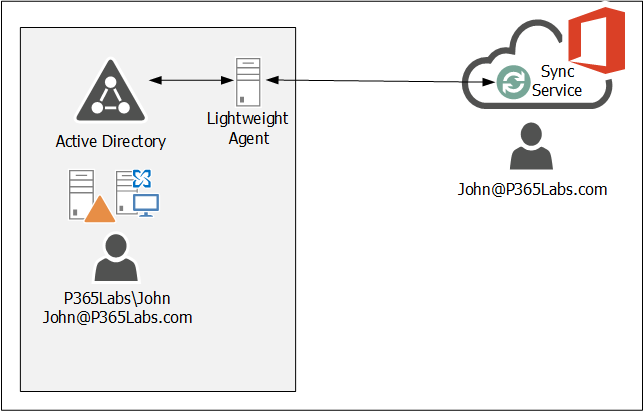
For available purposes, multiple of these lightweight agents can be installed on multiple servers (as long as they have internet connectivity, of course).

The features and functionality are similar; you can filter recipients by Organizational Unit, and you can create your own rules (in the rules editor) in the sync service.

Upgrade to Entra Cloud Sync

Installing the cloud sync agent is similar to installing the connect sync server. The following prerequisites apply to installing the cloud sync agent:

  • The admin account that installs the cloud sync agent and configures the cloud sync service needs an Entra ID P1 license.
  • The installation account must be a Domain Administrator or Enterprise Administrator. During the installation, a group managed service account (gMSA) is created to run the agent.
  • The minimum requirement to configure the cloud sync service is to use a Hybrid Identity Administrator in Entra ID.
  • The server where the agent is installed must run Windows 2016 or higher.

To install and configure the cloud sync agent/service, use the following steps:

  • Create a backup of your Entra Connect sync.
  • Download the cloud sync agent from the Microsoft Entra portal (https://entra.microsoft.com –> Entra ID –> Entra Connect –> Cloud Sync –> Agents as shown in the following screenshot:
  • Installing the Agent is straightforward; open the downloaded agent and follow the wizard. And for the provisioning agent extension, select HR-driven provisioning.
  • Follow the wizard and use your (cloud) admin credentials to logon to EntraID and the on-premises Active Directory and select the create gMSA option. It takes one or two minutes for the agent installation to complete, and when finished click Exit.
  • To configure the cloud sync engine, go to the Entra portal and select Entra ID –> Entra Connect –> Cloud Sync. Click +New Configuration to start the wizard.
  • In the New cloud sync configuration window you will see the Active Directory domain where the agents are installed. This does not have to be a regular TLD, but can also be a .local domain as shown in the following screenshot:
  • If you don’t see the local Active Directory domain, restart the server where the agent is installed (not sure if a reboot is mandatory, but it did help in my environment). Click Create to start the process.
  • There are multiple step you must or can do:
    • Add scoping filter (mandatory)
    • Add attribute mapping (optional)
    • Synchronization test (recommended)
  • Scoping is mandatory; this is where the agent selects the identities that need to be synchronized to Entra ID. My Entra Connect server was scoped on an Organizational Unit, so in Cloud Sync the same OU must be selected. The OU must be entered with its distinguished name, and there’s no AD browse button as shown in the following screenshot:
  • When the DN of the OU is entered, click Add, and click Save to continue.
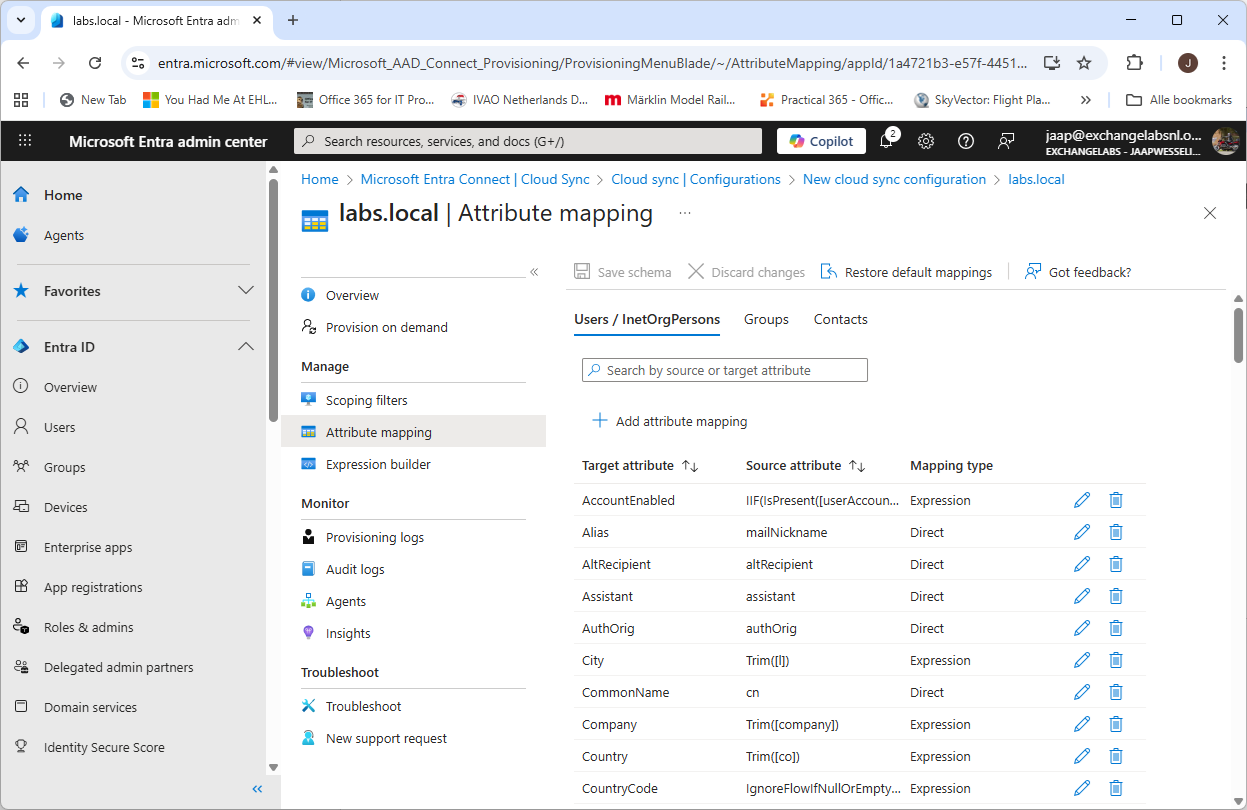
  • The attribute mapping is optional, this is where the attributes in Active Directory are mapped to attributes in Entra ID. In a typical environment there’s no need to change this, but your environment can be different of course. Change this when needed.
  • When everything is ok, select the Provision on Demand option. Here you can test the cloud sync configuration. Create a user account in Active Directory and select this user in the Provision on demand window. Again, no browse button so you must enter the distinguished name of this user as shown in the following screenshot:
  • When everything is ok and the user account is successful created in Entra ID, click Overview, select Review and Enable and click Enable Configuration. This will finalize the wizard and cloud sync will continue to synchronize accounts with Entra ID.
  • You can now uninstall Entra Connect Sync and continue synchronizing with Entra Cloud Sync.

Manage Entra Cloud Sync

Entra Cloud Sync can be managed using the Entra Portal (https://entra.microsoft.com). Login with your administrator account and navigate to Entra Connect –> Cloud Sync. Here, you can view the cloud configuration (created in the previous step) and check provisioning logs and audit logs.

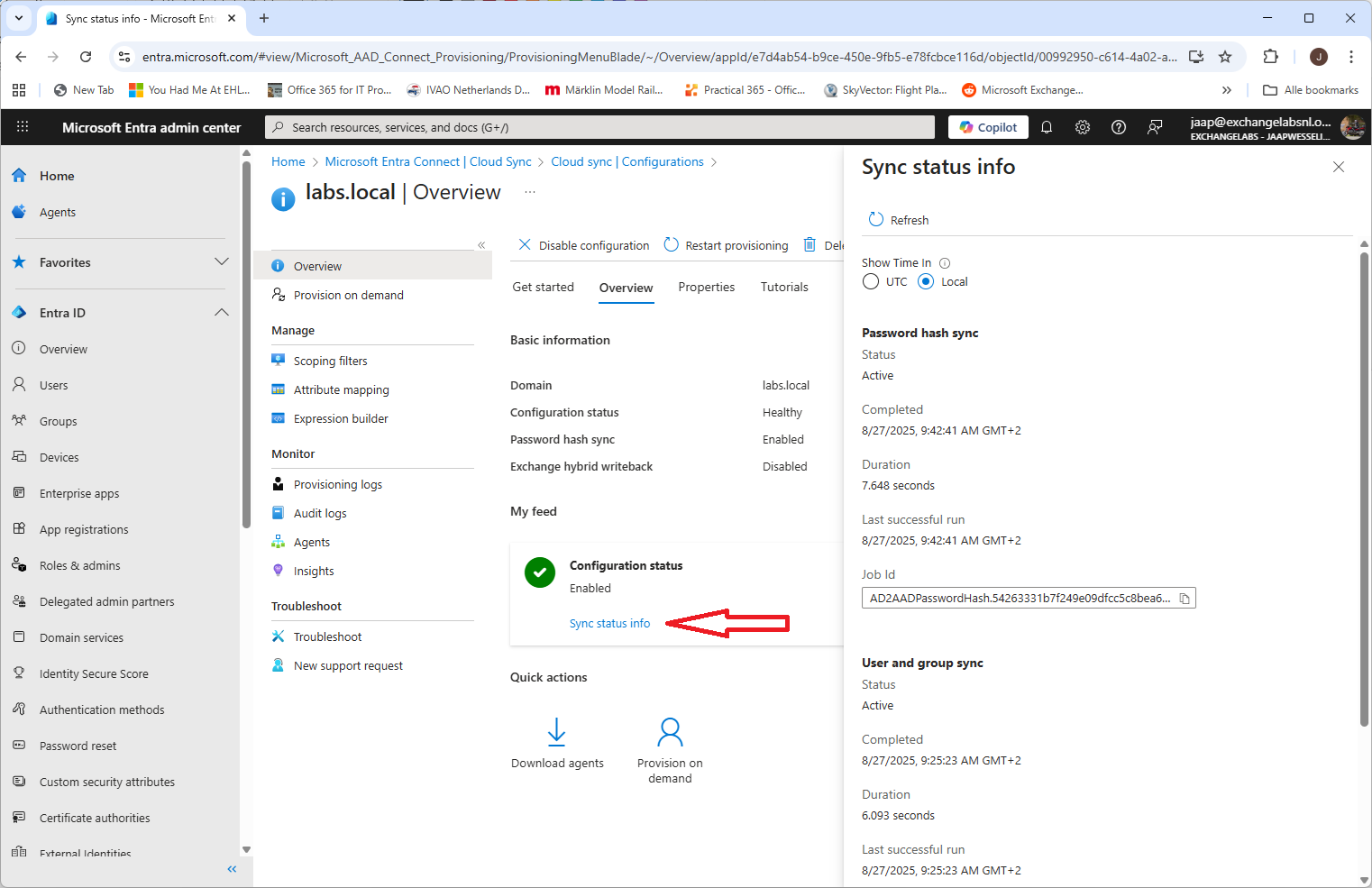
When you open the configuration for your environment, you can change it, but you can also check the properties and check the sync status info, as shown in the following screenshot:
It is also possible to manage Entra cloud sync using PowerShell. To do this, you have to install the AADCloudSyncTools PowerShell module. To install the prerequisites for this PowerShell module, execute the following commands on the server where the connect sync agent is installed:

[PS] C:\> Import-module -Name "C:\Program Files\Microsoft Azure AD Connect Provisioning Agent\Utility\ AADCloudSyncTools"
Azure AD Cloud Sync Agent configured with TenantId '54263331-b7f2-49e0-9dfc-c5c8bea6ff8b'
Please start with 'Connect-AADCloudSyncTools [-LoginHint <UserPrincipalName>]' before calling any other cmdlets.

PS C:\> Install-AADCloudSyncToolsPrerequisites
Installing 'PowerShellGet' Module. Please wait...
WARNING: 'PowerShellGet' Module installed successfully. Close this PowerShell window and run 'Install-AADCloudSyncToolsPrerequisites' again.

Close the PowerShell window and rerun both commands.

PS C:\> Import-module -Name "C:\Program Files\Microsoft Azure AD Connect Provisioning Agent\Utility\AADCloudSyncTools"
Azure AD Cloud Sync Agent configured with TenantId '54263331-b7f2-49e0-9dfc-c5c8bea6ff8b'
Please start with 'Connect-AADCloudSyncTools [-LoginHint <UserPrincipalName>]' before calling any other cmdlets.

PS C:\> Install-AADCloudSyncToolsPrerequisites
Installing 'MSAL.PS' Module. Please wait...
Installing 'AzureAD' Module. Please wait...
All AADCloudSyncTools prerequisites installed successfully.

No dedicated PowerShell cloud sync is created, so every time you want to use this PowerShell module, you must load it in a regular PowerShell window using the following command:

PS C:\> Import-module "C:\Program Files\Microsoft Azure AD Connect Provisioning Agent\Utility\AADCloudSyncTools"

To manage Entra cloud sync, execute the Connect-AADCloudSyncTools command and login to your tenant with your admin credentials. Use the Get-Command CloudSync command to get a list of all CloudSync related PowerShell commands:

PS C:\> Get-Command *CloudSync*
CommandType Name
----------- ----
Function    Connect-AADCloudSyncTools
Function    Disable-AADCloudSyncToolsDirSyncAccidentalDeletionPrevention
Function    Export-AADCloudSyncToolsLogs
Function    Get-AADCloudSyncToolsInfo
Function    Get-AADCloudSyncToolsJob
Function    Get-AADCloudSyncToolsJobSchedule
Function    Get-AADCloudSyncToolsJobSchema
Function    Get-AADCloudSyncToolsJobScope
Function    Get-AADCloudSyncToolsJobSettings
Function    Get-AADCloudSyncToolsJobStatus
Function    Get-AADCloudSyncToolsServiceAccount
Function    Get-AADCloudSyncToolsServicePrincipal
Function    Install-AADCloudSyncToolsPrerequisites
Function    Invoke-AADCloudSyncToolsGraphQuery
Function    Remove-AADCloudSyncToolsGroupMembers
Function    Repair-AADCloudSyncToolsAccount
Function    Restart-AADCloudSyncToolsJob
Function    Resume-AADCloudSyncToolsJob
Function    Set-AADCloudSyncToolsJobSchema
Function    Set-AADCloudSyncToolsTenantId
Function    Start-AADCloudSyncToolsVerboseLogs
Function    Stop-AADCloudSyncToolsVerboseLogs
Function    Suspend-AADCloudSyncToolsJob

For example, use the Get-AADCloudSyncToolsJobStatus command to view information about the most recent synchronization run between the agent and the sync service. If you need to restart a synchronization or force an interim synchronization for any reason, you can use the Restart-AADCloudSyncToolsJob command.

The Microsoft documentation on the various commands is poor (to say the least…) but you can also use the Get-Help command in PowerShell. For example, to get more information about restarting a synchronization job, execute the following command:

PS C:\> Get-Help Restart-AADCloudSyncToolsJob -Detailed

Summary

Microsoft Entra Cloud Sync is the successor to the well-known and widely used Entra Connect Server, a directory synchronization tool. Over time, you will see Microsoft move towards cloud sync, which is becoming visible with the recently announced Cloud-Managed Remote Mailboxes.

If you are still running Entra Connect Sync it time is here to start thinking about moving to cloud sync.

No MFA in Microsoft 365 due to lost phone (locked out)

I have lost my phone and thus lost my Microsoft Authenticator app. Too bad, two admin accounts in two different tenants only have the Authenticator app configured. So, when logging on to a tenant, the password is accepted, and the second factor is requested. It’s too bad this won’t work since the new phone is not configured for this tenant. I didn’t notice this earlier because in older tenants, you have the SMS option as a backup by default, and for newer tenants, this is no longer the case. My bad I’m afraid.

If the option “I can’t use my Microsoft Authenticator app right now” is selected, only a verification code is possible, which is only available in the Authenticator app. No phone number, no phone call-back, and no SMS are possible, so it’s an endless loop.

The only option right now is to log a call with Microsoft Support from a different tenant. To my surprise, the initial support agent called me within 15 minutes. After verifying that it was me, he added some notes and escalated to the compliance team.

Within two days, an engineer from the compliance team contacted me. After checking again, he found that it was me. He created a new incident in the original (not accessible) tenant and closed the current incident. He then reset the MFA configuration, and within a couple of hours, I was able to log on again with my existing password and configure MFA on my new authenticator app.

Valuable lesson learned: make sure that you have a backup MFA solution, otherwise there’s the risk of locking yourself out.

Email not delivered to DANE enabled domains in Office 365

The servicedesk got complaints that email was not delivered to an organization, and that an NDR was never generated. The sending user never knew this, until the sender and receiver talked on the phone. Our organization was Exchange 2016 on-premises with a Cisco IronPort as a gateway to the Internet. The other (receiving) organization was in Exchange Online.

The receiving organization was in Exchange Online, and had already enabled DANE for inbound email messages (see my previous blog post on this). I checked multiple organizations in Exchange Online that have DANE enabled (including hotmail.nl) and they all failed.

One organization has a Fortra Clearswift in front of their environment that has DANE enabled, and we were able to send email to this particular domain.

And to make it more complex, other organizations with an IronPort gateway were able to successfully send email messages to these domains.

At this point still no clue whether it is a Microsoft issue, or an IronPort issue or something specific to our organization.

When checking the DANE SMTP service for the domains involved everything looks fine as shown in the following screenshot:

When checking the IronPort logs, the following cryptic and non-explaining error was logged:

MID 1614647 (DCID 600113) DANE failed for Hotmail.nl. Reason: 4.0 - Other network problem.

Also shown in the following screenshot:

The same error was logged for the other DANE enabled domains as well.

So, DANE fails on the IronPort, but the tools to check DANE all reported DANE was good. Also, I was able to send mail to these domains using Gmail. I always say when it works in Gmail, everything is ok.

When checking the DANE configuration on the command prompt on the IronPort it looks more like a DNS issue as shown in the following screenshot:

But when checking the DNS record (_25._tcp.exchangelabs-nl.y-v1.mx.microsoft)
with MXToolbox, everything is green again as shown in the following screenshot:

After checking with the network department it turned out that there was an IPS solution implemented and the network engineer knew about an old CVE, dating back to 2013 (CVE-2013-4466) that warns for a situation where a buffer flow can occur in the dane_query_tlsa function when more that four DANE entries are returned.

The CVE is 11 years old, but the IPS still had this implemented, and when more than four entries were returned, everything was discarded and the email was lost. Removing this from the IPS and everything works fine.

Note. The RFC for DANE does not mention the amount of entries that can be returned, so more than four should not be a problem.

Inbound DANE authentication for Exchange Online

Outbound DANE in Exchange Online is available for some time now and I wrote about this before in the following blogpost: DNSSEC and DANE support in Exchange server and Exchange Online.

Microsoft recently announced the public preview (!) of inbound SMTP DANE for Exchange Online and it’s fairly easy to configure.

Implementing DANE consist of two steps:

  • Enabling DNSSEC in Exchange Online.
  • Enabling DANE in Exchange Online.

I will show both in the following sections.

Enable DNSSEC in Exchange Online

An important prerequisite of course is that you have DNSSEC up and running. If you have, you can open an PowerShell window and connect to Exchange Online.

When connected, execute the following to command:

Enable-DnssecForVerifiedDomain -DomainName Exchangelabs.nl

The output of the command will show the (new) MX record for the domain as shown in the following screenshot:

Add the new MX record to your domain, but give it a lower priority than the existing MX record (which typically should also point to Exchange Online).

Important: If you have configured MTA-STS for your inbound mail in Exchange Online, DO NOT FORGET to change the MTA-STS policy to reflect the new MX record!

Use the Remote Connectivity Analyzer (https://testconnectivity.microsoft.com/tests/O365InboundSmtp/input) to check the MX records and if all is working correctly.

In the following screenshot you can see both MX records and all is green:

You can now lower the priority of the new MX record to ’10’ and delete the old MX record.

Enabling DANE in Exchange Online

The second step is to actually enable DANE for inbound message. To do this, execute the following command in Exchange Online PowerShell:

Enable-SmtpDaneInbound -DomainName Exchangelabs.nl

Not much output as can be seen in the following screenshot:

It takes approximately 15 to 30 minutes for the TLSA record to propagate. After this time, you can use the Remote Connectivity Analyzer on https://testconnectivity.microsoft.com/tests/O365DaneValidation/input (or any other tool like https://www.huque.com/bin/danecheck-smtp
) to check as shown in the following screenshot:

DNSSEC and DANE are now ready to use.

Special characters in Active Directory and Exchange Online

During migrations to Exchange Online I get the question regarding special characters in the User Principal Name (UPN) and e-mail address. Every time I have to check this again and again, so it’s time to do a write-up.

The UserPrincipalName (UPN)

The UserPrincipalName (UPN)

The UPN is the user’s identifier in Active Directory, and it is formatted like j.wesselius@exchangelabs.nl. It is a Microsoft recommendation to keep the user’s email address and UPN identical, but that’s not a hard requirement.

The UserPrincipalName attribute has the following characteristics and/or requirements:

  • The @ character is required.
  • The @ character cannot be the first or the last character of a UPN.
  • The total length cannot exceed the 113 characters limit. 64 characters in front of the @ character (i.e. username) and 48 characters after the @ character (i.e. domain name).
  • Allowed characters are A – Z, a – z, 0 – 9, ‘ . – _ ! # ^ ~
  • Invalid characters are \ % & * + / = ? { } | < > ( ) ; : , [ ] “
  • An Umlaut, tilde and accents are also invalid characters.
  • The UPN cannot end with a dot.
  • The UPN cannot contain spaces.
  • With directory synchronization in mind:
    • a routable domain must be used for the UPN (for a stand-alone AD this is not the case).
    • UPN must be unique and cannot contain any duplicated value in the directory (like UPN of user A is the same as e-mail address of user B).

The last bullet is something I see a lot in hybrid scenarios. In Exchange 2019 it is possible to have a user with a UPN like J.Doe@exchangelabs.nl, and another user with an identical email address J.Doe@exchangelabs.nl. Although it is confusing, it is possible on-premises.

In Exchange Online this is not possible, and when you have Entra ID in place, it will generate error messages, and strip the email address from the second user. Needless to say, you must fix this inconsistency (which can be problematic since you must remove an email address from a mailbox).

A little bit related is the samAccountName attribute of a user. This has the following limitations:

  • The maximum length is 20 characters.
  • It must be unique in the entire organization.
  • The following characters are invalid: [ ] \ | / , : < > + = ; ? * ‘ and the double quoute character “

Email Addresses

In Exchange and Exchange Online there are four e-mail address related attributes:

  • The mail attribute. The mail attribute of a recipient must be unique in the entire organization.
  • mailNickName (or alias). Must be unique in the entire organization and it cannot start with a period.
  • ProxyAddresses. This is a multi-valued attribute and has the following restrictions:
    • The maximum length of an entry is 256 characters.
    • It cannot contain a space character.
    • It must be unique in the entire organization.
    • It cannot contain any of the following characters: < > ( ) ; , [ ] and a double quote character “. The colon character : is allowed, but only after an identifier like SMTP: or X500:
    • Special characters with an umlaut, accent or tilde are invalid.
    • TargetAddress. This is used for forwarding email messages, in a hybrid environment this is the remote routing address. It is a singe value attribute, and has the same limitations as the proxyAddresses attribute.

Most likely there are more related attributes that need attention, but these are the most interesting I see when working with customers.