When you have multiple primary SMTP domains in your Exchange 2010 environment you have to come up with a solution for autodiscover. Suppose we have an Exchange 2010 environment called exchange14.nl. The external URL would be something like webmail.exchange14.nl and the autodiscover FQDN would be autodiscover.exchange14.nl. In this you would need a UC certificate with both these names in it.

When there’s another (primary) SMTP domain in use in this Exchange 2010 environment we have to come up with something for the corresponding autodiscover record. When the SMTP domain called inframan.nl is also hosted in this environment, Outlook would look for a DNS record autodiscover.inframan.nl when Active Directory is not available, like on the Internet. Since this FQDN is not available in the SAN field of the certificate this would generate a client side certificate error, like “The name of the security certificate is invalid or does not match the name of the site.”
To avoid this there are two options that let Outlook redirect its autodiscover traffic. The first option is to use an HTTP redirection method; the second option is to use SRV records in the public DNS.
HTTP Redirection
When Outlook cannot find its corresponding autodiscover record, like autodiscover.inframan.nl in this example, Outlook will start looking for a redirection option. You can create an additional website in the Client Access Server that listens on port 80, intercepts redirection traffic and sends it to the original autodiscover URL. This 2nd website has an additional FQDN, using an additional IP address. For example, for autodiscover.exchange14.nl and webmail.exchange14.nl the IP address 178.251.192.9 is used. The 2nd website will be autodiscoverredirect.exchange14.nl and its IP address will be 178.251.192.12. Do not forget to add this FQDN and IP address to the public DNS!
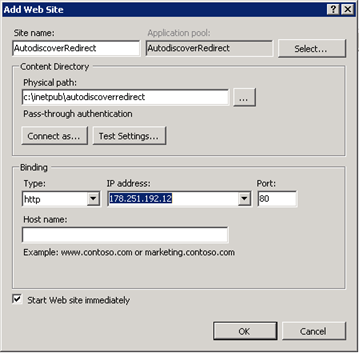
On the Client Access Server open the Internet Information Server (IIS) Manager and create an additional website called autodiscoverredirect. Use a physical directory like c:\inetpub\autodiscoverredirect for this website and bind the website to the additional IP address.

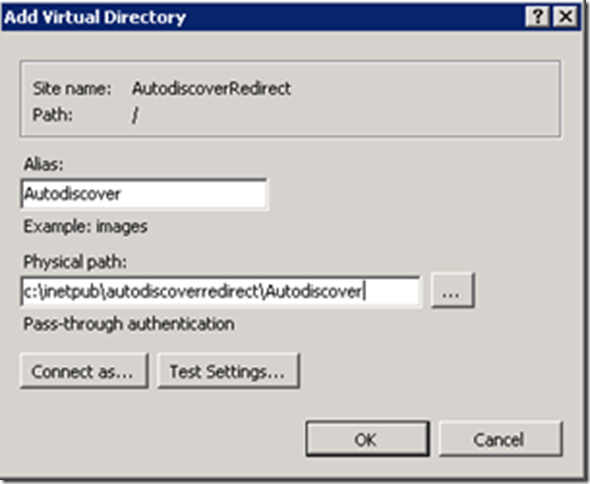
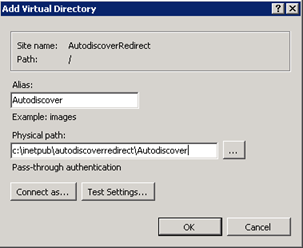
In this website create a new Virtual Directory called autodiscover. Use Autodiscover for the alias and use a physical directory like c:\inetpub\autodiscoverredirect\autodiscover for this Virtual Directory.
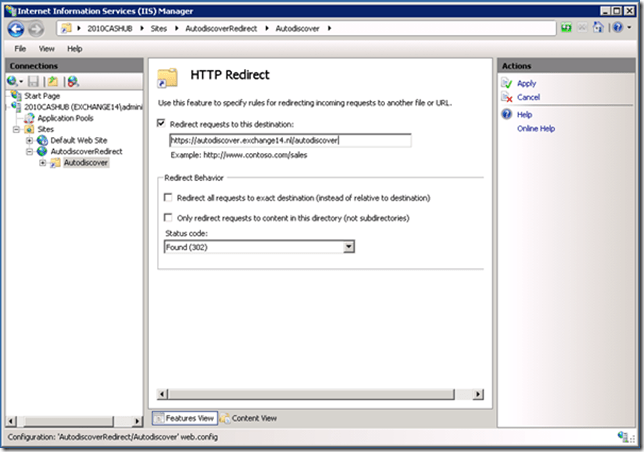
Open the properties of the new Vdir and configure HTTP Redirect. Select the Redirect requests to this destination and enter https://autodiscover.exchange14.nl/autodiscover as the destination of the redirect.
The last step is to configure external DNS. Create a DNS entry for autodiscover.inframan.nl, but instead of assigning it an IP address create a CNAME record and point it to autodiscoverredirect.exchange14.nl

When testing with the Remote Connectivity Analyzer (http://www.testexchangeconnectivity.com) with a username called John Doe (john@inframan.nl) you’ll see the the autodiscover request originally destined for autodiscover.inframan.nl is redirected to autodiscover.exchange14.nl and the correct results are returned.

SRV Records in DNS
Instead of using the HTTP redirect option as described earlier it is also possible to use service records (SRV records) in the public DNS to access the autodiscover virtual directory when using another primary SMTP address.
Looking at the test environment there’s still a UC certificate on the Client Access Server with the FQDN’s webmail.exchange14.nl and autodiscover.exchange14.nl.
But instead of using an additional autodiscover entry in the SAN field of the certificate or creating an additional autodiscover redirect website it is also possible to use a service record. In this scenario, a service record in for inframan.nl needs to be created, pointing to the autodiscover FQDN for the original domain. This service record will be _autodiscover._tcp.inframan.nl and it points to autodiscover.exchange14.nl on port 443.
Entering the SRV record in public DNS can be a bit difficult, depending on the hosting provider you are using. In my case it is something like this:

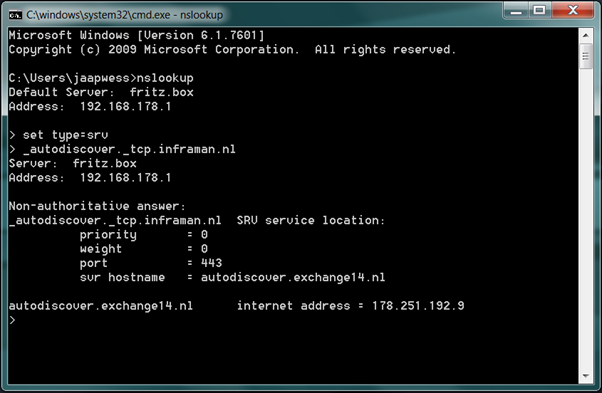
When using NSLOOKUP (on the client) to check the SRV entry you’ll see that it looks good:

Now when checking with the Remote Connectivity Analyzer (www.testexchangeconnectivity.com) you’ll see that the autodiscover redirect options fails, but that the SRV option succeeds:
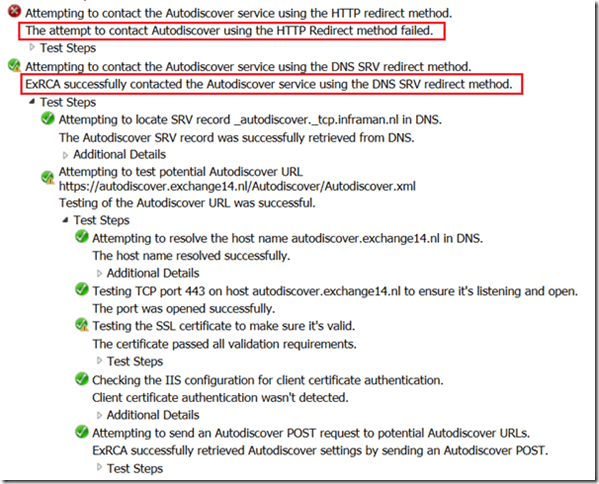
It is even more interesting, instead of using the autodiscover.exchange14.nl it is now possible to use the webmail.exchange14.nl FQDN in the SRV record. This way autodiscover no longer uses the autodiscover.exchange14.nl entry and it is now possible to use a standard SSL certificate and NOT a Unified Communications certificate. This standard certificate only contains the name webmail.exchange14.nl.

And testing with the Remote Connectivity Analyzer:

More information regarding the SRV option with autodiscover can be found on the Microsoft website: http://support.microsoft.com/kb/940881







 Jaap Wesselius