Tag Archives: Office 365

Outlook 2010 disconnected with TLS 1.2

When my normal laptop died last week I had to use an older laptop, and this laptop had Windows 7 and Outlook 2010 installed, one of my personal favorite Outlook clients.

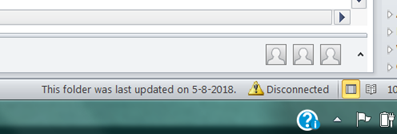
However, Outlook 2010 did work correctly with Mailboxen in Exchange Online, but Outlook refused to work with Mailboxen on my on-premises Exchange 2016 server. The only thing I saw in the lower right corner was “Disconnected” and every now and then Outlook tried to connect, but no luck.
image

When checking the Connection Status in Outlook I could see that the directory connection was established, but the Exchange Connections disconnected. The Exchange sever and mailbox were ok since I was able to connect using OWA and my Outlook for iPhone client.

image

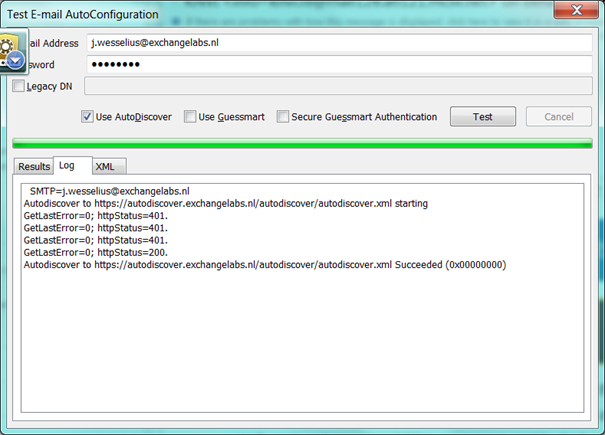
The Test Email AutoConfiguration option in Outlook wasn’t very helpful either, it just showed that it was unable to determine the settings and none of the Autodiscover options worked.

image

image

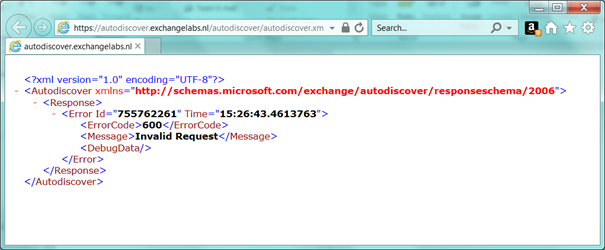
Using the Internet Explorer browser I tried to access my Autodiscover.exchangelabs.nl site, and after a logon prompt I got the famous ErrorCode 600. This is good, so I know my Autodiscover is at least listening properly.
image

The Exchange Remote Connectivity Analyzer (http://aka.ms/exrca) showed that there was an issue with my SSL certificate:

image

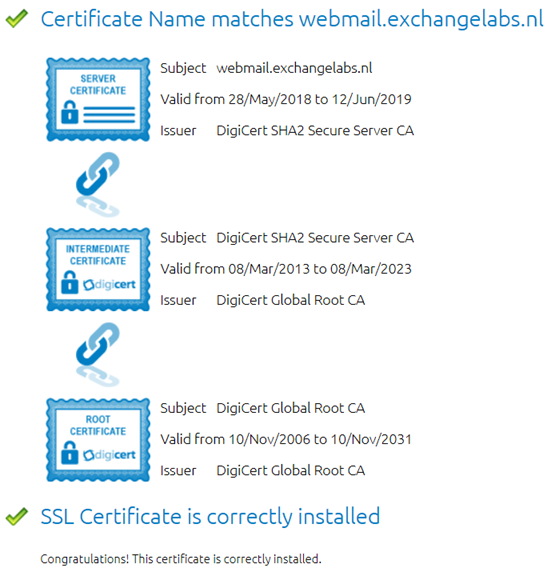
The SSL certificate however is a valid Digicert UC certificate and there’s nothing wrong with this certificate. IE does use it, and the Digicert help utility doesn’t show anything strange either.
image

Oh, and my Outlook 2016 running on another computer did work correctly, so there should be a configuration error impacting Outlook 2010 only.

Then I realized that a week before I accidentally ruined the Virtual Service on my Kemp Load Balancer and I quickly created a new Virtual Service using the correct template. As a security measure I only selected TLS 1.2 on the SSL properties of the Virtual Service.

image

After enabling TLS 1.0 on the Virtual Service, Outlook 2010 started to work correctly again and (to my surprise) so did the Remote Connectivity Analyzer.

image

image

So, obviously TLS 1.0 was the culprit here and by enabling TLS 1.0 Outlook 2010 started to work again.

When checking my laptop using the SSLLABS website (https://www.ssllabs.com/ssltest/viewMyClient.html), all looks fine and TLS 1.2 is fully supported by my Windows 7 client:

image

It must be something with Outlook 2010 and TLS1.2. I found an interesting article on Technet regarding enabling of TLS 1.1 and TLS 1.2. Create a DWORD value DefaultSecureProtocols in the registry under the following keys:

HKEY_LOCAL_MACHINE\SOFTWARE\Microsoft\Windows\CurrentVersion\Internet Settings\WinHttp


HKEY_LOCAL_MACHINE\SOFTWARE\Wow6432Node\Microsoft\Windows\CurrentVersion\Internet Settings\WinHttp

Its value should be one of the following:

For only TLS 1.1 and 1.2: A00 (hexadecimal)


For TLS 1.0, 1.1, and 1.2: A80 (hexadecimal)

clip_image002

Also, create the following DWORD values DisabledByDefault in the following locations and assign it the value of ‘0’:

HKEY_LOCAL_MACHINE\SYSTEM\CurrentControlSet\Control\SecurityProviders\SCHANNEL\Protocols\TLS 1.1\Client


HKEY_LOCAL_MACHINE\SYSTEM\CurrentControlSet\Control\SecurityProviders\SCHANNEL\Protocols\TLS 1.2\Client

image

When needed create the necessary subkeys under the \Protocols key.

Now your Windows 7 and Outlook 2010 will support a TLS 1.2 environment only (this is also true for Windows 8 BTW).

Summary

Outlook 2010 does not support TLS 1.2 out of the box. This can be an issue if you or your network department starts implementing a TLS 1.2 environment only. You have to enable TLS 1.2 on the workstation by setting a registry key. After this it works fine.

Next October Microsoft will stop support for TLS 1.0 and TLS 1.1. This means that if you run into an issue caused by TLS 1.0 or TLS 1.1 it won’t be fixed. Please note that Microsoft will continue to accept TLS 1.0 and TLS 1.1 connection from clients, it just won’t be supported anymore.

Microsoft is working on a plan to disable TLS 1.0 and TLS 1.1 but that won’t happen anytime soon. When this is going to happen, Microsoft will give notification 6 months in advance of disabling TLS 1.0 and TLS 1.1.

More information

https://www.ssllabs.com/ssltest/viewMyClient.html

https://blogs.technet.microsoft.com/schrimsher/2016/07/08/enabling-tls-1-1-and-1-2-in-outlook-on-windows-7/

https://support.microsoft.com/en-us/help/4057306/preparing-for-tls-1-2-in-office-365

https://technet.microsoft.com/en-us/library/dn786418(v=ws.11).aspx

Last edited on October 26, 2018.

Cannot find a recipient that has mailbox GUID when moving from Exchange Online to Exchange 2016

When moving mailboxes from Exchange Online to Exchange 2016 on-premises in a hybrid environment, the move fails with an error “Cannot find a recipient that has mailbox GUID ‘ ‘

image

The error is listed here for Search Engine purposes:

Error: MigrationPermanentException: Cannot find a recipient that has mailbox GUID ‎’add02766-9698-48e6-9234-91c3077137bc’. –> Cannot find a recipient that has mailbox GUID ‎ add02766-9698-48e6-9234-91c3077137bc ‎’.
Report: bramwess@exchangelabs.nl

When checking the user account with ADSI Edit in the on-premises Active Directory it is obvious that this property is empty:

image

When checking the Mailbox in Exchange Online (using Remote PowerShell) the Exchange GUID is visible when using the command

Get-Mailbox -Identity name@exchangelabs.nl | Select Name,*GUID*

As shown in the following screenshot:

image

It took me some time to figure out why this property was empty. Normally when moving mailboxes from Exchange on-premises to Exchange Online the Mailbox GUID is retained. Keeping the Mailbox GUID makes sure you don’t have to download the .OST file again after moving to Exchange Online.

What happened here is that the user was created in Active Directory on-premises, and a Mailbox was directly created in Exchange Online using the Enable-RemoteMailbox command. In this scenario, there never was a Mailbox on-premises and thus never a Mailbox GUID.

The solution is to copy and paste the Mailbox Guid as found in the previous command into the Remote Mailbox object on-premises using the Set-RemoteMailbox command

Set-RemoteMailbox user@exchangelabs.nl -ExchangeGuid “copied value”

As shown in the following screenshot:

image

When setting the Mailbox Guid the mailbox can be moved from Exchange Online to Exchange on-premises.

Ps. Don’t forget to repeat this for anchive mailbox (if one exists)

MigrationTransientException: Target database GUID cannot be used (Mailbox database size limits in Exchange Online)

If you are designing Exchange 2016 (or have been designing Exchange 2013) environment you are aware of the The Exchange 2016 Preferred Architecture (https://blogs.technet.microsoft.com/exchange/2015/10/12/the-exchange-2016-preferred-architecture/) and articles like Ask the Perf Guy: How big is too BIG? (https://blogs.technet.microsoft.com/exchange/2015/06/19/ask-the-perf-guy-how-big-is-too-big/) which explain pretty much how to design an Exchange solid (and large) Exchange environment.

When it comes to Mailbox databases, the recommended size limit for non-replicated databases is 200GB and for replicated databases 2 TB (when running 3 or 4 copies of a Mailbox database).

One can only guess how Microsoft has designed their Exchange servers in Exchange Online, but we can assume that the Preferred Architecture is written with their Exchange Online experiences in mind.

Sometimes error messages that are generated in Exchange Online can reveal more information. While moving mailboxes from Exchange 2010 to Exchange Online in a hybrid configuration the following error message was returned in a migration batch for a number of Mailbox databases:

Error: MigrationTransientException: Target database ‎’07bdf507-ab94-479b-aeb6-1bfef1458c4c‎’ cannot be used: Current database file size: 1502835900416 Current space available inside database: 100237312 Allowed database growth percentage: 90 Maximum database file size limit: 1622722691784 Is database excluded from provisioning: ‎’False‎’. –> Target database ‎’07bdf507-ab94-479b-aeb6-1bfef1458c4c‎’ cannot be used: Current database file size: 1502835900416 Current space available inside database: 100237312 Allowed database growth percentage: 90 Maximum database file size limit: 1622722691784 Is database excluded from provisioning: ‎’False‎’.

Obviously it’s telling us the migration cannot proceed since the target Mailbox (in Exchange Online!) has reached its size limit. The following sizes are reported:

  • Current database file size: 1502835900416 (1,502,835,900,416 bytes, approx. 1.5TB)
  • Current space available inside database: 100237312 (100.237.312 bytes, approx. 100MB)
  • Maximum database file size limit: 1622722691784 (1.622.722.691.784 bytes, approx. 1.6 TB)

So, the maximum size limit for Exchange 2016 in Exchange is not really used in Exchange Online, but it’s getting close, which is interesting to see.

What I don’t understand is why this issue occurs in the first place. To me it looks like a failing part in the provisioning service but I have to admit I’ve never seen this before in the last couple of years so I expect it’s only one Exchange server that’s failing here.

Moving from Exchange 2010 to Office 365 Part II

In my previous blogpost, I’ve discussed the prerequisites for moving from Exchange 2010 to Office 365 when using Directory Synchronization (using Azure AD Connect). In this blogpost I’ll discuss how to create an Exchange 2010 hybrid environment.

Exchange 2010 Hybrid

Now that Directory Synchronization is in place using Azure AD Connect we can focus on connecting the on-premises Exchange environment to Exchange Online, this a called an Exchange Hybrid Configuration.

Hybrid configurations can consist of Exchange 2010, Exchange 2013 or Exchange 2016 or a combination of versions, so it is possible to have an Exchange 2010 and Exchange 2013 coexistence scenario on-premises, and connect this to Exchange Online. However, when using multiple versions of Exchange in a Hybrid configuration there’s always add complexity, and when configured incorrectly you can get unexpected results. Therefore, I typically recommend using only one version, so if you’re running Exchange 2010 on-premises, there’s no need to add an Exchange 2013 or Exchange 2016 server to your configuration, just as a ‘hybrid server’. Despite what other people tell you, there’s no need to add a newer version, and Exchange 2010 Hybrid is fully supported by Microsoft. Better is to create an Exchange 2010 hybrid environment, and when the mailboxes (or most the mailboxes) are moved to Office 365 upgrade your existing Exchange 2010 environment to Exchange 2016. But that might be an interesting topic for a future blog post Smile.

Basically, we will create the following configuration (again, there is no Exchange 2016 server installed in the existing organization):

image

Figure 14. Exchange 2010 hybrid configuration.

Continue reading Moving from Exchange 2010 to Office 365 Part II