Category Archives: Office365

The Secure Mail Certificate on server HYBRID01 is not bound to the SMTP Service

While configuring an Exchange 2013 organization in a hybrid scenario with Office 365 the Exchange Hybrid wizard stopped and showed the following error message:

Subtask CheckPrereqs execution failed: Configure Mail flow The Secure Mail Certificate on server HYBRID01 is not bound to the SMTP Service at Microsoft.Exchange.Management.Hybrid.MailFlowTask.CheckCertPrereqs()…

image

Continue reading The Secure Mail Certificate on server HYBRID01 is not bound to the SMTP Service

Manage Azure Active Directory in the Azure Portal

Office 365 is just one part of the Microsoft Online Services and you can use the Microsoft Online Portal to manage your Office 365 environment as you’ve seen in my previous blog posts.

Microsoft Azure is another part of the Microsoft Online Services. In Microsoft Azure you can use all kinds of services, servers, virtual machines and… Azure Active Directory.

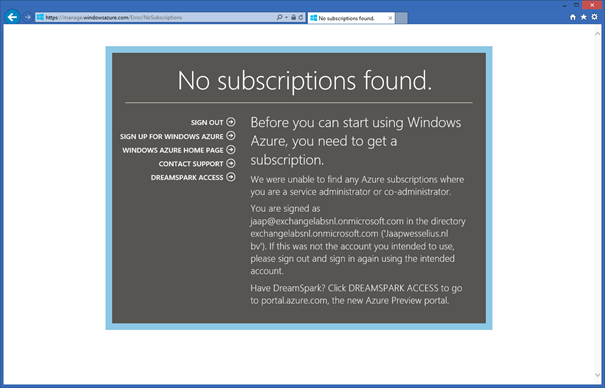
The portal for Windows Azure can be found on http://manage.windowsazure.com, but when you try to logon using your tenant admin account (the one you’re using for Office 365 as well) you’ll get a warning that no subscriptions are found. This makes sense because there’s only an Office 365 subscription to this account.

image

Continue reading Manage Azure Active Directory in the Azure Portal

Implementing Directory Synchronization

Updated: November 11, 2015,
Updated: April 20, 2018

In an earlier blog I explained the differences between Cloud Identities, Linked Identities and Federated Identities. The source of authority (i.e. where the accounts are managed) for Cloud Identities is Microsoft Online and for Linked and Federated Identities the source of authority is your on-premises Active Directory. To get these accounts in Azure Active Directory (Office 365) you have to setup a directory synchronization between Active Directory and Azure Active Directory.

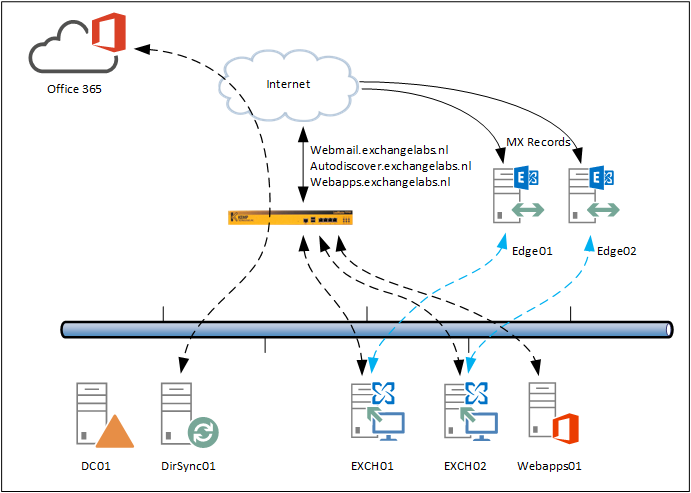
As explained earlier I prefer to use a dedicated DirSync server instead of installing DirSync on your Domain Controller (which is possible and supported). When using a dedicated DirSync server, you can keep your Domain Controllers identical and work on your Domain Controllers while not affecting your DirSync server. We now will build a configuration like this:

Implemented DirSYnc server

There are two options when setting up Directory Synchronization between your on-premises Active Directory and Windows Azure Active Directory:

  • DirSync as a tool that can be downloaded from the Microsoft Online Portal. This is the ‘original’ DirSync tool which can be installed on a Domain Controller or on a dedicated DirSync server. This tool will be decommissioned somewhere in the (near) future.
  • Microsoft Azure Active Directory (WAAD) Sync Services, the new DirSync tool that can be downloaded from http://www.microsoft.com/en-us/download/details.aspx?id=44225. This tool has the option to synchronize a multi-forest topology with one tenant in Office 365.

Note. On June 24, 2015 Microsoft has released the Azure AD Connect & Connect Health. Azure AD Connect is the latest version of the Directory Synchronization. This blog is based on the previous Azure AD Sync, but I strongly recommend you look into the Azure AD Connect tool (there are a lot of similarities) which you can download from the Download center.

Added note on April 20, 2018. Azure AD Connect is now the only supported version for implementing directory synchronization. It is updated on a regular basis and available via the Azure AD Connect download. If you perform a default installation, Azure AD Connect will automatically update itself when a new version is available.

Continue reading Implementing Directory Synchronization

Creating an Exchange 2013 Hybrid environment

Updated: November 11, 2015

In a series of blog posts we will create an Exchange hybrid environment, where the on-premises environment consists of Exchange 2013 multi-role servers. Creating such an environment consists of several steps:

  • Implementing Directory Synchronization.
  • Running the Hybrid Configuration Wizard.
  • Creating Migration Endpoints.
  • Moving Mailboxes to Exchange Online.

Current Infrastructure

The current infrastructure consists of two Exchange 2013 multi-role servers and two Exchange 2013 Edge Transport servers, all of which are fully patched and running the latest version of Exchange 2013 (i.e. Exchange 2013 CU8). An Office Web Apps 2013 servers is also involved for rendering attachments in Outlook Web App.

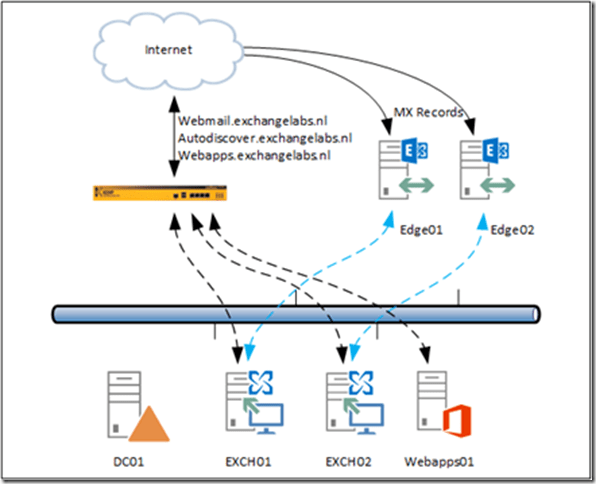
A Kemp LM3600 LoadMaster is used for distributing incoming client requests from the Internet across both servers. SMTP is directed to two Exchange 2013 Edge Transport servers, which are subscribed to the internal Exchange 2013 servers, as shown in Figure 1.
image

Figure 1. The starting point when creating a new Hybrid environment.

In Office 365 we have are using a tenant called ExchangeLabsNL, for Exchange Online the tenant name is not important, but for SharePoint Online it is important. The corresponding SharePoint Online environment is accessible via Exchangelabs.nl.sharepoint.com, so the tenant name is important after all.

Note. The tenant name cannot be changed later on, so don’t choose any silly names for your tenant. One day you will regret this.

Directory Synchronization Server

In our on-premises environment we are going to install a dedicated Directory Synchronization server. This is not really a hard requirement since DirSync can be installed on a Domain Controller as well. Personally I prefer to use a dedicated DirSync server and keep all Domain Controllers identical.

Exchange Hybrid Server

There’s a lot of confusion about the Exchange Hybrid server when creating an Exchange Hybrid environment and to be honest, it took quite some time for me as well to get rid of the confusion.

A true hybrid server does not exist, but in Microsoft terminology, the hybrid server is the Exchange server where the Hybrid Configuration Wizard (or HCW) is run to configure a Hybrid Configuration. And the Hybrid Configuration is nothing more than some information written in Active Directory so it can be easily found and used by all Exchange servers in the organization. In Figure 1, the hybrid server can be either server EXCH01 or server EXCH02.

An additional Exchange 2013 server can be added as a hybrid server. You can even use a dedicated FQDN like hybrid.contoso.com for this to separate SMTP and migration traffic from/to Office 365 form regular client traffic accessing the normal Exchange servers EXCH01 and EXCH02.

Free/busy information in this scenario for example is not using the dedicated hybrid server, since it is not possible to designate this kind of traffic to dedicated servers. When users in Exchange Online are creating new meetings with users in Exchange on-premises, the free/busy information is found using the normal Exchange EWS virtual directory. This information in turn is found using normal Autodiscover requests.

So, before you start building your Exchange Hybrid environment you have to make absolutely sure your starting point is working flawlessly, internally and externally. If you run into issues with AutoDiscover, free/busy, out-of-office or Certificate errors you have to fix these first before continuing with the hybrid configuration. One great tool to test your existing environment is the Remote Connectivity Analyzer (www.testexchangeconnectivity.com) and of course your own Outlook clients Glimlach 

Note. If you are running Exchange 2010 you can also use the existing Exchange 2010 servers to create a hybrid environment without adding Exchange 2013 servers (although you have to be absolutely sure about this, Exchange 2010 is no longer in mainstream support). If you want to use Exchange 2013 in your existing Exchange 2010 environment you have to start a coexistence project first. When this is fully functioning (without error of course) you can continue with the DirSync and hybrid configuration.

When all is running fine you can continue with implementing the DirSync solution, as outlined in the following blogpost: https://jaapwesselius.com/2015/05/13/implementing-directory-synchronization/

Manage users in Office 365 using PowerShell

After you’ve add domains to your Office 365 environment (using PowerShell of course) you might want to add users as well. In this blog post I’ll discuss how to add users, add and change licenses, remove users and change password settings.

Add Users using PowerShell

Use the Get-MsolUser command to get an overview of all users in Azure Active Directory (these were created in an earlier blog post):

image

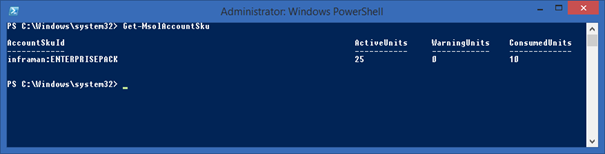
And use the Get-MsolAccountSku command to see what license is available:

image

When creating a new user in Azure Active Directory you can use the New-MsolUser command, combined with the results of the Get-MsolAccountSku command for the license information. You can use the –LicenseAssignment and –UsageLocation options to assign a proper license.

New-MsolUser -UserPrincipalName Santa@office365labs.nl -FirstName Santa -LastName Klaus -DisplayName 'Santa Klaus' -Password 'Pass2015' –ForceChangePassword:$TRUE -LicenseAssignment "inframan:ENTERPRISEPACK" -UsageLocation NL

image

Continue reading Manage users in Office 365 using PowerShell