Category Archives: Office365

Sender Domain Validation check in Exchange Online

In my previous blog External Senders with matching display names I explained a Transport Rule that checked for matching display names in order to prevent phishing and possible CFO Fraud.

Another interesting solution with Transport Rules is displaying a warning message when the sender’s domain could not be validated. For example, when a message from a sender who’s SPF record is missing or not valid, it would show something like “The sender of this message could not be validated and may not be the actual sender” as shown in the following screenshot.

In this example the SPF record of the exchangefun.nl domain was missing, hence the validation error.

  • The Transport Rule to achieve this is built on two conditions:
  • The sender is located outside the organization.

The Authentication-Results headers contains one or more of the following entries:

  • dkim=fail
  • spf=TempError
  • spf=PermError
  • spf=SoftFail
  • spf=Fail
  • spf=None

For the email mentioned below, the Authentication-Results header shows the following:

Authentication-Results: spf=none (sender IP is 176.62.196.243)
smtp.mailfrom=exchangefun.nl; wesselius.info; dkim=pass (signature was verified) header.d=Exchangefun.nl;wesselius.info; dmarc=permerror action=none header.from=exchangefun.nl;compauth=pass reason=105

Obviously, it fails on the spf=none entry.

To create a Transport Rule to do this, open the Exchange Online Admin Center and navigate to Rules under Mail Flow and click Add New Rule (the + icon). Use the More Options to add additional conditions to the Transport Rule.

The first condition is The sender is located and select outside the organization. The second condition is A message header includes and enter Authentication-Results for the name of the header and the DKIM and SPF entries mentioned earlier in the text of the message header. It should show something like this:

Click on Add Action and select Prepend a disclaimer. Enter a warning message like:

Warning: The sender of this message could not be validated and may not be the actual sender.

The text can be plain text or HTML formatted as shown in the following screenshot:

When you click Save the Transport Rule is saved in Exchange Online. It could take up to an hour to become effective. And when you receive a message where the domain validation failed a disclaimer is prepended to the email message:

Now you can look in the message header itself to figure out why validation failed. Hopefully this will give a heads-up to users there’s something wrong with the message (but it still can be legitimate message of course).

A special and warm thanks to my fellow MVP Michel de Rooij for his inspiration to write this blog 😉


External Senders with matching Display Names

One of my clients is experiencing phishing from where the external senders use a display name of one of the board members. An IT admin looks at the complete email address, but regular users are tempted to only look at the display name and will respond to the message. This way CEO/CFO fraud easily happens.

To avoid this, we can create a Transport Rule in Exchange Online that identifies external email with display names of internal recipients. So, when someone on the internet with a name like my name, a disclaimer is prepended to the message. This way recipients always know it is not an internal message and it will look something like this:

To create a transport rule there are two conditions:

  • Sender is located outside the organization.
  • From message header matches one or more internal display names.

If these conditions are met, a warning message is prepended to the email message.

Open the Exchange Admin Console and navigate to Rules under Mail flow. Create a new rule (use the More Options to add additional conditions. Select the external sender option and select the message headers matches option. Enter the ‘From’ header enter the display names as shown in the following screenshot:

In the Do the following… dropdown box select prepend the disclaimer option and enter a warning message, something like:

This message was sent from outside the company by someone with a display name matching a user in your organization. Please do not click links or open attachments unless you recognize the source of this email and know the content is safe.

You can use plain text or HTML formatting like I did:

When you click save the transport rule is saved, but it can take an hour before it becomes effective. When a new message arrives from someone with a similar display name a warning message is added to the email message.

Hopefully this will alert users that the email is not an internal message but comes from the Internet (but it can still be a valid message of course)

Claims X-Ray ADFS Online Troubleshooting Tool

When you are troubleshooting an ADFS deployment, or you’re working with a 3rd party vendor on authentication issues, or maybe when you’re just interested in a deep dive in your ADFS environment, then there are multiple tools available from Microsoft for testing purposes.
To learn more about ADFS in general the Active Directory Federation Services Wiki Portal is a good starting point, for online tools the ADFS Help from Microsoft (https://adfshelp.microsoft.com) is a good starting point.

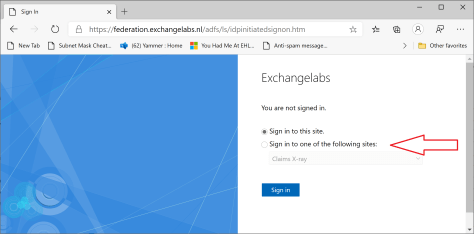
One of the interesting online tools for troubleshooting ADFS is called Claims X-Ray. Claims X-Ray consists of a dedicated Relying Party Trust (RPT) in your ADFS environment. You can logon to the RPT automatically using the online tool, or manually via the ADFS IdpInitiatedSignon page (as discussed in my previous blogpost Implementing Active Directory Federation Services step-by-step)
The X-Ray Relying Party Trust can be created using the following PowerShell commands on your (primary) ADFS server:

[PS] C:\> {$authzRules = "=>issue(Type = `"http://schemas.microsoft.com/authorization/claims/permit`", Value = `"true`"); "
[PS] C:\> $issuanceRules = "@RuleName = `"Issue all claims`"`nx:[]=>issue(claim = x); "
[PS] C:\> $redirectUrl = "https://adfshelp.microsoft.com/ClaimsXray/TokenResponse"
[PS] C:\> $samlEndpoint = New-AdfsSamlEndpoint -Binding POST -Protocol SAMLAssertionConsumer -Uri $redirectUrl

[PS] C:\> Add-ADFSRelyingPartyTrust -Name "Claims X-ray" -Identifier "urn:microsoft:adfs:claimsxray" -IssuanceAuthorizationRules $authzRules -IssuanceTransformRules $issuanceRules -WSFedEndpoint $redirectUrl -SamlEndpoint $samlEndpoint

As shown in the following screenshot:

ADFS RPT X-Ray

If you want to test the Claims X-Ray using oAuth you need to create the oAuth client using the following PowerShell commands, again on your (primary) ADFS server:

[PS] C:\> Add-AdfsClient -Name "Claims X-ray Client" -ClientId "claimsxrayclient" -RedirectUri https://adfshelp.microsoft.com/ClaimsXray/TokenResponse
[PS] C:\> if ([System.Environment]::OSVersion.Version.major -gt 6) { Grant-AdfsApplicationPermission -ServerRoleIdentifier urn:microsoft:adfs:claimsxray -AllowAllRegisteredClients -ScopeNames "openid","profile" }

X-Ray oAuth client

When the Relying Party Trust is created you can continue with the online tool to test it, and thus have a closer look at your environment. In the Claims X-Ray tool enter the federation instance (i.e. federation.exchangelabs.nl) and click Test Authentication as shown in the following screenshot:

Claims X-Ray

It will redirect to your WAP server (default ADFS behavior), enter valid user credentials and it will show the returned SAML token, including the claims it contains.

If I do this for my own environment, it will return a token with 21 claims which contain interesting information like the IP address of the originating client (userip or x-ms-forwarded-client-ip, where I ran the web browser), the IP address of the ADFS WAP server (x-ms-clientip), the type of browser I am using, whether I’m on the corporate network or not, the UPN, implicit UPN and Windows accountname to name a few. A couple of these claims are shown in the following screenshot:

ADFS Token Claims

It is also possible to use the IdpInitiatedSignon page, the Claims X-Ray RPT option is added to this page by the PowerShell commands:

Claims X-Ray initiated signon

When you logon you’ll see a new token with different claims, depending on the location where you are logged on at that moment. While commuting in the train for example I can figure out the way I’m authenticated by ADFS and which claims are issued for this particular scenario:

Claims X-Ray initiated signon authentication

Using the Claims X-Ray online tool you can test the behavior of your ADFS environment from different clients, networks etc. when you have to troubleshoot your environment, or if you are just interested.

For example, at the moment I’m working on an issue where we are difficulties with a MobileIron deployment that needs to authenticate against an ADFS deployment. The rules and policies from the regular RPT can be copied to the Claims X-Ray RPT, after which you can determine the behavior of the RPT, and hopefully figure out why it won’t work in the first place.

More information

Claims X-Ray – https://adfshelp.microsoft.com/ClaimsXray/TokenRequest


Upgrade Azure Connect

Although it is possible to auto-upgrade your Azure AD Connect server, not all releases are available through the auto-upgrade mechanism.

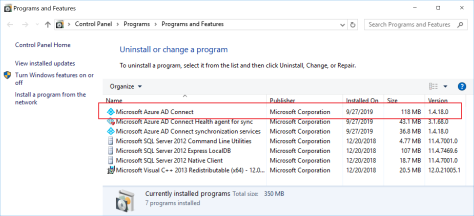
The current version of Azure AD Connect is 1.4.38.0, released on December 9, 2019 and is not available through auto-upgrade for example. The version on my Azure AD connect server is 1.4.18.0. You can easily check this in Control Panel | Programs | Programs and Features.

Azure AD Connect 1.4.18.0

For the version release history of Azure AD Connect check this page: Azure AD Connect: Version release history.

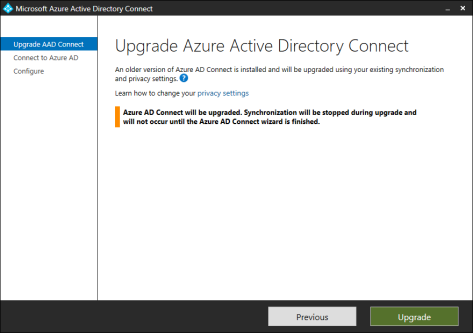
Upgrading is easy, download the latest version from Microsoft Azure Active Directory Connect download page and start the downloaded Windows installer package. When the Upgrade Azure Active Directory Connect window appears, click Upgrade and follow the wizard.

Upgrade Azure AD Connect

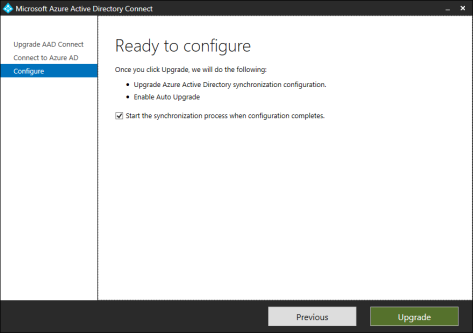
Enter the global tenant admin password in the Connect to Azure AD window, click Next and the Ready to Configure window appears.

Start the synchronization process when configuration completes

It will upgrade the Azure AD synchronization configuration and it will enable auto-upgrade. If needed, you can uncheck the start the synchronization process when configuration completes checkbox, this way you can make manual changes before synchronization start.

Click Upgrade and with 2 minutes the upgrade is finished, and synchronization will resume.


Implementing Active Directory Federation Services step-by-step part II

In the previous blog (Implementing Active Directory Federation Services step-by-Step) I have showed you how to install and configure Active Directory Federation Services (ADFS) in your internal network and DMZ, capable of handling Office 365 authentication request. In this blog I’ll show you how to configure Office 365 and how to test it.

Federated Domains

In a typical managed domain, the user accounts and password hashes are synchronized to Azure Active Directory. Office 365 uses Domain Controllers in Azure AD to authenticate the users and grant them access to the resources in the cloud.

In a federated domain, the user accesses the Office 365, but access is denied, and the request is redirected to Azure Active Directory. There, the home realm (the user’s domain) is discovered and the request is redirected to the ADFS server based on the home realm. If my user account is j.wesselius@exchangelabs.nl, my home realm is exchangelabs.nl and the request is redirected to the federation server that was created earlier, and that was used to configure the domain in Azure Active Directory.

I did a session on this at IT Dev Connections in 2017 (in San Francisco), the following is one animated slide that can be downloaded which shows the flow between a client, Office 365, Azure AD and the on-premises ADFS and Domain Controller:
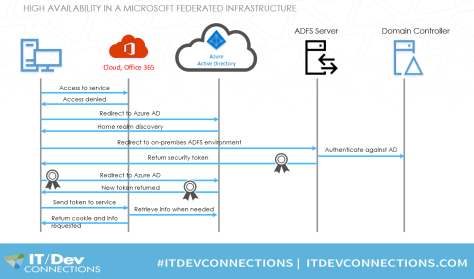
ADFS Federation Flow

To get this working, the domain in Azure Active Directory needs to be converted to a federated domain so that Azure AD knows any authentication request needs to be redirected to the on-premises ADFS environment.

When adding a domain to Azure Active Directory it is automatically created as a managed domain. As said before, authentication takes places against Domain Controllers in Azure AD. You can check a domain using the Get-MsolDomain -DomainName exchangelabs.nl PowerShell command as shown in the following screenshot:

Get-MsolDomain

To convert this to a federated domain, start a PowerShell command (with elevated privileges) and enter the following commands:

[PS] C:\> Connect-MsolService

[PS] C:\> Set-MsolADFSContext -Computer ams-adfs01.labs.local

[PS] C:\> Convert-MsolDomainToFederated -DomainName Exchangelabs.nl

Note. Use the FQDN of the local first ADFS server with the Set-MsolADFSContext command, not the federation URL

This will connect the existing on-premises infrastructure to Azure AD, and convert the domain to a federated domain. Now, when checking the domain in Azure AD using the same command as before you’ll see it now is a federated domain:
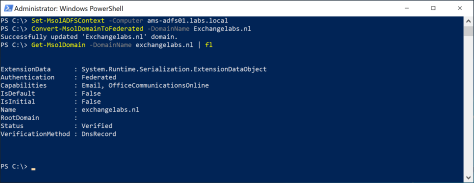
Set-MsolAdfsContext Exchangelabs

In in the ADFS Management Console you’ll a new Relying Party Trust (RPT) for use with Office 365:

ADFS Relying Party Trust

To get more into detail in Azure AD about the federation settings, you can use the Get-MsolDomainFederationSettings command which shows more information:
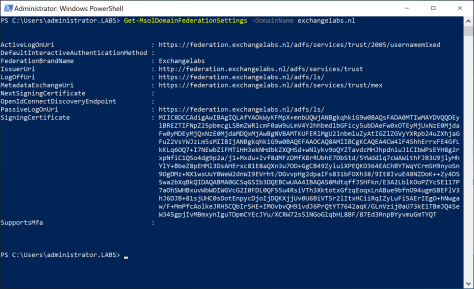
Get-MsolDomainFederationSettings

Clearly visible are the Logon, Issuer and LogOffUri, which point to our on-premises ADFS implementation. Even more information can be retrieved using the Get-MsolFederationProperty command as shown in the following screenshot:
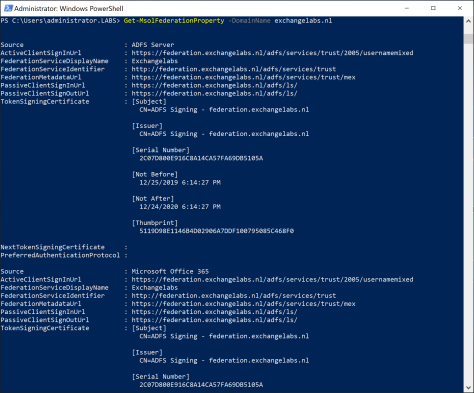
Get-MsolFederationProperty

To test the new configuration, navigate to the Microsoft Online Portal and login using an account with the domain we just configured, i.e. j.wesselius@exchangelabs.nl:
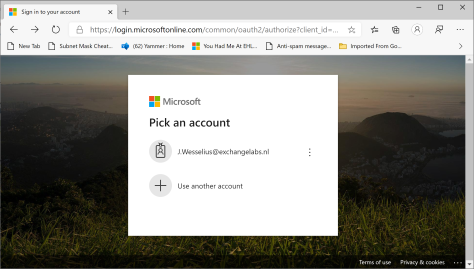
Microsoft Online Portal

When selecting this account, Azure AD determines the home realm (exchangelabs.nl) and redirect to the on-premises URL as found in the federation settings in Azure AD. You’ll see this happen on the fly in your browser:
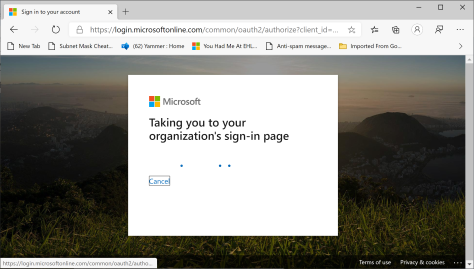
Taking you to your organizations sign-in page

And a few seconds later we are redirected to our on-premises ADFS environment:

ADFS Federation Sign-in page

Clearly visible is the Federation Service display Name which was configured with the first ADFS server in the previous blogpost.

Enter your password, and how wonder, MFA is still working as well (which was a pleasant surprise for me 😊):
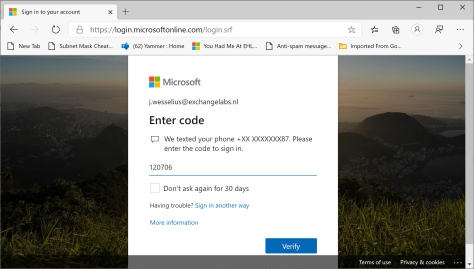
ADFS Exchangelabs MFA

Another interesting test is using the Remote Connectivity Analzyer ( (https://aka.ms/exrca) which has a Single Sign-On test. Navigate to the Remote Connectivity Analyzer, click the Office 365 tab and select the Office 365 Single Sign-On test radio button.

Enter username and password, do the verification code test and await the results. You’ll see something similar as the following screenshot:
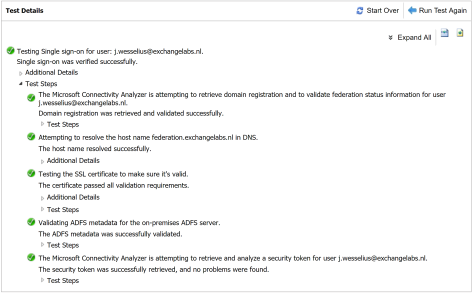
Remote Connectivity Analyzer Single Sign-On Test

The logon attempt was successful, but more interesting is that you can expand all test steps to see what’s going on under the hood and try to understand how ADFS works.

Summary

In the previous two blogposts I demonstrated how to install and configure ADFS in your on-premises infrastructure. I installed only one ADFS server and one WAP proxy, which is far from a high available environment. Why high available? Without the ADFS server it is no longer possible to logon to any Office 365 service, so a high available infrastructure is a requirement for any ADFS implementation.

But customers are moving to the cloud to decommission their on-premises solutions, and with ADFS we’re building an on-premises solution for authenticating cloud solutions. But for compliancy reasons it might be needed to authenticate against local domain controllers (no passwords in the cloud for example). On the other hand, you can use Pass Through Authentication (PTA, see my blogpost Azure AD Connect Pass-through authentication) for this as well. PTA doesn’t offer as much possibilities as ADFS yet, but it is improving.

Is ADFS future proof? Some people say it isn’t, but as long as I find articles like What’s new in Active Directory Federation Services for Windows Server 2019 on the Microsoft website I don’t see too many issues with that.

More information