All posts by jaapwesselius

New Exchange Online PowerShell v2

When using PowerShell with Exchange Online you can use the ‘good old traditional’ way to connect to Exchange Online:

$ExCred = Get-Credential 
$Session = New-PSSession -ConfigurationName Microsoft.Exchange -ConnectionUri https://ps.outlook.com/powershell/ -Credential $ExCred -Authentication Basic -AllowRedirection
Import-PSSession $Session

This is not a recommended way to connect to Exchange Online using your tenant admin account, it uses basic authentication (will be decommissioned in 2021) and MFA (number one prerequisite for tenant admin security!) is not possible.

The second option is the Exchange Online Remote PowerShell Module which you can download from the Exchange Online Admin Center (use Internet Explorer for this download!) as shown in the following screenshot:

Exchange Online PowerShell Module

This is a separate PowerShell module you can start and use the Connect-EXOPSSession command to connect to Exchange Online. This PowerShell module users Modern Authentication and supports Multi-Factor Authentication.

The latest (and newest) option is the Exchange Online PowerShell V2 module. This module works far more efficient with large datasets than the previous PowerShell modules for Exchange Online. It also supports Modern Authentication and Multi-Factor Authentication.

To install the Exchange Online PowerShell V2 module you first have to install the PowerShellGet module using the Install-Module PowershellGet command:

Install-Module PowershellGet

Followed by the Install-Module -Name ExchangeOnlineManagement command:

Install-Module ExchangeOnlineManagement

When installed you can use the Connect-ExchangeOnline command to connect to Exchange Online. When MFA for your admin account is configured it will automatically use it:

Connect-ExchangeOnline

The differences between V1 and V2 are clearly visible in the commands. All V2 commands contain EXO, like:

  • Get-Mailbox vs Get-EXOMailbox
  • Get-Recipient vs Get-EXORecipient
  • Get-MailboxStatistics vs Get-EXOMailboxStatistics
  • Get-CASMailbox vs Get-EXOCASMailbox

This means that all scripts you have written for use with Exchange Online need to be changed to reflect the V2 commands.

For a complete overview you can use the Get-Command *EXO* to retrieve all PowerShell commands that contain EXO (still very limited 🙂 ):

Get-Command EXO

The Exchange Online PowerShell V2 module is still in preview, the current version is 0.3582.0 which you can check using the Get-Module ExchangeOnlineManagement command:

Get-Module ExchangeOnlineManagement

The Exchange Online PowerShell v2 module is a work in progress, but it the future of PowerShell in Exchange Online, so you should keep an eye on this development.

More Information

Use the Exchange Online PowerShell V2 module – https://docs.microsoft.com/en-us/powershell/exchange/exchange-online/exchange-online-powershell-v2/exchange-online-powershell-v2?view=exchange-ps

Install-Module MSOnline fails with unable to download from URI

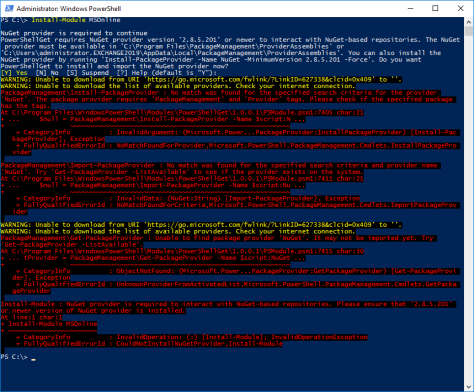
When installing the MSOnline module using the Install-Module MSOnline command in PowerShell it fails with a cryptic error like:

WARNING: Unable to download from URI ‘https://go.microsoft.com/fwlink/?LinkID=627338&clcid=0x409’ to ”.
WARNING: Unable to download the list of available providers. Check your internet connection.
PackageManagement\Install-PackageProvider : No match was found for the specified search criteria for the provider ‘NuGet’. The package provider requires ‘PackageManagement’ and ‘Provider’ tags. Please check if the specified package has the tags.

And

WARNING: Unable to download from URI ‘https://go.microsoft.com/fwlink/?LinkID=627338&clcid=0x409’ to ”.
WARNING: Unable to download the list of available providers. Check your internet connection.
PackageManagement\Get-PackageProvider : Unable to find package provider ‘NuGet’. It may not be imported yet. Try ‘Get-PackageProvider -ListAvailable’.
Install-Module : NuGet provider is required to interact with NuGet-based repositories. Please ensure that ‘2.8.5.201’ or newer version of NuGet provider is installed.

As shown in the following screenshot:

Install-PackageProvider

It turns out that this is a TLS issue, PowerShell does not use TLS 1.2 by default, while Microsoft requires TLS 1.2 from clients. To set TLS 1.2 usage for PowerShell, you can use the following command:

[Net.ServicePointManager]::SecurityProtocol = [Net.SecurityProtocolType]::Tls12

Now if you try again, it will install the MSOnline module:

Install-Module MSOnline

This is a per session setting, if you want to enable it for all sessions, add the previous command to the Microsoft.PowerShell_profile.ps1 and Microsoft.PowerShellISE_profile.ps1 profiles (use Notepad $Profile for this.

More information

Azure ActiveDirectory (MSOnline) – https://docs.microsoft.com/en-us/powershell/azure/active-directory/install-msonlinev1?view=azureadps-1.0

Microsoft Teams and Exchange 2016

Microsoft Teams works best when your mailbox is in Exchange Online, and you have a license for SharePoint Online, and you have OneDrive for Business enabled.

When you have your mailbox in Exchange on-premises your options are limited, you have basic Teams functionality like audio/video and files, but that’s basically it. Not a trace of the calendar or the option to manage meetings in Teams. This is what ‘cloud partners’ have been telling me for a long time: “no, you must migrate your mailbox to Exchange Online” (and we can help you with that I was they were thinking…)

Teams with Exchange on-premises

But, if you have Exchange 2016 CU3 or higher things get better (I’m sorry if you are still running Exchange 2010). To enable the integration of Teams with on-premises Exchange 2016 you need to configure OAuth in your on-premises environment as outlined in my previous blog, and assuming you have Exchange hybrid configured of course.

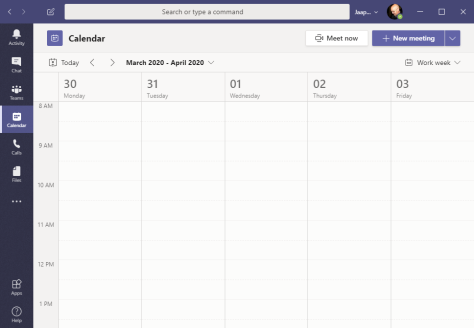
When you have OAuth configured, Teams can access the on-premises mailbox on behalf of the user that’s logged on in Teams, making it possible to retrieve the user’s calendar. After configuring OAuth and without any additional configuration in Teams the user’s on-premises calendar (here in Exchange 2019) automagically appears:

Teams with Exchange on-premises OAuth

In the Teams client this is a view of your calendar, and using the new meeting option you can create new Teams meetings, invite people, set recurrence, select a channel etc. Invites are sent to other recipients using the regular Exchange process, and when accepted a response is sent (or not) back to your inbox. I never knew this was possible, but this is cool stuff.

Teams with Exchange on-premises new meeting

Integrating the calendar into Teams is a nice addition and it can help users with their daily productivity task. From a compliance perspective things are a bit different. Chats for example are not stored in the user’s mailbox, this is only possible for mailboxes in Exchange Online. The process responsible for copying Teams chat data from the Azure storage (outside of Office 365) simply cannot access the folder in the user’s mailbox.

But, for on-premises calendar integration in your Teams environment this is very nice.

More information

How Exchange and Microsoft Teams interact – https://docs.microsoft.com/en-us/microsoftteams/exchange-teams-interact

Configure OAuth authentication between Exchange and Exchange Online organizations – https://docs.microsoft.com/en-us/exchange/configure-oauth-authentication-between-exchange-and-exchange-online-organizations-exchange-2013-help


Configure OAuth authentication in Exchange 2016

As long as I can remember the Hybrid Configuration Wizard finishes successfully, and itgenerates the error about the OAuth portion of the hybrid configuration.
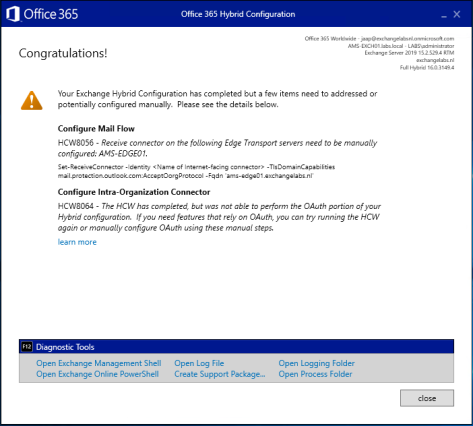
Configure Intra-Organization Connector

HCW8064 – The HCW has completed, but was not able to perform the OAuth portion of your Hybrid configuration. If you need features that rely on OAuth, you can try running the HCW again or manually configure OAuth using these manual steps.

The Learn more option redirects to the Microsoft page Configure OAuth authentication between Exchange and Exchange Online organizations. I used that article for the PowerShell commands in this blogpost.

OAuth is used cross-premises to logon to other services, on behalf of the user. So, if you are logged on to some Microsoft service, this service can use OAuth to access services in Exchange on-premises and vice versa.

Example of these cross-premises services are:

  • Message Records Management (MRM).
  • Exchange in-place eDiscovery.
  • Exchange in-place Archiving.
  • Teams calendaring.

The HCW can configure Azure Active Directory for OAuth authentication, it can create the IntraOrganizationConnectors, but it cannot export and import the (self-signed) certificate on the Exchange server, nor can it (or does it) create the authorization server objects in Active Directory. So, time to test, guided by the Microsoft article and write down my experiences.

Note. This only works for Exchange 2013 and higher, I have been working on this in a mixed Exchange 2016 and Exchange 2019 environment.

Configuring OAuth between Office 365 and Exchange Online involve a number of steps.

Create Authorization server objects in Exchange on-premises

To create the authorization server objects in your on-premises environment enter the following commands in the Exchange Management Shell.

New-AuthServer -Name "WindowsAzureACS" -AuthMetadataUrl "https://accounts.accesscontrol.windows.net/contoso.com/metadata/json/1"
New-AuthServer -Name "evoSTS" -Type AzureAD -AuthMetadataUrl https://login.windows.net/contoso.com/federationmetadata/2007-06/federationmetadata.xml

Your verified domain contoso.com (in the command) should be something like exchangelabs.nl, and not <your tenant name> as outlined in the Microsoft article.
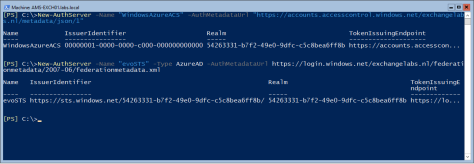
New-AuthServer

Enable the partner application for use with Exchange Online

The partner application was created in the previous step (the first command) and this should be enabled. Do this using the following command in Exchange Management Shell (on-premises):

Get-PartnerApplication | ?{$_.ApplicationIdentifier -eq "00000002-0000-0ff1-ce00-000000000000" -and $_.Realm -eq ""} | Set-PartnerApplication -Enabled $true

Export the Exchange authorization certificate

Authentication cross-premises is using certificates, so the on-premises certificate needs to be exported to Azure Active Directory. In case you were wondering where the CN=Microsoft Exchange Server Auth Certificate certificate was coming from when running the Get-ExchangeCertificate command in Exchange Management Shell, here you go.

Use the following PowerShell commands and store them in a PowerShell script called ExportAuthCert.ps1 or something and run it. This should export the OAuth certificate to a file called OAuthCert.cer.

$ThumbPrint = (Get-AuthConfig).CurrentCertificateThumbprint
If((Test-Path $ENV:SYSTEMDRIVE\OAuthConfig) -eq $false)
{
md $ENV:SYSTEMDRIVE\OAuthConfig
}
CD $ENV:SYSTEMDRIVE\OAuthConfig
$oAuthCert = (dir Cert:\LocalMachine\My) | ?{$_.ThumbPrint -Match $ThumbPrint}
$CertType = [System.Security.Cryptography.X509Certificates.X509ContentType]::Cert
$CertBytes = $oAuthCert.Export($CertType)
$CertFile = "$env:SYSTEMDRIVE\OAuthConfig\OAuthCert.cer"
[System.IO.File]::WriteAllBytes($CertFile, $CertBytes)
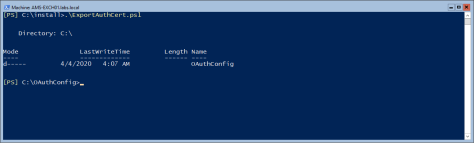
ExportAuthCert

Note. The Export-ExchangeCertificate command doesn’t work in this scenario since the self-signed certificate isn’t exportable.

Import the Exchange authorization certificate into Azure AD

The next step is to import the OAuthCert.cer certificate into Azure AD. Connect to the Microsoft Online service (Connect-MSOLService, if you don’t have this installed you can use the Install-Module MSOnline command) and run the following commands when connected:

$Cred = Get-Credential
Connect-MSOLService -Credential $Cred
$CertFile = "$ENV:SYSTEMDRIVE\OAuthConfig\OAuthCert.cer"
$objFSO = New-Object -ComObject Scripting.FileSystemObject
$CertFile = $objFSO.GetAbsolutePathName($CertFile)
$CER = New-Object System.Security.Cryptography.X509Certificates.X509Certificate
$CER.Import($CertFile)
$binCert = $cer.GetRawCertData()
$CredValue = [System.Convert]::ToBase64String($binCert)
$ServiceName = "00000002-0000-0ff1-ce00-000000000000"
$P = Get-MsolServicePrincipal -ServicePrincipalName $ServiceName
New-MsolServicePrincipalCredential -AppPrincipalId $P.AppPrincipalId -Type asymmetric -Usage Verify -Value $credValue

This will import the self-signed certificate from the Exchange server into Azure AD so it can be used for mutual authentication.

I did not run the commands mentioned above on my Exchange server but on my Azure AD Connect server since the MSOL module was loaded on that server. For importing the certificate file I had to use the following command accessing the certificate file (instead of the $ENV:System variable):

$CertFile = "\\AMS-EXCH01\C$\OAuthConfig\OAuthCert.cer"

Register endpoints in Azure Active Directory

The last step is to register the endpoints of your on-premises Exchange environment into Azure Active Directory. You can use the following commands to register the endpoints:

$ServiceName = "00000002-0000-0ff1-ce00-000000000000";
$x = Get-MsolServicePrincipal -AppPrincipalId $ServiceName;
$x.ServicePrincipalnames.Add("https://webmail.exchangeserver.com/");
$x.ServicePrincipalnames.Add("https://autodiscover.exchangeserver.com/");
Set-MSOLServicePrincipal -AppPrincipalId $ServiceName -ServicePrincipalNames $x.ServicePrincipalNames;

Instead of webmail.exchangeserver.com and Autodiscover.exchangeserver.com you must use your own local FQDNs of the Exchange server (shown below in the verification screenshot).

You can use the the following command to check if this was configured correctly.

Get-MsolServicePrincipal -AppPrincipalId 00000002-0000-0ff1-ce00-000000000000 | select -ExpandProperty ServicePrincipalNames

As shown in the following screenshot:
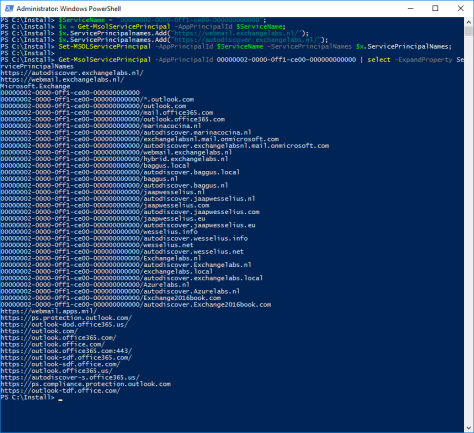
Register Endpoints

Note. Over the years I have run the HCW several times. Domains have been added, but not (automatically) deleted in Azure Active Directory.

IntraOrganizationConnectors and AvailabilityAddressSpace

The Hybrid Configuration Wizard created the IntraOrganizationConnectors (both in Exchange 2016 as well as Exchange Online) and configured the AvailabilityAddressSpace. There’s no need to create these, but you have to check them using the Get-IntraOrganizationConnector and the Get-AvailabilityAddressSpace commands)

Verify the OAuth configuration

To verify the OAuth configuration you can use the Test-OAuthConnectivity command. You must do this on the on-premises Exchange server and in Exchange Online.

On the on-premises Exchange server use the Exchange Online Uri and a mailbox on-premises:

Test-OAuthConnectivity -Service EWS -TargetUri https://outlook.office365.com/ews/exchange.asmx -Mailbox onprem-user@exchangeserver.com -Verbose | Format-List

In Exchange Online, use the Exchange on-premises Uri with a mailbox in Exchange Online:

Test-OAuthConnectivity -Service EWS -TargetUri https://webmail.exchangeserver.com/metadata/json/1 -Mailbox Online-User@exchangeserver.com -Verbose | Format-List

The output is an extended list, but in the end you should see ResultType: Success and IsValid:True on your console:
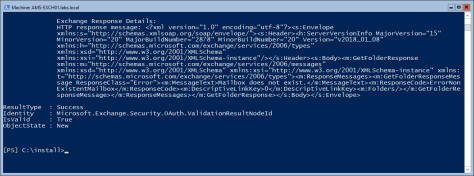
Test-OAuthConnectivity

You have now configured the OAuth between Exchange Online and Exchange On-Premises.


Basic Authentication in Office 365 Part II

Update. Microsoft has changed their plans due to the Covid-19 crisis going on at the moment. Support for Basic Authentication in Exchange Online has been postponed to the second half of 2021 according to their blogpost on Basic Authentication and Exchange Online – April 2020 Update.

There are a few things to be aware of. For new tenants, Basic Authentication is already turned off, for older tenants it is still turned on. However, if Basic Authentication has not been used in a tenant it will be turned off as well. This will start upcoming October.

In my previous blogpost I explained more about basic and modern authentication, how they work and how to identify which method your outlook client is using. In this blogpost I will explain more about monitoring basic authentication to find out which clients are currently still using basic authentication in your Office 365 environment. I will continue with how to disable basic authentication and how to test what might happen.

Monitoring Basic Authentication

In my previous blogpost I explained a bit more about basic authentication and how to identify it, and the working of modern authentication.

The next step is to identify how many users and application are actually using basic authentication in your Office 365 environment. After all, these are the users that are impacted when Microsoft stops basic authentication.

To identify this, logon to the Azure Active Directory Portal (https://aad.portal.azure.com) and select sign-ins (under Monitoring). There you will see an overview of all sign-ins in Azure AD, successful and failed, for all clients, all services and all locations. An example is shown in the following screenshot (click to enlarge):

This shows all logins in Azure AD, for all aplications and services, failed and successful. You can use the Add Filters button to narrow down the information, in this blogpost to show only information regarding Basic Authentication.

To do this, click Add Filter | Select Client App | Click Apply

Click on “Client App: None Selected” and select all options except Browser and Mobile Apps and Desktop Clients as shown in the following screenshot (click to enlarge):

Modern Authentication Clients

Note. Updated the screenshot on April 6, 2020. Microsoft made a nice GUI enhancement here to easily identify different clients (modern vs legacy).

Now an overview will be shown of all basic authentication attempts in your environment. When you select one entry it will show additional details, including the client application, the username and the the user agent (which identifies the client app) as shown in the following screenshot (click to enlarge):

Another interesting thing is that you can identify where all failed basic authentication attempts are coming from. Add a filter Status | Failure and you will see only failed attempts. Some are legitimate (typo when entering password) but most of them are just brute force attacks. The following screenshot shows attempts coming from Russia, Thailand and New Caledonia, located where we don’t have offices. You can also see that the attempt is coming from a script (User agent CBAInPROD) and that it’s using IMAP4 (which is disabled for all mailboxes). This is one reason why you want to disable basic authentication in your tenant. Click to enlarge:

This is an easy way to identify mobile clients that use ActiveSync as a protocol and thus are using basic authentication. Apple iOS native mail client support OAuth2 since iOS11, so all recent iPhones are using modern authentication. For the Android native mail client things are different. The native Gmail client support OAuth2 but cannot be used of course with Office 365. Most other mail clients do not support OAuth2 yet, so these are using basic authentication and will run into issues when Microsoft stops basic authentication. In other words, these clients will stop working. Change the Client App filter to Exchange ActiveSync only and remove the Status | Failure filter. It will show a list of mobile users that use basic authentication as shown in the following screenshot (username is removed for privacy reasons) (click to enlarge):

Note. Outlook for iOS and Outlook for Android are using OAth2 so these will continue to work.

So, using the filtering options on the sign-in page in the Azure AD portal you can identify which clients are still using basic authentication when accessing Office 365 services (and thus which clients are impacted when basic authentication is stopped).

Disabling basic authentication

It is possible to disable basic authentication in your Office 365 by creating an Authentication Policy and apply this policy to users. Once applied they can no longer use basic authentication to logon to any Office 365 service. To create a new Authentication Policy use the following command in Exchange Online PowerShell:

[PS] C:\> New-AuthenticationPolicy -Name “Block Basic Authentication”

To add a user to the policy and effectively block basic authentication for this user you can use the following command in Exchange Online PowerShell:

[PS] C:\> Set-User -Identity j.wesselius@exchangelabs.nl -AuthenticationPolicy “Block Basic Authentication”

It will take up to 24 hours before this policy is effective. To take the policy effect (almost immediately, or at least within 30 minutes) you can use the following command:

[PS] C:\> Set-User -Identity j.wesselius@exchangelabs.nl -AuthenticationPolicy “Block Basic Authentication” -STSRefreshTokensValidFrom $([System.DateTime]::UtcNow)

To remove a user from an authentication policy you can use $Null for the authentication policy:

[PS] C:\> Set-User -Identity j.wesselius@exchangelabs.nl -AuthenticationPolicy $Null

When you have a number of users added to this authentication policy you can start testing with various clients and create a table with clients and scenarios, like the table below:

Client Results
Office 2010 Stops working (keeps asking for password)
Office 2013/2016 Continues to work (was already using Modern Authentication)
Outlook 2010 on-premises mailbox, cross-premises free/busy Continues to work, but need further investigation (note 1)
Outlook 2013/2016 on-premises mailbox, cross-premises free/busy Continues to work
iPhone 8, iOS13, native mailclient Continues to work
iPhone 8, iOS13, Outlook for iOS Continues to work
Samsung A10, Android 9, native Email client 6.1.11.6 Stops working
Samsung A10, Android 9, AquaMail (by MobiSystems, supports OAuth) Continues to work (note 2)
Samsung A10, Android 9, Outlook for Android Continues to work
Exchange Online PowerShell New-PSSession Stops working (note 3)
Exchange Online PowerShell module Continues to work
Exchange PowerShell V2 Continues to work
POP3 Clients TBD
IMAP4 Clients TBD

Note 1. In this scenario an Outlook client is using an on-premises mailbox but tries to retrieve free/busy information from a mailbox that’s in Exchange Online. Both accounts have basic authentication disabled in Azure AD.

Note 2. The native mailclient in Android 9 (on my Samsung A10) only supports basic authentication. This is not a device limitation but an application limitation. AquaMail (from MobiSystems) for example does support OAuth and keeps working when basic authentication is disabled. AquaMail however is not a free application but a subscription based application.

Note 3. It is possible to connect to Exchange Online as shown in line 9 of the table using the following method:

$ExCred = Get-Credential TenantAdminAccount
$Session = New-PSSession -ConfigurationName Microsoft.Exchange -ConnectionUri https://ps.outlook.com/powershell/ -Credential $ExCred -Authentication Basic -AllowRedirection
Import-PSSession $Session

This is using basic authentication and will stop working. However, you should not use this way of working anyway because it does not support MFA, which is a recommended best practice for admin accounts! For more information please check Multi Factor Authentication MFA in Office 365 for admin accounts.

Summary

In the previous two blogposts I tried to explain a bit more about basic and modern authentication, and what might happen when Microsoft ends support for basic authentication in Exchange Online next October.

For sure, things will break when connecting to Exchange Online. The most obvious is Outlook 2010 which won’t connect anymore. Native mobile clients that do not support oAuth2 (common in Android mail apps, but also older iPhones) stop working too. If you don’t act now you will be in a lot of trouble when Microsoft makes the change.

For now, start testing using the options I explained in this second blogpost. Create your own list of apps and services that use basic authentication and start testing with an authentication policy that blocks basic authentication. That’s the only way to prepare for this major (mega major) upcoming change. But in the end, we will all benefit from a security point of view.

More information